TL;DR

Get audio and creator gear delivered free with Prime
- Fast, free delivery on millions of items
- Prime Video, Amazon Music and more included
- Member-only deals all year
Clean HDMI output delivers a pure, overlay-free video signal from cameras, essential for professional streaming. It allows seamless integration of overlays, multi-camera setups, and higher quality feeds with affordable gear.
Ever watched a live stream and thought, “That looks so clean and professional”? Chances are, behind the scenes, they’re using clean HDMI output. It’s a game-changer for anyone serious about their stream quality. But what exactly is it, and why should you care?
If you’re building a streaming setup on a budget or want that sleek, polished look, understanding clean HDMI is your first step. This guide breaks down what it is, why it matters, and how you can get your hands on it without breaking the bank.
Clean HDMI Output: What It Is and Why Streamers Need It
Clean HDMI output sends a pure, overlay-free camera signal into your streaming setup. No menus, battery icons, focus boxes, or camera clutter. Just a crisp feed ready for OBS, branded graphics, multi-camera switching, and a more broadcast-grade look.
The difference between “camera connected” and “stream ready.”
Modern cameras and affordable capture cards have made clean HDMI accessible to hobbyists and pros alike, often without broadcast-level budgets.
Capture card entry point for turning HDMI into a streaming source.
Typical wired HDMI delay for live interaction and monitoring.
A cleaner signal gives your stream room to breathe.
Clean HDMI strips away the camera interface so production software can add graphics, lower thirds, scene layouts, and brand elements without fighting the camera’s own display data.
No menus on screen
The audience sees the shot, not exposure meters, autofocus boxes, recording icons, or battery warnings.
Built for overlays
Graphics, alerts, captions, and branded frames sit cleanly over the camera feed in OBS, Streamlabs, or a switcher.
Multi-cam ready
A clean feed makes matching cameras, switching angles, and routing signals through capture hardware much easier.
Enable clean HDMI before you go live.
Most cameras follow the same basic pattern: disable display info, connect HDMI to capture hardware, then select the capture card inside your streaming software.
Disable overlays
Open the camera menu and turn off display info, HDMI info display, or screen overlays.
Connect HDMI
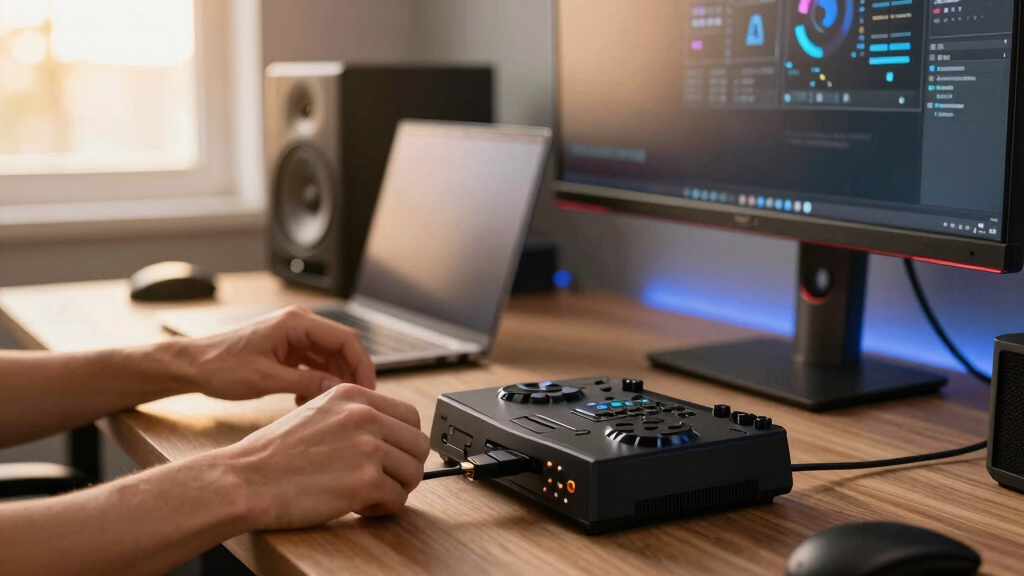
Use a reliable HDMI cable from camera to capture device, then plug the capture device into your computer.
Select the source
In OBS or your streaming app, add the capture card as a video source and confirm the feed is clean.
The practical setup is smaller than most people expect.
A capable mirrorless or DSLR camera, HDMI capture card, quality cable, solid lighting, and a stable mount can create a sharp streaming image without a full studio buildout.
Check clean HDMI first
Canon EOS M series, Sony Alpha models, and Panasonic GH cameras are common picks, but exact support depends on model and firmware.
Convert HDMI to USB
Devices like Elgato Cam Link or AVerMedia Live Gamer make the camera appear as a video source in streaming software.
Cables still matter
Cheap or damaged HDMI cables can cause flicker, dropped signal, or failed resolution handshakes during a live show.
Where clean HDMI improves the stream.
The biggest gains show up in polish, overlay control, camera flexibility, and lower distraction. Wireless HDMI adds mobility, but wired HDMI remains the simple reliability baseline.
Wired HDMI is the default. Wireless is the specialist tool.
For a desk, studio, or fixed camera angle, wired HDMI is usually simpler and lower latency. Wireless HDMI earns its keep when movement and cable-free placement matter more than absolute predictability.
| Feature | Wired HDMI | Wireless HDMI | Streamer Takeaway |
|---|---|---|---|
| Setup complexity | ✓ Simple plug-and-play | ~ More pairing and placement | Use wired for the fastest first setup. |
| Latency | ✓ Often under 20ms | ~ Can reach 50ms or more | Live chat, gaming, and reactions favor wired. |
| Flexibility | ~ Limited by cable length | ✓ Move freely within range | Wireless helps outdoor, handheld, or roaming shots. |
| Cost | ✓ Around $50-$150 | ~ Quality units often $200+ | Budget builds should start wired. |
| Interference risk | ✓ Low | ✗ Can be affected by wireless noise | Test before any important live event. |
Most clean HDMI problems are preventable.
The common failures are buying an incompatible camera, ignoring firmware updates, choosing weak cables, or discovering wireless latency only after the stream begins.
Rule of thumb: verify the signal before buying the setup around it.
Check your camera manual, firmware notes, HDMI output resolution, frame rate support, and whether the menu can be hidden over HDMI. A clean feed is a feature, not an assumption.
Compatibility: Not all cameras output clean HDMI, especially older or entry-level models.
Resolution: Camera, capture card, and platform must all support the target format.
Latency: Wireless HDMI can delay reactions, monitoring, and live interaction.
Cost creep: Camera, capture card, battery power, cable, tripod, and lighting add up quickly.
From camera signal to polished broadcast.
Clean HDMI is the clean starting point. The rest of the workflow depends on routing, processing, designing, and testing that signal before viewers ever see it.
What Exactly Is Clean HDMI Output, and Why Should You Care?
Clean HDMI output is a video signal from a camera that’s stripped of all overlays, menus, and interface elements. Imagine filming a scene without any distracting icons or information—just a crisp, clear picture. That’s what a clean feed offers, perfect for overlaying graphics, adding branding, or professional editing.
For streamers, this means a more polished, distraction-free image. It allows you to craft a consistent, high-quality look—like a TV broadcast—without those confusing camera menus flashing on screen. Plus, it makes multi-camera setups and external processing a breeze.
Think of it as the difference between a cluttered dashboard and a sleek dashboard—one’s easy to focus on, the other’s filled with noise. Streamers need that clean feed to look professional, attract viewers, and stand out.
Understanding why clean HDMI is crucial helps you grasp its impact. It’s not just about aesthetics; it affects your workflow, production quality, and viewer perception. A clean feed allows for greater flexibility in post-production, live editing, and overlay management, which can significantly elevate your streaming game. The tradeoff is that achieving clean HDMI might require specific camera models or additional hardware, so balancing cost and quality is key.
As an affiliate, we earn on qualifying purchases.
How Modern Cameras Make Clean HDMI Easy (Even on a Budget)
Getting a clean HDMI feed used to require pricey, specialized equipment. Now, many cameras support it via firmware updates or built-in features. For example, a Canon EOS M50 Mark II or Sony Alpha series can output clean HDMI with just a quick toggle in settings.
In fact, some models support 4K resolution at 60fps, making your streams look crisp and smooth. You might spend around $500-$1,000 for a good mirrorless camera that offers clean output, which is often much cheaper than professional broadcast gear.
And here’s a real-world tip: always check your camera’s manual or firmware updates before buying. Some cheaper models might not support clean HDMI, or they require a workaround like disabling menus manually.
Choosing a camera that supports clean HDMI is a strategic decision. It not only affects your initial setup cost but also impacts your future scalability. For instance, investing in a camera with higher resolution and frame rate support can future-proof your streaming capabilities, but be mindful of potential tradeoffs like increased power consumption or complexity in setup. Balancing these factors ensures you get the most value for your investment.
HDMI to USB streaming capture device
As an affiliate, we earn on qualifying purchases.
As an affiliate, we earn on qualifying purchases.
What Gear Do You Need to Turn Your Camera Into a Streaming Powerhouse?
To get that clean feed on your stream, you’ll need a few essentials:
- Camera with clean HDMI support
- HDMI capture card (like Elgato Cam Link or AVerMedia Live Gamer)
- Good HDMI cable (avoid cheap, low-quality cables that can cause signal issues)
- External monitor or software to view your clean feed
For example, if you’re using a Sony Alpha series camera, connect it via HDMI to a capture card, then run the feed into OBS or Streamlabs. Suddenly, you have a professional, overlay-ready video source.
Pro tip: For a budget setup, a $150 capture card paired with a mid-range mirrorless camera can produce stunning results. Wireless HDMI options exist but beware of latency if you’re doing live interaction.
Beyond the hardware, consider the implications of your setup. Using a high-quality capture card ensures minimal latency and maximum reliability, which is critical for live interaction and real-time feedback. Additionally, investing in a sturdy tripod and good lighting can complement your clean HDMI setup, making your overall production look more professional. The right combination of hardware and environment enhances your stream’s quality and viewer engagement.
As an affiliate, we earn on qualifying purchases.
Comparison Table: Wired vs Wireless HDMI for Streamers
| Feature | Wired HDMI | Wireless HDMI |
|---|---|---|
| Setup complexity | Simple, plug-and-play | More setup, potential interference |
| Latency | Minimal, usually under 20ms | Can vary, up to 50ms or more |
| Flexibility | Limited by cable length (up to 50ft typical) | High, move freely within range |
| Cost | Lower, around $50-$150 | Higher, $200+ for quality units |
If you’re streaming from a fixed location, wired is easiest. Wireless is perfect for flexible setups like outdoor shoots or multi-angle scenes where cables get in the way.
While wireless HDMI can offer great convenience, it often involves tradeoffs. Higher latency can cause delays in live interactions, making real-time communication more challenging. The potential for interference from other wireless devices can also impact signal stability, which might lead to flickering or dropped feeds. Therefore, understanding these tradeoffs helps you decide whether the convenience outweighs the possible technical issues in your specific streaming context.
professional streaming HDMI splitter
As an affiliate, we earn on qualifying purchases.
As an affiliate, we earn on qualifying purchases.
Common Pitfalls and How to Avoid Them
Getting a clean HDMI feed isn’t always straightforward. Here are pitfalls to watch for:
- Compatibility issues: Not all cameras support clean HDMI. Check specs first.
- Signal interference: Wireless options can suffer from interference—keep devices away from Wi-Fi routers or microwaves.
- Latency problems: Wireless can introduce delays, making live interactions awkward. Test before going live.
- Cost creep: High-quality capture cards and cameras add up. Set a budget and stick to it.
For example, I once bought a cheap wireless unit, only to find it added noticeable delay. Switching to a wired HDMI setup saved the day for real-time chat and game streaming.
Understanding these pitfalls is crucial because overlooking them can lead to degraded stream quality, frustrating delays, or unexpected costs. For instance, not verifying camera compatibility can result in purchasing equipment that doesn’t support clean HDMI, wasting money and time. Similarly, ignoring interference risks can cause unstable feeds, forcing you to troubleshoot during critical moments. Recognizing these issues beforehand allows you to plan effectively, ensuring a smoother streaming experience without costly surprises.
How to Enable and Use Clean HDMI in 3 Simple Steps
- Disable overlays: Head into your camera’s menu and turn off display info or overlays.
- Connect your camera: Use a quality HDMI cable to connect your camera to the capture device.
- Configure your software: Open OBS or your streaming platform, select your capture card as the source, and you’re good to go.
For example, on a Canon M50, you just disable display info in settings, then plug in HDMI, and select the capture card in OBS. It’s that simple.
What’s the Real Impact of Using Clean HDMI for Your Stream?
Using clean HDMI makes your broadcast look more polished and professional. Your overlays sit perfectly on a crisp, distraction-free background. It’s like switching from a shaky, cluttered camera to a steady, clean shot with studio-quality clarity.
Imagine streaming a game or a talk show, and your viewers see only what you want them to see—no menus, no clutter. That’s the power of clean HDMI. It’s a simple upgrade that can boost viewer engagement and credibility.
Plus, it opens doors to multi-camera shoots, adding cinematic flair or switching angles seamlessly. The difference is night and day.
Beyond aesthetics, the use of clean HDMI also impacts your production flexibility. It allows for more advanced editing, live switching, and integration with professional streaming workflows. This means you can produce content that rivals broadcast quality, elevating your brand and attracting a larger audience. The tradeoff lies in the initial investment and setup complexity, but the long-term gains in professionalism and viewer retention are well worth it.
Key Takeaways from This Guide
- Modern cameras support clean HDMI output—check your model’s firmware and settings first.
- You need a capture card to turn your camera’s HDMI into a computer-friendly signal.
- Wireless HDMI offers flexibility, but watch out for latency issues.
- Disabling overlays is usually just a menu toggle on your camera.
- Investing in a clean HDMI setup can significantly elevate your stream quality.
Frequently Asked Questions
Do I need a special camera to get clean HDMI output?
Not necessarily. Many modern mirrorless and DSLR cameras support clean HDMI via firmware updates or specific settings. Always check your camera’s manual or manufacturer website first.Can I use my phone for clean HDMI output?
Some smartphones support clean HDMI with the right apps or adapters, but compatibility varies widely. Most professional streams use dedicated cameras for reliability and quality.Is wireless HDMI a good option for streaming?
Wireless HDMI offers flexibility, especially for multi-angle or outdoor shots. But beware of latency and interference; wired connections tend to be more reliable for live interactions.How much does a basic clean HDMI setup typically cost?
A decent setup with a mid-range mirrorless camera (~$500-$1,000) and a good capture card (~$100-$150) can produce professional results for around $600-$1,200.Will clean HDMI improve my stream quality?
Yes. It provides a sharper, clearer image free of overlays, which makes your broadcast look more professional and reduces distractions for viewers.Conclusion
If you’re serious about your stream’s look, mastering clean HDMI output is a no-brainer. It’s the difference between a blurry, cluttered feed and a polished broadcast. With the right gear and setup, you can turn your modest studio into a professional-grade production—without spending a fortune.
Next time you hit “Go Live,” remember: a clean feed isn’t just a technical detail. It’s the foundation of a stream that keeps viewers engaged and coming back for more.
Halloween Picks
halloween
As an affiliate, we earn on qualifying purchases.