TL;DR

Get audio and creator gear delivered free with Prime
- Fast, free delivery on millions of items
- Prime Video, Amazon Music and more included
- Member-only deals all year
An iPad, especially with the Apple Pencil, can be a capable, portable alternative to traditional pen displays for many artists. While it offers great flexibility and lower costs, size and ergonomics might limit some professional workflows.
Many digital artists wonder if an iPad can serve as a full replacement for traditional pen displays like Wacom or Huion. As technology advances, the gap between these devices narrows. Suddenly, your tablet becomes more than just a sketchpad—it’s a potential primary tool for serious work.
If you’re considering ditching that bulky pen display for a sleek iPad, understanding what it can and can’t do helps. Is the iPad just a fancy sketchbook, or can it handle big, detailed projects? Let’s find out.
The latest iPads with Apple Pencil support provide pressure sensitivity and tilt detection comparable to many pen displays.
Apps like Procreate and Adobe Fresco make the iPad a viable platform for professional illustration and animation.
Portability and multi-functionality make the iPad attractive, but ergonomic comfort for long sessions can be a challenge.
Connecting the iPad to a computer via Sidecar or Luna Display bridges the gap between tablet and pen display workflows.
Choosing between an iPad and a pen display depends on project size, comfort needs, and whether you prioritize mobility or workspace.
Can an iPad Replace a Pen Display for Digital Art?
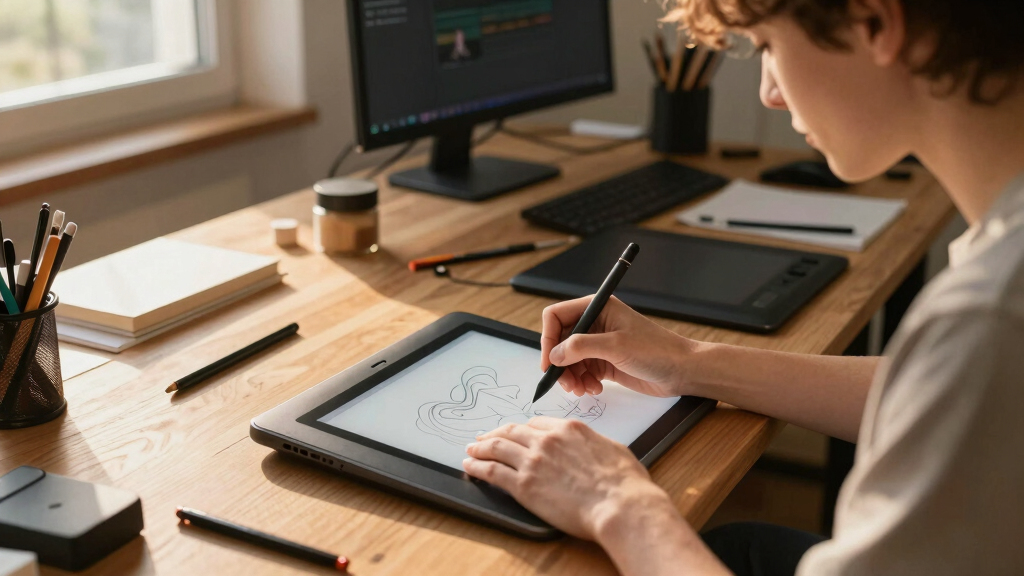
For many illustrators, comic artists, animators, and concept designers, the answer is yes. The iPad combines precise pen input, professional apps, and unmatched portability—but large canvases, desktop-only tools, and long studio sessions still favor a dedicated pen display.
Three factors decide whether the switch works.
Raw drawing quality is only one part of the decision. Your canvas scale, software dependencies, and physical working style determine whether an iPad feels liberating—or limiting.
Responsive enough for serious drawing
Apple Pencil input combines pressure response, tilt detection, precise tracking, and low latency. P3 wide color and high-refresh iPad Pro displays add smooth, vibrant visual feedback.
Smaller canvas, lighter footprint
An iPad travels easily and works without a desk or computer. The tradeoff is less physical drawing room than a 24- or 32-inch pen display.
Excellent apps, with a few gaps
Procreate, Fresco, Photoshop, Affinity Designer, and Clip Studio Paint cover most creative needs. Specialized desktop plugins and complex production pipelines may still require a computer.
Pen performance is no longer the main barrier.
With thousands of reported pressure levels plus tilt support, the practical differences increasingly come down to screen size, app compatibility, shortcuts, and comfort—not whether the stylus can produce expressive marks.
iPad vs. pen display, capability by capability.
The iPad wins on mobility and independence. A traditional pen display wins when maximum workspace, desktop integration, and long-session ergonomics matter most.
| Decision factor | iPad + Apple Pencil | Dedicated pen display | Practical winner |
|---|---|---|---|
| Pen response | Low latency, pressure + tilt | Highly refined stylus systems | Near tie |
| Screen size | Compact 11–13-inch class | Up to 24–32 inches | Pen display |
| Portability | Battery-powered and mobile | Desk, cables, and computer | iPad |
| Desktop software | Native apps or display bridge | Direct access to full desktop stack | Pen display |
| Long-session comfort | Stand and posture dependent | Larger surface and adjustable angles | Pen display |
| Multi-purpose value | Art, notes, media, games, work | Primarily a drawing interface | iPad |
Workspace scale
Professional apps make the iPad more than a sketchbook.
Modern iPad art software supports pressure curves, large layer stacks, advanced brushes, blending modes, animation, vectors, and production-ready exports.
Procreate
Illustration, painting, animation, and rapid concept work.
Adobe Fresco
Raster, vector, live brushes, and Adobe workflows.
Photoshop
Layered editing and familiar Adobe file handling.
Affinity
Detailed raster and vector design without a desktop.
Clip Studio
Comics, illustration, panels, assets, and animation.
Create
Sketch or paint natively with Apple Pencil.
Bridge
Connect through Sidecar, Luna Display, or Astropad.
Refine
Use desktop software, plugins, and larger monitors.
Deliver
Export layered files or production-ready artwork.
Cost is about value, not just entry price.
A premium iPad setup can cost more than an entry-level pen display, but it also replaces several everyday devices. The best investment depends on what else you need the hardware to do.
A high-end iPad plus Apple Pencil offers a color-rich display, strong performance, battery-powered mobility, and uses far beyond digital art.
Choose around the work you actually do.
Mobility drives your practice
You draw in varied locations, work in shorter sessions, and use apps already available on iPadOS.
Your studio pipeline is fixed
You need a large canvas, desktop-only software, hardware shortcuts, and better posture over long sessions.
One device must do more
You value a tool that handles art, notes, entertainment, client review, and everyday computing.
You want both modes
Create independently on the move, then connect to a Mac or PC for specialized finishing work.
The gap is narrow—but workflow still wins.
The iPad is already a professional art platform. Whether it is a complete replacement depends less on artistic ambition than on project scale, software, posture, and location.
Apple Pencil pressure response and tilt detection are comparable to many dedicated drawing systems.
Procreate, Fresco, Photoshop, Affinity, and Clip Studio support professional illustration and animation.
Portability is the iPad’s clearest advantage; long-session ergonomics are its clearest compromise.
Sidecar, Luna Display, and Astropad can bridge mobile creation with desktop production.
The right choice depends on canvas size, comfort, app requirements, and how often you work away from a desk.
An iPad can replace a pen display for many digital artists.
It is especially convincing for illustration, comics, sketching, painting, and mobile concept work. Artists handling oversized compositions, desktop-specific production tools, or daily marathon sessions may still prefer a large pen display—or use the iPad as part of a hybrid studio.
Can the iPad Match Pen Display Tech? Here’s What Matters
The core question: does the iPad’s hardware keep pace with dedicated pen displays? The latest iPads, like the 12.9-inch Pro, feature Liquid Retina screens with P3 wide color gamut, offering vibrant, accurate visuals. The Apple Pencil (second-gen) provides pressure sensitivity, tilt support, and low latency—features once exclusive to high-end graphics tablets.
For example, a professional animator working on detailed character designs can rely on the iPad’s color fidelity and responsiveness. But size matters—many pen displays go up to 32 inches, giving artists more room to breathe and work comfortably.
Understanding these hardware differences is crucial because they influence your workflow. While the iPad offers excellent responsiveness and color, the smaller screen size compared to large pen displays can limit your ability to work on very detailed or complex compositions. This tradeoff often means that professionals working on large-scale projects might still prefer dedicated displays, but for many, the iPad’s portability and quality suffice for most tasks.
Apple Pencil compatible iPad for digital art
As an affiliate, we earn on qualifying purchases.
As an affiliate, we earn on qualifying purchases.
Software Compatibility: Can Your Favorite Apps Run Smoothly?
Yes, the iPad supports a wide array of pro-grade art apps—Procreate, Adobe Photoshop, Affinity Designer, Clip Studio Paint, and more. These apps are optimized for Apple Pencil, offering pressure curves, layering, and advanced brushes. Artists often find the iPad’s app ecosystem rich enough for professional work.
However, some workflows rely on desktop software that doesn’t have iPad versions, or integrates more seamlessly with full desktop environments. Using Sidecar or Astropad lets you connect the iPad to your Mac or Windows PC, turning it into a secondary display with stylus input—bridging the gap.
It’s important to recognize that while app quality on iPad is high, certain specialized tools or plugins available on desktop might be missing. This can influence your choice depending on your specific workflow. For instance, workflows involving complex multi-layered compositions or advanced color grading might still benefit from desktop software, but the gap is narrowing as iPad apps become more sophisticated.
As an affiliate, we earn on qualifying purchases.
Workflow, Ergonomics, & Portability: How Do They Compare?
Portability is where the iPad shines. Lightweight, battery-powered, and easy to carry, you can sketch on your couch or in a park. An artist on a commute can whip out the iPad for quick sketches or finish detailed illustrations on a bench.
But ergonomic comfort for long sessions can be tricky. Larger pen displays—like 24 or 32 inches—offer better angles and more workspace, reducing strain. These larger screens allow for more natural arm movement and reduce the need to hunch or awkwardly position your hand, which can be a significant advantage during extended work sessions. The tradeoff is that they are less portable, heavier, and require a dedicated workspace.
For many artists, the iPad’s versatility often outweighs these ergonomic considerations, especially if they work in shorter sessions or value mobility and multi-use functionality. The ability to switch between tasks, use multiple apps, and work anywhere makes the iPad a compelling choice despite ergonomic compromises.
professional digital art apps for iPad
As an affiliate, we earn on qualifying purchases.
As an affiliate, we earn on qualifying purchases.
Cost & Longevity: Is the iPad a Good Investment?
High-end iPads with Apple Pencil cost around $1,200–$1,400, but include features like a stunning display, fast performance, and multi-purpose use. In contrast, a dedicated pen display can start around $600 but often lacks the tablet functionality.
Investing in an iPad means paying for a device that does more than just art—note-taking, media, gaming. For many, this multi-use appeal justifies the price. Plus, iPads tend to hold their value well over time, making them a worthwhile investment if you plan to upgrade or sell later. The longevity of the device, combined with regular software updates, ensures it remains a capable tool for years, which is a significant factor in the overall value proposition.
iPad screen protector for digital artists
As an affiliate, we earn on qualifying purchases.
As an affiliate, we earn on qualifying purchases.
Recent Tech Boosts That Bring iPads Closer to Pen Displays
The latest iPad Pro models feature M2 chips, mini-LED screens, and improved Apple Pencil support—making drawing smoother, more accurate, and more color-rich. These advancements translate into lower latency, better color accuracy, and more detailed visuals, which are critical for professional work. Such hardware improvements directly impact the quality and efficiency of digital art creation, reducing lag and enhancing the artist’s control.
Apps like Procreate and Adobe Fresco have added features like multi-layer editing, real-time brush response, and advanced blending modes, which bring the iPad’s capabilities closer to those of desktop software. Accessories like third-party screen protectors that mimic textured surfaces help simulate drawing on paper, improving tactile feedback. Connecting your iPad to your Mac or PC via Sidecar or Luna Display further narrows the gap, allowing seamless integration into existing workflows and enabling the iPad to serve as a secondary display or drawing tablet directly linked to your main computer.
These recent technological enhancements mean that the iPad is rapidly closing the gap with dedicated pen displays, offering a more professional-grade experience than ever before.
Can the iPad Truly Replace a Pen Display? What Artists Say
Many professional artists now use iPads as their main device. They praise the portability, responsiveness, and app flexibility. For example, a comic artist in New York might sketch on the subway, then refine details at home—without switching devices. This flexibility allows artists to work in various environments and adapt their workflow for maximum convenience, which is increasingly important in today’s mobile world.
But some prefer dedicated pen displays for larger canvases or longer, ergonomic work sessions. It’s a tradeoff: convenience versus comfort for extended projects. While the iPad excels in portability and quick access, the physical size and ergonomics of traditional pen displays can reduce fatigue during long work periods, making them more suitable for intensive, professional studio use. Artists must weigh these factors based on their specific needs—whether they prioritize mobility or ergonomic comfort for extended work.
The Big Picture: When Does an iPad Make Sense?
If your work involves quick sketches, concept art, or you value portability, the iPad is a solid choice. It’s especially tempting if you already own an iPad for other tasks. But if you need large canvases, precise ergonomics, or multi-monitor setups, dedicated pen displays still shine. Understanding these tradeoffs helps you align your tools with your workflow, ensuring you can work efficiently without unnecessary compromises.
Ultimately, it’s about your workflow. For many, the iPad now hits a sweet spot—powerful enough for professional work, flexible enough for everyday use. Recognizing what matters most—size, ergonomics, software—is key to making the right decision and ensuring your creative process remains smooth and productive.
Frequently Asked Questions
Can an iPad fully replace a Wacom Cintiq for professional work?
Yes, many artists now rely on iPads with Apple Pencil for professional illustration, comics, and animation. However, larger pen displays offer more workspace and ergonomic comfort for extended sessions, which some pros prefer.Is the iPad suitable for animation projects?
Absolutely. Apps like Procreate and RoughAnimator support frame-by-frame animation, while the iPad’s portability makes it ideal for sketching, storyboarding, or on-the-go work. For complex, long animations, some artists still prefer dedicated hardware.What are the biggest limitations of using an iPad as a drawing device?
Size can be an issue—most iPads max out at 12.9 inches, smaller than many pen displays. Long sessions might cause ergonomic discomfort, and multitasking with multiple screens or large canvases can be more challenging.Can I connect my iPad to my computer and use it as a drawing tablet?
Yes, through Sidecar (Mac only) or third-party apps like Astropad, you can turn your iPad into a secondary display with stylus input, effectively transforming it into a pen display for your desktop workflows.Conclusion
Today’s iPads are more than just fancy tablets—they’re serious tools for digital artists. For many, they offer a compelling blend of power, portability, and affordability. But if your work demands large canvases or ergonomic comfort, a dedicated pen display still holds an edge.
Think about your workflow. Then pick the device that keeps your creativity flowing without breaking the bank. Your next masterpiece is waiting—on a tablet or a screen.
Fall Picks
fall essentials
As an affiliate, we earn on qualifying purchases.