TL;DR

Get audio and creator gear delivered free with Prime
- Fast, free delivery on millions of items
- Prime Video, Amazon Music and more included
- Member-only deals all year
An iPad offers portability, versatility, and a lower price point, making it great for on-the-go work. Dedicated pen displays provide larger screens, color accuracy, and robust features for studio use. Your choice depends on workflow needs and budget.
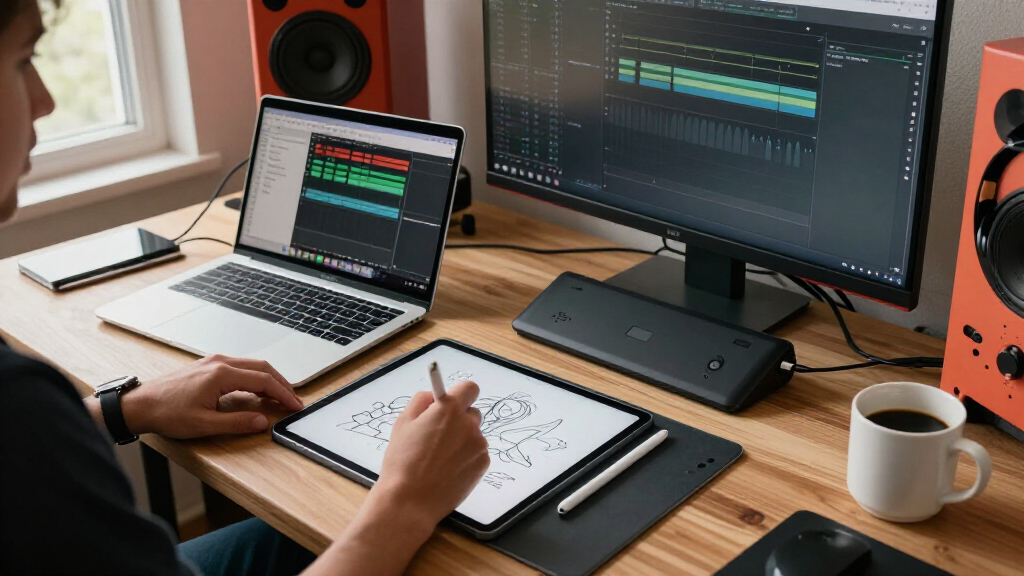
Switching between an iPad and a dedicated pen display isn’t just a tech decision — it’s a shift in how you create. You might have a sleek iPad Pro sitting on your desk, ready to sketch during lunch, or a hefty Wacom Cintiq waiting for your next project. Both tools serve artists well, but they suit different workflows, spaces, and budgets.
In this guide, I’ll break down what makes each device unique, what recent upgrades mean for your art, and how to choose based on your specific needs. Whether you’re a hobbyist looking for flexibility or a pro needing precision, understanding the strengths and limits of each helps you make a smarter call.
A dedicated pen display offers larger screens and better color accuracy, ideal for detailed, professional work.
The iPad provides portability, multi-use functionality, and a highly responsive stylus experience, making it perfect for on-the-go sketching and quick edits.
Both devices now feature up to 8192 pressure levels and low latency, but dedicated displays often include more advanced tilt and color capabilities.
Using an iPad as a secondary display or input device can enhance your workflow without replacing a dedicated monitor entirely.
Your choice depends on balancing needs for size, color fidelity, flexibility, and budget — there’s no one-size-fits-all.
Display Quality & Size: Which Device Fits Your Vision?
Dedicated pen displays usually come in larger sizes, from 13″ to 32″, with professional-grade screens that show your work with stunning detail and color accuracy. Imagine zooming into a detailed illustration on a 24″ display, with colors so vivid they practically jump off the screen. These are built for precision and nuance.
The iPad, by comparison, is smaller — 11″ or 12.9″ for the latest Pro models. Still, with Retina displays, the color clarity is impressive, especially with the Liquid Retina XDR in the 12.9″ model. It’s like holding a tiny, vibrant canvas that you can carry anywhere.
| Feature | Dedicated Pen Display | iPad |
|---|---|---|
| Size Range | 13″ to 32″ | 11″ or 12.9″ (iPad Pro) |
| Color Gamut | Typically Adobe RGB or DCI-P3 | Wide P3, excellent for most creative work |
| Resolution | Up to 4K | Liquid Retina, 2732×2048 on 12.9″ |
For detailed, color-critical work, a large, calibrated display makes all the difference. It allows you to see your work as it truly appears in print or on other professional displays, reducing surprises when you print or share your art. Conversely, the smaller size of the iPad encourages a more spontaneous, flexible workflow, but can sometimes limit the detail or color fidelity needed for high-end projects.
As an affiliate, we earn on qualifying purchases.
Stylus and Input Tech: How Precise Is Your Pen?
Dedicated pen displays often boast pressure sensitivity of 8192 levels, tilt support, and low latency — sometimes under 10 milliseconds. This high level of responsiveness is crucial because it allows subtle variations in pressure and angle to be translated into nuanced strokes, shading, and textures. For professional artists, this means more control and a more natural drawing experience, closely mimicking traditional media. The tradeoff is that such precision often comes with a steeper learning curve and sometimes higher cost, but it pays off in detailed work and complex shading techniques.
The iPad with the Apple Pencil (2nd gen) offers similar specs — 8192 pressure levels, tilt, and latency as low as 9ms. Its responsiveness is so refined that it can feel almost indistinguishable from real paper for many users. The advantage here is the seamless integration with iPadOS and a wide ecosystem of apps optimized for this technology. However, while the hardware is impressive, some professionals might find the tilt and angle recognition slightly less advanced compared to dedicated high-end pen displays, which can impact workflows that rely heavily on nuanced shading or brush dynamics.
In essence, both options deliver high responsiveness, but dedicated pen displays often provide more granular control over tilt and brush behavior, which can be crucial for high-end illustration, concept art, or detailed shading. The choice depends on how deeply you rely on these features for your artistic process and whether the added control justifies the investment.
dedicated pen display for digital art
As an affiliate, we earn on qualifying purchases.
As an affiliate, we earn on qualifying purchases.
Compatibility & Ecosystem: Which One Plays Nice with Your Software?
Dedicated pen displays are designed to work seamlessly with desktop OS like Windows and macOS. They are typically recognized as external monitors or input devices, allowing direct use of professional software such as Photoshop, Illustrator, or Krita. This means you can take advantage of the full feature set, high performance, and hardware acceleration these programs offer. The tradeoff is that they often require a dedicated workspace with stable power and connections, making them less flexible for mobile use. Their integration ensures precise control, pressure sensitivity, and color calibration tailored for professional workflows, which is vital for tasks like print design or detailed illustration.
The iPad runs iPadOS, offering apps like Procreate, Adobe Fresco, and Affinity Designer. These apps are powerful and optimized for touch and stylus input, but they often lack the full feature set of their desktop counterparts. For many artists, this is enough for sketching, coloring, and light editing. However, some workflows—especially those involving complex vector work or advanced photo editing—may find the iPad limiting. Apps like Astropad and Sidecar extend the iPad’s capabilities by turning it into a secondary display or input device, enabling artists to sketch directly into desktop applications or use it as a portable drawing tablet. This bridging capability offers flexibility but can introduce latency or workflow adjustments, meaning it’s not a perfect substitute for dedicated hardware in all scenarios.
Ultimately, the choice hinges on your software needs and whether you prioritize a native desktop experience or a mobile, app-based workflow. For studio work requiring precise color management and advanced features, dedicated displays often have the edge. For mobility and quick sketches, the iPad ecosystem provides a compelling, integrated experience that can complement existing desktop setups.
As an affiliate, we earn on qualifying purchases.
Frequently Asked Questions
Can I use an iPad for professional-grade illustration?
Yes, especially with apps like Procreate and Adobe Fresco, the iPad offers powerful tools. However, for color accuracy and larger canvas size, dedicated pen displays may be preferable for high-end work.Is it worth investing in a dedicated pen display?
If your projects require detailed, color-sensitive work or you prefer a large, stable workspace, then yes. They deliver better screen size, color fidelity, and often more advanced features for professional artists.Can I connect my iPad to my desktop as a drawing tablet?
Absolutely. Using apps like Sidecar or Duet Display, you can extend or mirror your desktop to the iPad, turning it into a secondary input device for your creative software.Which device is more future-proof?
Both are evolving quickly. The iPad benefits from Apple’s software updates and integration, while dedicated pen displays improve in refresh rate, color range, and ergonomics. Your choice should consider your current needs and potential growth.As an affiliate, we earn on qualifying purchases.
Conclusion
Choosing between an iPad and a dedicated pen display boils down to your workflow priorities. If you need a portable, versatile device that can handle sketching, note-taking, and light editing, the iPad is hard to beat. For studio-quality, color-critical projects, a dedicated display still holds the edge.
Remember, the best tool is the one that fits your style and space. Think about your typical work environment, the software you rely on, and whether mobility or precision matters most. With both options improving rapidly, your perfect setup is closer than ever.
Halloween Picks
halloween
As an affiliate, we earn on qualifying purchases.