
TL;DR

Get audio and creator gear delivered free with Prime
- Fast, free delivery on millions of items
- Prime Video, Amazon Music and more included
- Member-only deals all year
Matching your MIDI keyboard’s velocity curve to your playing style boosts expressiveness and control. Recent models offer detailed customization, so experiment to find your ideal touch for natural performances.
Ever pick up a piano or synth and feel like it just doesn’t respond the way you want? Maybe it’s too stiff, or maybe it’s overly sensitive. That’s where velocity curves come in. They’re the bridge between your touch and the sound, shaping how your playing translates into MIDI data.
Understanding and customizing velocity curves isn’t just for gearheads. It’s about making your instrument feel natural, so your performances flow smoothly without fighting the keyboard. Whether you’re laying down a soft jazz ballad or ripping through a high-energy synth line, matching your touch matters.
Adjust your velocity curve to match your playing style, increasing expressiveness.
Most keyboards offer multiple preset curves—try them out to find your preferred feel.
Custom curves or software can give you precise control—don’t settle for default settings.
Matching your touch reduces the need for post-editing, making performances more natural.
Experiment regularly—your ideal curve can change with different instruments or moods.
What Are Velocity Curves and Why Do They Matter?
Velocity curves are settings on your MIDI keyboard that map how hard you press to the MIDI velocity value sent to your instrument or DAW. Think of it as the responsiveness dial, shaping whether your keyboard feels tight or soft. If you press a key gently, does it produce a quiet sound or a loud one? The curve controls this relationship.
For example, a straight, linear curve makes soft keys sound very soft and hard keys very loud—simple and predictable. But many players prefer a more nuanced response, like an exponential curve that emphasizes softer touches, giving a more expressive feel. It’s about matching the response to your playing style.
Imagine playing a delicate piano piece — if your keyboard overreacts to gentle touches, it can feel unnatural. Conversely, if it’s too insensitive, you might need to hit harder than you want. Properly setting the curve means your instrument responds just how you expect, making your performance more authentic.
Choosing the right velocity curve is crucial because it directly influences how expressive and dynamic your playing feels. A poorly matched curve can cause frustration, as the instrument either doesn’t respond enough or reacts too strongly, leading to a disjointed performance. The tradeoff often lies in balancing sensitivity with control—more sensitive curves can capture subtle nuances but may be harder to control consistently, while less sensitive curves provide more control but might dampen expressiveness.
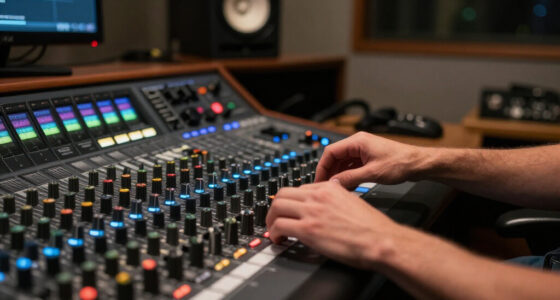
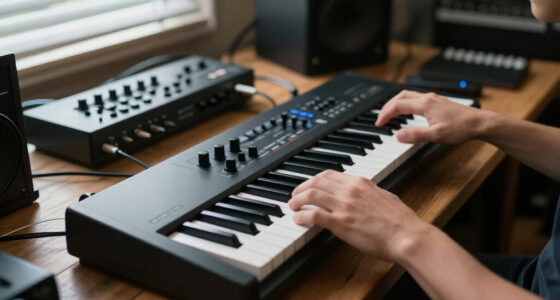
MIDI keyboard velocity curve adjustment
As an affiliate, we earn on qualifying purchases.
As an affiliate, we earn on qualifying purchases.
Different Types of Velocity Curves and How They Feel
Most MIDI keyboards come with a handful of preset velocity curves, each with a different personality. Here’s a quick rundown:
| Curve Type | Feel | Best For |
|---|---|---|
| Linear | Equal response across all velocities | General use, when you want predictable response |
| Exponential | Softer touches produce even softer sounds, harder touches are emphasized | Piano playing, delicate performances |
| Logarithmic | Leans toward softer touches, with a gentle increase | Synth pads, ambient textures |
| Custom | Can be tailored specifically | Personalized feel, advanced users |
Understanding these curves helps you choose a response that aligns with your playing style and the musical context. For instance, an exponential curve is ideal for capturing the subtlety of a grand piano’s soft passages, allowing you to play with delicate nuance. Conversely, a linear response might be better suited for genres requiring consistent dynamics, like electronic dance music, where uniform response helps maintain rhythm and punch.
But beyond choosing a preset, the real depth comes in customizing these curves. Fine-tuning allows you to create a response profile that complements your technique and the specific instrument or sound you’re working with. This customization can be a tradeoff—more tailored responses may require more precise control and familiarity, but they unlock a level of expressiveness that generic settings can’t match.
Some high-end controllers even allow you to craft your own curve via software, giving you full control over the response shape. That’s especially useful if you have a very specific playing style or want to match different instruments. This flexibility ensures that your MIDI controller can adapt to your evolving musical needs, providing a more authentic and inspiring playing experience.
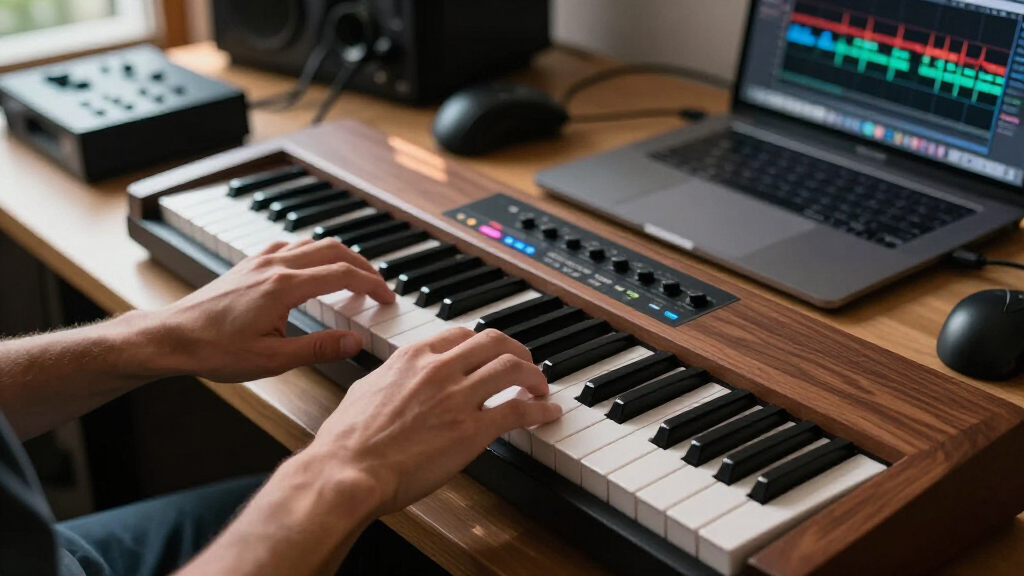
custom MIDI keyboard velocity curve software
As an affiliate, we earn on qualifying purchases.
As an affiliate, we earn on qualifying purchases.
How to Adjust Your Velocity Curve: Step-by-Step
Adjusting your velocity curve isn’t a mystery. Most keyboards have dedicated controls or software. Here’s a simple 5-step process:
- Read your keyboard’s manual or explore its menu system—many have a button or software interface for velocity settings.
- Start with a default or neutral curve, then test playing with different touches.
- Adjust the curve in small increments—listen and feel how it responds.
- Play your typical style and see if the response feels natural. If not, tweak again.
- Save your preferred setting as a preset if possible, so you can switch easily between different responses for different instruments or styles.
For example, on a popular MIDI controller, you might press a button to enter ‘velocity settings,’ then turn a knob to shift from exponential to linear. Play a few scales and listen for a response that feels intuitive—like a real piano or your favorite synth.
Understanding how to adjust the curve allows you to tailor the response precisely to your playing style, which is vital because different genres and techniques benefit from different sensitivities. For example, classical pianists might prefer a highly sensitive, exponential curve to capture every nuance, while electronic musicians might opt for a more straightforward, linear response for consistency. The tradeoff here involves balancing responsiveness with control—more sensitive curves can reveal subtle dynamics but may also require more precise finger control to avoid unwanted loudness spikes.
Remember, it’s about what feels right for you. Don’t be afraid to experiment. Sometimes, a slight tweak makes all the difference in how expressive you can be.
best MIDI keyboard with adjustable velocity settings
As an affiliate, we earn on qualifying purchases.
As an affiliate, we earn on qualifying purchases.
Matching Your Touch to Different Instruments: Practical Tips
Every instrument responds differently, so matching your velocity curve isn’t a one-size-fits-all deal. Here’s how to tweak your response for various sounds:
- Piano sounds: Use a sensitive or exponential curve to capture the nuance of soft and loud passages.
- Synth bass: A slightly more resistant or linear curve can help maintain punch without overreacting to soft touches.
- Strings or pads: A gentle logarithmic curve can add warmth and smoothness to your performance.
- Drum kits or percussions: A more aggressive or linear response makes hits feel punchy and precise.
Matching your velocity response to the instrument’s characteristics allows for more natural and convincing performances. For example, a piano’s dynamic range requires sensitivity to nuances, whereas percussion benefits from a response that emphasizes attack and punch. If your response isn’t aligned with the instrument, your performance can feel disconnected—either too flat or overly exaggerated. Fine-tuning the curve for each instrument type helps you achieve a more authentic sound and feel, reducing the need for extensive post-production editing and making live performance more expressive and immediate.
Experimentation is key. Keep notes on what settings work best for each instrument, so you can switch quickly during a session. Over time, you’ll develop a nuanced understanding of how different curves influence your playing, enabling you to craft a response that truly complements each sound’s unique character.
As an affiliate, we earn on qualifying purchases.
Why Your Playing Feels Off and How a Proper Curve Fixes It
If your MIDI performances feel inconsistent or unnatural, chances are your velocity curve isn’t matching your touch. When the response is mismatched, it’s like trying to drive a car with broken pedals—your playing feels jerky or flat.
For example, you might press lightly, expecting a soft sound, but the keyboard overreacts, sending a loud MIDI velocity. Or, press hard, but the sound barely responds. Adjusting the curve smooths out these discrepancies, making your playing feel seamless.
This isn’t just about comfort—it’s about maintaining musical integrity. A well-matched curve allows your expressive intentions to translate accurately, ensuring that subtle variations in your touch produce corresponding variations in sound. Without this alignment, you risk losing the emotional impact of your performance or having to compensate with excessive editing afterward. Proper calibration of the velocity curve effectively bridges the gap between what you play and what is heard, enabling you to focus on musical expression rather than technical frustration.
Most issues stem from a mismatch between your natural touch and the keyboard’s response. The tradeoff involves balancing sensitivity with stability—too sensitive, and you might inadvertently produce unwanted loudness; too insensitive, and you risk losing nuance. Finding the right curve ensures your instrument responds predictably, empowering you to perform with confidence and authenticity.
Matching Your Touch: Quick Tips for Better Expression
Here are some quick tips to help you get the most out of your velocity settings:
- Start simple: Use the default curve, then tweak based on your feel.
- Play naturally: Focus on how you normally play—don’t force your touch to fit the response.
- Adjust gradually: Change curves in small steps—big jumps can feel unnatural.
- Test with real music: Play familiar pieces to see how the response feels in context.
- Save multiple presets: For different instruments or styles, so you can switch quickly.
For example, a friend of mine switches between a sensitive curve for piano and a more resistant one for synth bass during the same session. It’s a simple setup but makes a huge difference in expressing the music naturally.
Frequently Asked Questions
What is the best velocity curve for a beginner pianist?
A linear or slightly exponential curve usually works best for beginners. It offers a straightforward response that mimics the natural dynamics of a real piano, making it easier to learn control and expression.
How do I adjust the velocity curve on my MIDI keyboard?
Most keyboards have dedicated controls, buttons, or software interfaces. Check your manual for specific instructions. Usually, it involves selecting a preset or tweaking a curve via a menu or software editor.
Can I change the velocity curve mid-performance?
Yes, many keyboards allow quick switching between presets or even real-time adjustments. This flexibility is useful if you switch between instruments or playing styles during a session.
Why does my MIDI keyboard feel inconsistent or unresponsive?
It’s often because the velocity curve doesn’t match your touch. Experimenting with different curves can resolve the inconsistency, making your playing smoother and more reliable.
How do I know if my velocity curve needs adjustment?
If your playing feels unnatural, jerky, or inconsistent, it’s a sign to tweak the curve. Play your usual pieces and note whether the response aligns with your touch. Adjust until it feels right.
Conclusion
Getting your velocity curve right isn’t just about convenience — it’s about making your instrument an extension of your expression. When your keyboard responds naturally, playing becomes effortless, and your performances breathe with life.
Don’t shy away from experimenting. Small tweaks can unlock new levels of control and emotion. Your touch is unique—your response should be, too.
Halloween Picks
halloween
As an affiliate, we earn on qualifying purchases.