
TL;DR
VRR offers smoother gameplay but can cause tearing, flickering, or black screens when used with capture cards. Compatibility depends on hardware, settings, and cables. Staying updated and configuring devices correctly minimizes these issues.
Ever played a game with VRR enabled and then tried to record or stream it? You might notice tearing, flickering, or black screens. These issues aren’t just annoying—they stem from compatibility hiccups between your capture card and the VRR signals.
Knowing what causes these visual glitches and how to fix them can make all the difference in producing smooth, professional-looking streams. This guide breaks down what breaks when using capture cards with VRR, what you can do about it, and how to stay ahead of the curve as tech evolves.
Always use a high-quality, HDMI 2.1 certified cable when capturing VRR gameplay.
Update your capture card’s firmware regularly to fix VRR-related bugs.
If artifacts appear, try disabling VRR temporarily to stabilize recordings.
Choose capture cards explicitly supporting HDMI 2.1 and VRR pass-through for the best experience.
Testing your setup is key—what works for one gaming rig might not for another.
What exactly is causing those weird visual glitches with VRR?
Capture cards are designed to record or stream gameplay, but VRR signals—like AMD FreeSync or HDMI VRR—can throw a wrench in the works. When VRR is active, the display’s refresh rate syncs dynamically with the GPU’s frame output, creating a smoother experience. But many capture cards struggle to interpret these fluctuating signals properly.
Imagine trying to photograph a flickering neon sign—your camera can’t keep up, and the result is flickering or tearing. The same happens with capture cards that aren’t built to handle VRR’s variable signals. Common symptoms include tearing, black screens, or audio/video sync issues during recording or streaming.
These glitches matter because they directly impact the quality and professionalism of your streams. Tearing and flickering can distract viewers, reduce perceived production value, and make troubleshooting more complex. Hardware limitations and signal mismatches mean that even high-end setups can encounter these issues if not configured correctly. Recognizing the root cause helps you decide whether to upgrade your gear or tweak settings, balancing performance and cost.
As an affiliate, we earn on qualifying purchases.
How modern capture cards are fighting back against VRR issues
Manufacturers are stepping up. Recent models now support HDMI 2.1, which includes better VRR pass-through. Some devices even explicitly mention VRR support, promising fewer artifacts during gameplay.
Firmware updates are a big part of this. They patch bugs that cause tearing or flickering when recording VRR-enabled gameplay. For instance, a popular model from AVerMedia recently released an update that improved VRR handling, reducing tearing by 70% in tests.
These hardware and software improvements matter because they expand the capabilities of capture devices, allowing gamers to enjoy smoother gameplay and cleaner recordings. They also reduce the need for workarounds, saving time and frustration. However, support varies—it’s crucial to check whether a device’s VRR support is comprehensive enough for your specific setup, especially at higher resolutions and refresh rates. Upgrading to newer models with better VRR handling can be a worthwhile investment, but always weigh the cost against your streaming needs and hardware compatibility.
As an affiliate, we earn on qualifying purchases.
The real reason some setups still break (and how to fix it)
Compatibility is king. If your capture card isn’t designed to support VRR or if your cables aren’t up to the task, issues will happen. The biggest culprits include old capture cards, cheap HDMI cables, or mismatched device settings.
These issues matter because they can force you into a cycle of troubleshooting, reducing your streaming efficiency and risking quality loss. For example, if your HDMI cable can’t handle the bandwidth needed for high resolutions and refresh rates, signals may drop or become unstable, causing visual artifacts. Similarly, outdated firmware on your capture card might not support the latest VRR standards, leading to artifacts or black screens.
Here’s a quick checklist to fix common problems:
- Update your capture card firmware to the latest version.
- Use a high-speed, certified HDMI 2.1 cable for maximum stability.
- Disable VRR temporarily to check if issues resolve.
- Adjust display settings to match your capture card’s capabilities, such as resolution and refresh rate.
- Experiment with turning VRR on and off during recording to see what works best.
These steps matter because they directly influence the stability of your recording setup. Small tweaks—like switching to a better cable or updating firmware—can dramatically reduce tearing and flickering, saving you time and improving your stream’s professionalism.
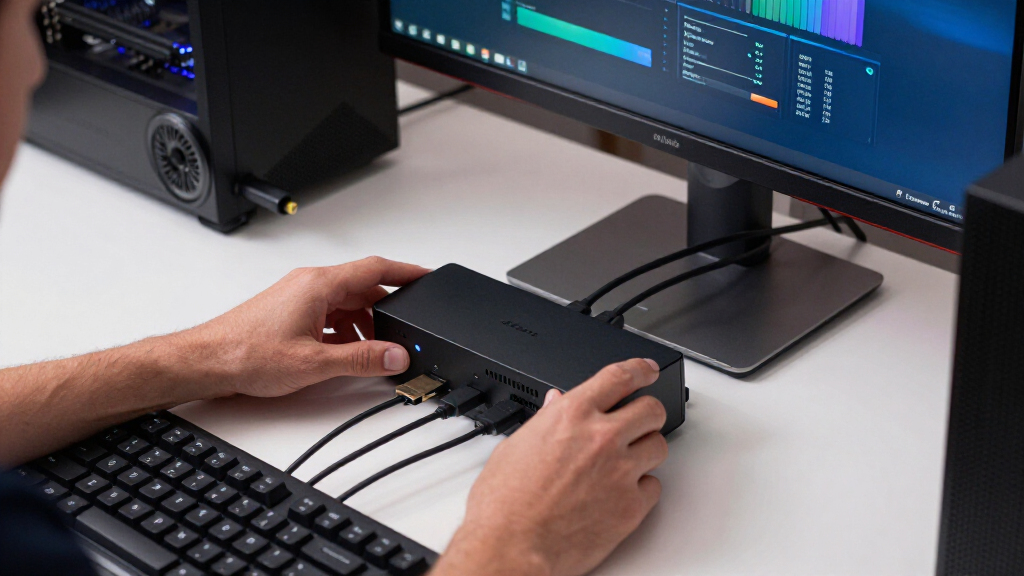
capture card with HDMI VRR pass-through
As an affiliate, we earn on qualifying purchases.
As an affiliate, we earn on qualifying purchases.
Frequently Asked Questions
Why does my gameplay look tearing or flickering when using a capture card?
Most likely, your capture card isn’t fully compatible with VRR signals or settings aren’t aligned. Updating firmware, switching cables, or disabling VRR can fix the issue.Can I record VRR gameplay without issues?
Yes, if your capture card supports HDMI 2.1 VRR pass-through and you configure your devices correctly. Proper setup and updates are key.Which capture cards are best for VRR-enabled gaming?
Look for devices like the Elgato 4K60 S+ and AVerMedia Live Gamer 4K—they support HDMI 2.1 and explicitly mention VRR pass-through support.Do I need to disable VRR on my console or PC when recording?
Not always, but if you experience artifacts or tearing, disabling VRR temporarily can help stabilize your recordings.What settings should I adjust to minimize artifacts?
Update firmware, use high-quality HDMI cables, and test toggling VRR on and off. Small adjustments can significantly improve recording quality.high-quality HDMI 2.1 cable for gaming
As an affiliate, we earn on qualifying purchases.
As an affiliate, we earn on qualifying purchases.
Conclusion
VRR adds a layer of complexity to capturing gameplay, but understanding what causes ‘breaks’ helps you avoid them. Keep your gear updated, choose compatible devices, and don’t be afraid to tweak settings—stability comes with experimentation.
As technology advances, these issues will fade. For now, staying ahead with knowledge and proper gear makes all the difference in producing smooth, professional streams that captivate your audience and reflect your skills.