
TL;DR

Get audio and creator gear delivered free with Prime
- Fast, free delivery on millions of items
- Prime Video, Amazon Music and more included
- Member-only deals all year
USB bandwidth is a finite resource. When two high-data-rate cameras connect to one bus, they compete for limited capacity, causing failures. Upgrading hardware or revising your setup solves this problem.
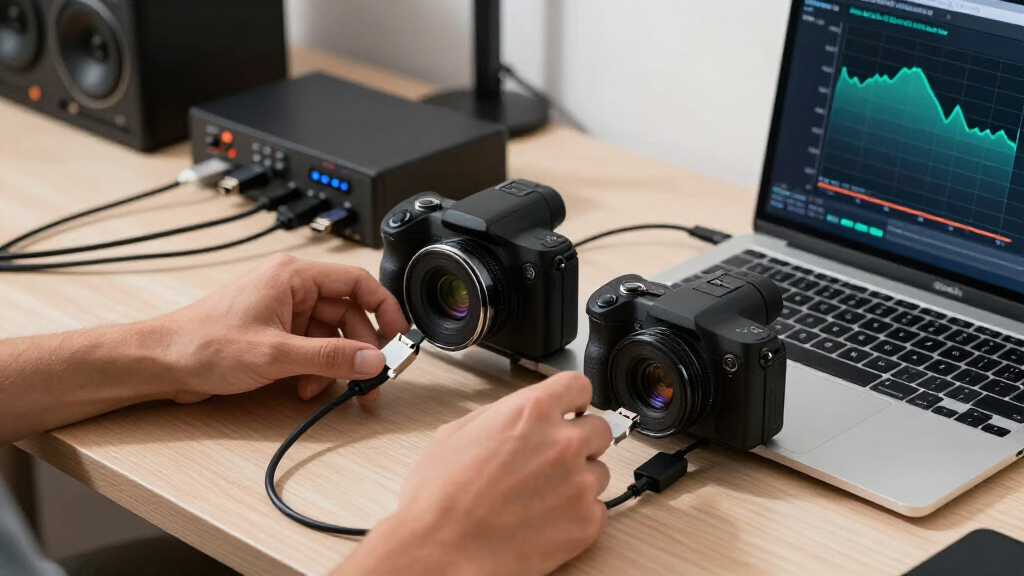
If you’ve ever plugged in two cameras for streaming and watched one drop out or lag, you’re seeing USB’s bandwidth limits in action. It’s like trying to run two high-speed motorcycles on a tiny city street — the road just can’t handle both at full speed. Today, you’ll learn why that happens, what limits your USB bus, and how to fix it without breaking the bank.
Understanding these limits can save you hours of frustration and ensure your streams stay smooth. Whether you’re running a dual-camera setup for a live show or just want reliable footage, this guide will break down the tech in plain language and give you real-world tips.
USB bandwidth is shared — two high-res cameras often exceed the 5 Gbps limit of USB 3.0.
Using a high-quality, dedicated controller or Thunderbolt connection can prevent failures.
Lowering camera resolution, frame rate, or enabling compression reduces bandwidth demands.
Connecting each camera to separate controllers or ports is the simplest fix.
Monitoring tools help identify when your bus is overloaded before failures happen.
USB Bandwidth Limits: Why Two Cameras Fail on One Bus
USB bandwidth is finite and shared. When two high-data-rate cameras compete on the same controller, dropped frames, lag and disconnects are predictable signs that the bus—or something upstream—is saturated.
The theoretical maximum is shared by every device attached to the same bus.
Protocol overhead and real hardware reduce the usable payload below this headline rate.
Connect each camera to a port backed by a different USB controller.
Two cameras. One shared road.
The connector is only the entrance. Behind several ports may sit one controller, one data path and one finite scheduling budget.
Camera A streams
Its video packets reserve recurring transfer time and begin consuming the controller’s available capacity.
Camera B joins
A second high-rate stream requests its own guaranteed slots on the same shared USB bus.
The schedule breaks
When demand exceeds usable capacity, frames arrive late, transfers fail or a camera disconnects entirely.
Reconnects may temporarily reshuffle bandwidth, but they do not remove the underlying controller, hub or cable bottleneck.
Headline speed is not usable speed
Theoretical bandwidth includes protocol overhead. Every attached device, hub and transfer type also competes for a slice of the same controller budget.
Relative USB bandwidth ceilings
Illustrative relative scale. Actual throughput depends on the controller, lane configuration, protocol overhead, cable, hub and device implementation.
Where capacity disappears
Choose the route, not just the connector
A second physical port only helps when it reaches a different controller or a genuinely higher-bandwidth path.
| Setup | Bandwidth path | Two high-rate cameras | Cost | Best use |
|---|---|---|---|---|
| Cheap shared hub | One constrained upstream link | ✗ High failure risk | Low | Keyboard, mouse, storage accessories |
| Quality powered hub | Better power; bandwidth may remain shared | ~ Depends on controller | Medium | Moderate streams and mixed peripherals |
| Separate USB controllers | Independent controller budgets | ✓ Strong practical fix | Low–medium | Reliable dual-camera streaming |
| USB 3.2 or USB4 chain | Up to 20 Gbps in supported setups | ✓ More headroom | Medium–high | High-resolution multi-device workflows |
| Thunderbolt or PCIe | High-bandwidth dedicated pathway | ✓ Best stability | High | Professional and production-critical rigs |
✓ Suitable ~ Verify topology ✗ Likely bottleneck
Solve it from cheapest to strongest
Start with settings and topology. Upgrade interfaces only when the existing chain still cannot provide enough stable capacity.
Lower resolution
Move from 4K to 1080p when the production does not require the extra pixels. The stream’s transfer load drops immediately.
Cost: noneLower frame rate
Switching from 60 fps to 30 fps can substantially reduce the amount of video data sent every second.
Cost: noneEnable compression
H.264 or H.265 can reduce USB traffic compared with uncompressed formats, provided the camera and software support them.
Check latencySplit controllers
Connect each camera to a port backed by a separate controller. Front and rear ports may still share one controller, so verify.
Best first wiring fixUpgrade hub and cable
Use certified high-speed cables and a quality powered hub. Better power helps stability, but cannot create upstream bandwidth.
Verify full chainUse USB4, Thunderbolt or PCIe
For demanding multi-camera production, move to a higher-bandwidth connection or add a dedicated controller card.
Production-gradeFollow the symptom back to the bottleneck
The visible failure happens at the camera, but the actual constraint may sit several layers upstream.
Resolution, frame rate and encoding define the stream’s demand.
A weak or incorrect cable can negotiate a slower connection.
Several devices may collapse onto one constrained upstream lane.
The host schedules transfers and divides its finite bus capacity.
Dropped frames, lag, errors or complete disconnection appear.
One camera works; two fail
This strongly suggests shared bandwidth, controller scheduling, power delivery or hub contention—not two simultaneous camera defects.
Move one camera to another controller
If both streams stabilize, the original shared bus was the limiting path. Keep the cameras separated or reduce their combined load.
Frequently asked questions
Use symptoms, topology and negotiated link speed together; the USB logo on the connector is not enough evidence.
Why do both cameras fail on the same hub?
The hub’s upstream link and host controller are shared. Combined video demand may exceed the available transfer schedule.
Will a powered hub solve the problem?
It can fix inadequate power, but it will not solve bandwidth contention if every port still shares one upstream data path.
Can USB4 fix camera bandwidth issues?
It provides more headroom when the computer, port, cable, hub and cameras all support the required standard and link speed.
Which camera settings reduce bandwidth?
Lower resolution, lower frame rate and supported H.264 or H.265 compression can substantially reduce transfer demand.
How can I detect an overloaded bus?
Watch for dropped frames, lag, device reconnects and bandwidth errors. Device diagnostics and monitoring tools can confirm the pattern.
When should I choose Thunderbolt or PCIe?
Use them when multiple high-resolution streams require predictable bandwidth and production reliability is more important than minimum cost.
Reliable video begins with a bandwidth budget.
Add the cameras’ data demands, identify which ports share a controller, and leave operating headroom. Smart wiring and lighter stream settings often solve the problem before an expensive upgrade is necessary.
What’s Really Happening When Two Cameras Fail
When you connect two high-res cameras to a single USB bus, they’re fighting for a limited slice of bandwidth. USB 3.0 maxes out at 5 Gbps — that’s about 625 MB/sec. But high-quality cameras often stream at 1080p or 4K, with data rates ranging from 50 MB/sec to over 200 MB/sec each, depending on settings.
If both try to send video simultaneously, they can easily surpass what the bus can handle. In real terms, one camera might run fine, but adding a second causes dropped frames, lag, or even disconnects. This happens because the bus has a finite capacity, and when the combined data exceeds that limit, the system struggles to allocate bandwidth fairly. The consequences are not just minor inconveniences — they can seriously impair your stream’s quality, leading to poor viewer experience or the need to restart your setup. The key takeaway is that these failures aren’t random; they’re a direct result of exceeding the physical limits of USB bandwidth, which is a critical consideration for anyone serious about reliable streaming.
Popular right now

Vitamix Propel Series 510 Professional-Grade Blender, 3 Programs, Black

Vitamix Propel Series 750 Professional-Grade Blender, 4 Programs, Black

KitchenAid Classic Series 4.5-Quart Tilt-Head Stand Mixer, Onyx Black
As an affiliate, we earn on qualifying purchases.
How USB Bandwidth Is Shared — The Secret Sauce
USB doesn’t dedicate bandwidth to each device permanently. Instead, it schedules data transfers, especially for streaming video, using a system called isochronous transfer. This guarantees a steady data flow but also means if multiple devices demand high bandwidth, they compete for the same limited resource.
Think of it like a busy highway: if two cars try to go full speed, only one can go at a time, or they’ll crash. The bus allocates fixed chunks of bandwidth to each device based on priority and transfer type, which is why high-data cameras need more space. This scheduling ensures that time-sensitive data, like video streams, get priority, but it also means that if overall demand exceeds capacity, some streams get throttled or dropped. The implications are significant: in a setup with multiple high-resolution cameras, the bus may struggle to maintain smooth, continuous streams, leading to dropped frames or lag. The tradeoff here is between guaranteed steady data flow for critical streams and the risk of overloading the bus, which can cause failures. Understanding this sharing mechanism highlights why selecting the right hardware and setup is crucial to prevent bottlenecks and ensure reliable performance.
Why Your USB Hub Might Be Making It Worse
Plugging multiple devices into one hub can cut your available bandwidth even further. Cheap hubs often share a single controller with limited bandwidth, like squeezing multiple lanes into one highway lane. This means that even if your computer’s main port has ample capacity, the hub itself becomes a bottleneck, especially when handling multiple high-data devices.
Imagine connecting two 4K webcams through a low-quality hub. The hub might only support 1 Gbps — that’s about 125 MB/sec. Both cameras trying to stream at high quality will overwhelm that limit, causing failures and lag. The problem is compounded because many inexpensive hubs do not have dedicated controllers for each port, forcing all data to pass through a single shared pathway.
Using a high-quality hub with dedicated controllers or connecting each camera directly to separate ports improves data flow and stability. This setup minimizes contention and allows each device to have its own dedicated bandwidth, reducing the risk of overload. The tradeoff is that higher-quality hubs or direct connections may cost more but are essential for professional or high-resolution streaming environments. Recognizing how topology affects bandwidth can help you make smarter choices, ensuring your setup is robust enough to handle multiple high-data devices without failure.
How Newer USB Standards Help — But Not Always Enough
USB 3.2 and USB4 push maximum bandwidth up to 20 Gbps, which can handle multiple high-res cameras better. But, your hardware must support these standards, and your cameras need to be compatible. Upgrading to these standards can significantly reduce bandwidth contention, allowing more streams to coexist without dropping frames.
For instance, a USB4 port paired with high-end cameras streaming at 4K 60fps can function smoothly, but using older hardware or cheap cables still bottlenecks performance. It’s important to note that the theoretical maximum bandwidth isn’t always realized in real-world scenarios — factors like cable quality, port implementation, and device compatibility matter.
Sometimes, the bottleneck isn’t the bus but the device or cable quality, so an upgrade requires a full check-up of your setup. Investing in newer standards offers substantial benefits, but only if the entire chain — from port to cable to device — supports these speeds. Otherwise, you may not see the improvements you expect, and the same limitations could still cause failures under heavy load.
Frequently Asked Questions
Why do my two cameras fail when I connect both to the same USB port?
Because their combined data streams surpass the maximum bandwidth of the USB bus, causing transfer failures, dropped frames, or disconnections. Connecting each to separate controllers or upgrading your hardware can fix this.Can upgrading to USB4 fix my camera bandwidth issues?
Yes, USB4 offers up to 20 Gbps bandwidth, which can handle multiple high-res streams better. But ensure your cameras, cables, and hardware support this standard for the best results.Are there settings on the cameras I can tweak to reduce bandwidth use?
Absolutely. Lowering resolution, reducing frame rate, or enabling compression codecs like H.264 or H.265 cuts down on data transfer needs, making it easier for your bus to handle multiple cameras.How do I check if my USB bus is overloaded?
Use system tools like Windows Device Manager or third-party bandwidth monitors. Look for signs like dropped frames, disconnects, or error messages related to bandwidth limitations.Is it better to use Thunderbolt or PCIe for multiple cameras?
For high-performance, reliable setups, Thunderbolt or PCIe connections provide dedicated, higher bandwidth channels, making them ideal for demanding multi-camera streams.Conclusion
Understanding USB bandwidth limits isn’t just tech talk — it’s the key to reliable streaming. When two cameras fail, it’s often because the bus can’t handle the data load. Upgrading hardware, adjusting settings, and smart wiring keep your streams smooth and your stress low.
Think of your USB setup like a busy highway — give each camera its own lane, upgrade to wider roads when needed, and your streaming will run without a hitch. The right setup makes all the difference, so plan ahead and keep your streams flowing.