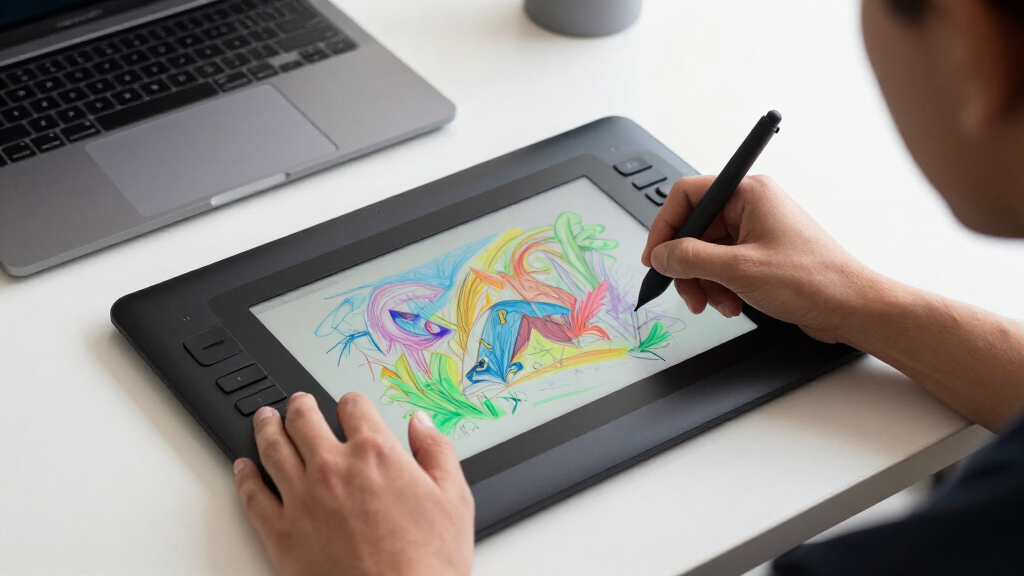
Starting with digital art can be exciting but also overwhelming, given the wide range of drawing tablets available. The best options for beginners balance affordability, ease of use, and feature set. The Wacom Intuos Small stands out as a reliable, user-friendly choice, while the Huion Inspiroy H640P offers great value for tight budgets. More advanced beginners might consider standalone models like the PicassoTab or RubensTab for a more seamless experience. However, tradeoffs include screen quality, pressure sensitivity, and software compatibility. Continue reading for a detailed breakdown of the top picks and what makes each one unique.

Get audio and creator gear delivered free — and shop member deals
- Fast, free delivery on millions of items
- Access to Prime Big Deal Days deals on October 6–7
- Prime Video, Amazon Music and more included
Complete the kit


Key Takeaways
- Standalone tablets are becoming more popular for beginners seeking all-in-one solutions without needing a computer.
- Entry-level models often trade off screen quality and pressure sensitivity for affordability, so prioritize features based on your goals.
- Battery-free stylus options are standard in quality tablets, reducing maintenance and improving responsiveness.
- Size matters: smaller tablets are portable and budget-friendly, but larger screens enhance drawing comfort and precision.
- Compatibility with your device and software ecosystem is crucial—ensure the tablet works well with your computer or mobile device.


| drawing tablets for beginner | Connectivity |
|---|---|
| Huion Inspiroy H640P 6×4 Inch | — |
| XP-PEN Artist12 11.6 Inch FHD | HDMI, USB-A |
| HUION Inspiroy H1060P Graphics | — |
| XPPen Artist 13.3 Pro Drawing | — |
| Wacom Intuos Small Wired Graph | Wired |
| T8 Standalone 8-inch Drawing T | — |
| PicassoTab 10" Standalone Draw | — |
| RubensTab T11 Pro Standalone D | USB-C, supports power banks |
| XPPen Deco 01 V3 10×6 Drawing | USB-C, adapters included |
| HUION Kamvas 13 | USB-C |
More Details on Our Top Picks
Huion Inspiroy H640P 6×4 Inch Drawing Tablet with Battery-Free Stylus
The Huion Inspiroy H640P stands out for its ultra-compact size and multi-OS compatibility, making it ideal for artists on the move or students with limited desk space. Its 8192 pressure levels provide a natural drawing experience, comparable to larger tablets like the XP-PEN Artist12 but in a smaller footprint. The six customizable hot keys streamline workflow, though the small 6×4 inch area limits detailed work and requires driver setup for customization. Compared to larger models, this tablet sacrifices workspace but gains portability and ease of use. It’s perfect for beginners who need a lightweight, versatile option.Pros:- High pressure sensitivity for natural strokes
- Compact and lightweight for portability
- Supports multiple operating systems including Android
Cons:- Limited drawing area size (6×4 inches)
- Requires driver setup for hotkeys customization
- Does not support iOS devices
Best for: Beginners who need a portable, easy-to-carry tablet for casual drawing or note-taking.
Not ideal for: Professional artists or those requiring large canvases, as the limited drawing area hampers detailed work.
- Size:6×4 inches
- Pressure Sensitivity:8192 levels
- Hot Keys:6 customizable keys
- Compatibility:Mac, Windows, Linux, Android (OS 6.0+)
- Weight:1.41 lbs
- Stylus:Battery-free PW100
Our verdict“This tablet is best suited for beginners who want a lightweight, versatile device for basic digital art and note-taking on the go.”
XP-PEN Artist12 11.6 Inch FHD Drawing Monitor with Battery-Free Pen and Accessories
The XP-PEN Artist12 offers a vivid 11.6-inch FHD IPS display that delivers accurate color reproduction, making it perfect for artists who prioritize visual fidelity. Its 1920×1080 resolution and 72% NTSC color gamut outperform smaller, basic tablets like the Wacom Intuos Small, providing a more immersive viewing experience. The battery-free stylus with a comfortable feel and customizable shortcut keys enhance workflow, although the need for HDMI and USB-A connections can complicate setup, especially for beginners with limited ports. While the small screen may restrict detailed work, this monitor makes sense for those wanting a dedicated display for creative projects.Pros:- Vivid 11.6-inch display with excellent color accuracy
- Battery-free stylus with natural feel
- Customizable shortcut keys and touch bar
Cons:- Requires HDMI and USB-A ports, possibly needing adapters
- Small screen size limits workspace for detailed projects
- Connection setup might be challenging for beginners
Best for: Beginners who want an affordable, high-quality display to complement their existing computer setup.
Not ideal for: Users with limited ports or minimal technical experience, as connection setup can be complex.
- Display Size:11.6 inches
- Resolution:1920×1080
- Color Gamut:72% NTSC (100% sRGB)
- Pen Sensitivity:8192 levels
- Connectivity:HDMI, USB-A
- Included Accessories:Stylus, pen holder, glove, replacement nibs
Our verdict“This monitor suits beginners seeking a high-quality, portable display for precise digital art, provided they can handle the connection setup.”
HUION Inspiroy H1060P Graphics Drawing Tablet, 10 x 6.25 in, 12+16 Hot Keys, 8192 Pressure Levels, Battery-Free Stylus, Compatible with Mac, Windows, Android
The HUION Inspiroy H1060P offers a sizable 10×6.25-inch working surface, making it ideal for detailed illustrations and complex projects. Its 8192 pressure levels and tilt support on a battery-free stylus provide professional-level control, surpassing smaller tablets like the Huion H640P. The extensive hot keys (12 + 16 soft keys) facilitate workflow efficiency, but compatibility issues like needing an USB adapter for Mac or OTG connector for Android devices could pose hurdles for beginners. The large size is a double-edged sword—excellent for detailed work but less portable, which might not suit those who need a lightweight setup.Pros:- Large 10 x 6.25-inch working area
- Stylus with tilt support and high pressure sensitivity
- Multiple hot keys for workflow customization
Cons:- Requires USB adapter for Mac connection
- OTG connector needed for Android phones
- Size may hinder portability
Best for: Hobbyists or students who want a large, versatile tablet for detailed digital art or multi-platform use.
Not ideal for: Users seeking a portable, lightweight device or those with limited desk space, as the size could be cumbersome.
- Working Area:10 x 6.25 inches
- Hot Keys:12 programmable + 16 soft keys
- Stylus:Battery-free, tilt support
- Pressure Levels:8192
- Compatibility:Windows, Mac, Android
- Dimensions:10mm slim
Our verdict“This tablet is perfect for beginners who prioritize workspace and detailed control over portability, especially for multi-platform use.”
XPPen Artist 13.3 Pro Drawing Tablet with Screen, 16K, Full-Laminated, Anti-Glare 123% sRGB Display, 8 Keys, Includes Adjustable Stand
The XPPen Artist 13.3 Pro features a vibrant, full-laminated 13.3-inch display with 123% sRGB coverage, making it ideal for artists who need color accuracy. Its support for tilt up to 60 degrees and 16,384 pressure levels offers a very natural drawing experience, similar to professional models but at a beginner-friendly price. The included adjustable stand and customizable keys boost productivity, although the setup process can be complex for newcomers, and the 13.3-inch size, while portable, might feel limiting for some artists used to larger canvases. Compared to non-display tablets like the Wacom Intuos Small, this model provides a more immersive creative experience.Pros:- Vivid, wide-gamut display with excellent color accuracy
- Supports tilt and high-pressure sensitivity
- Includes adjustable stand for ergonomic comfort
Cons:- Requires connection to a computer, not standalone
- Setup can be complex for first-time users
- Limited to 13.3 inches, which might restrict workspace for some
Best for: Beginners ready to transition to a display tablet with professional-level color and control.
Not ideal for: Those seeking a very portable or budget-friendly option that doesn’t include a screen.
- Display Size:13.3 inches
- Color Gamut:123% sRGB
- Resolution:Full HD
- Tilt Support:Up to 60°
- Pressure Levels:16,384
- Additional Features:Anti-glare, full-laminated, includes stand
Our verdict“This tablet makes the most sense for beginners who want a display with professional-quality visuals and control, despite a more involved setup.”
Wacom Intuos Small Wired Graphic Drawing Tablet with Pen and Software
The Wacom Intuos Small stands out for its simplicity and affordability, making it an excellent starter choice for absolute beginners. Its battery-free EMR pen offers a natural drawing feel comparable to more expensive models like the Huion Inspiroy H640P, but with fewer hotkeys—only four—limiting quick access to tools. Being wired, it’s less portable than wireless options, and its small size may restrict larger projects. However, its compatibility with all major software and inclusion of training materials make it an accessible choice for learners who want a straightforward, reliable device without the complexities of setup or high cost.Pros:- Battery-free stylus with a natural feel
- Affordable price point
- Includes software and tutorials for quick learning
Cons:- Wired connection limits portability
- Small drawing surface may restrict detailed work
- Limited to 4 shortcut buttons
Best for: Beginners on a tight budget seeking a straightforward, reliable tablet for basic digital art and editing.
Not ideal for: Those wanting a wireless or larger drawing surface for more detailed work or professional use.
- Size:Small
- Connectivity:Wired
- Pen Technology:Electromagnetic Resonance (EMR), battery-free
- ExpressKeys:4
- Compatibility:Mac, Windows, Chromebook
Our verdict“This tablet is ideal for absolute beginners who want a simple, cost-effective device to learn digital art fundamentals.”
T8 Standalone 8-inch Drawing Tablet with Android 13, No Computer Needed
This T8 stands out for its ultra-compact design and Android 13 operating system, making it ideal for beginners who want to create without a computer. Compared with larger tablets like the HUION Kamvas 13, it sacrifices screen size for portability, which can limit detailed work but offers unmatched mobility. Its long battery life of up to 20 hours ensures extended use away from outlets, perfect for students or travelers. However, the small 8-inch display can feel restrictive for intricate projects, and performance may lag with heavy graphics. The pre-installed apps and tutorials simplify the learning curve, but expandable storage setup can be a mild hassle. Overall, this is best for those who prioritize portability over screen real estate.Pros:- Lightweight, portable design ideal for on-the-go use
- Runs Android 13 supporting a wide range of apps
- Long battery life up to 20 hours for extended creative sessions
Cons:- Limited to an 8-inch screen, restricting detailed work
- Expandable storage requires additional setup and configuration
Best for: Beginners who need a portable, standalone device for casual drawing and note-taking
Not ideal for: Users planning detailed digital illustrations or complex projects, as the small screen limits precision
- Display:8-inch
- Resolution:1200×800
- Operating System:Android 13
- CPU:MTK Quad-Core
- RAM:4GB
- Storage:64GB (expandable to 256GB)
- Battery:4000mAh, up to 20 hours
Our verdict“Best suited for beginners seeking a compact, standalone device for casual drawing and learning.”
PicassoTab 10″ Standalone Drawing Tablet with 6 Bonus Items, Paper-Like Screen, 4096-Level Pen, Octa-Core, 6GB RAM, 128GB Storage
The PicassoTab A10 offers a compelling mix of portability and performance, featuring a 10-inch laminated, paper-like display that closely mimics traditional drawing surfaces. Compared to the smaller T8, it provides more workspace and a more natural drawing feel, making it ideal for those ready to advance beyond basic sketches. Its high-pressure 4096-level stylus and included accessories—like a drawing glove and case—add value for new artists. While its beginner focus means it lacks advanced multimedia features or camera options, the expandable storage up to 1TB supports growing creative needs. The device’s weight and external power requirement are minor tradeoffs for its versatility. Overall, this tablet suits beginners who want a more immersive, feature-rich experience without stepping into professional territory.Pros:- Large 10-inch laminated, paper-like screen for natural drawing
- 4096-level pressure-sensitive stylus for precision
- Includes bonus accessories and tutorials for a comprehensive learning experience
- Expandable storage up to 1TB for future projects
Cons:- Requires external power source for charging, less convenient than built-in batteries
- Limited to beginner features, not ideal for professional-grade work
Best for: Beginners who want a portable, feature-rich tablet with room to grow and added accessories
Not ideal for: Users seeking a simple, ultra-lightweight device or those prioritizing built-in cameras and multimedia features
- Display:10 inches laminated screen
- Stylus:4096-level pressure-sensitive
- Processor:Octa-core
- RAM:6GB
- Storage:128GB (expandable up to 1TB)
- Included Bonus Items:Premium case, drawing glove, accessories
Our verdict“Perfect for beginners who want a high-quality, expandable tablet with a natural drawing feel and extras.”
RubensTab T11 Pro Standalone Drawing Tablet, 10.1 inch FHD Display, Octa-Core CPU, Pre-Installed Drawing Apps & Tutorials
The RubensTab T11 Pro excels in delivering vivid, detailed visuals with its 10.1-inch Full HD IPS screen, making it more suitable for artists who want sharp, vibrant colors compared to the less colorful T8. Its high-sensitivity pen and portable design cater to beginners ready to explore digital illustration with professional touches. The built-in battery allows five hours of use, which is adequate for short sessions but less ideal for long projects without frequent charging. The pre-installed apps and adjustable stand simplify initial setup, but the limited battery life could be a setback for those who prefer extended use without power constraints. Overall, this device is a strong choice for beginners seeking quality visuals in a portable format.Pros:- Vivid 10.1-inch Full HD display with accurate colors
- High-sensitivity stylus mimics traditional drawing tools
- Pre-installed professional drawing apps and adjustable stand
Cons:- Battery life limited to around 5 hours, requiring frequent charging
- No external storage options or multimedia capabilities
Best for: Beginners who prioritize vivid display quality and portability for short creative sessions
Not ideal for: Users needing all-day usage or who prefer a device with extensive storage or multimedia features
- Display:10.1 inch FHD IPS (1920×1200)
- Processor:Octa-Core CPU
- Battery:5800mAh, up to 5 hours
- Connectivity:USB-C, supports power banks
- Pre-installed Apps:Drawing apps and tutorials
- Stand:Adjustable stand case
Our verdict“Ideal for beginners focused on vibrant visuals and portable use, but not suited for long, intensive sessions.”
XPPen Deco 01 V3 10×6 Drawing Tablet with Battery-Free Stylus and 8 Shortcut Keys
The XPPen Deco 01 V3 is designed for users who need more space to work comfortably, offering a 10×6.25-inch active drawing area that surpasses the smaller tablets in this lineup. The battery-free stylus with 16,384 pressure levels and tilt support provides a natural, precise drawing experience comparable to professional tools. Its 8 shortcut keys are customizable, streamlining workflow for those who want quick access to frequently used functions. While setup can be complex for some, especially with the need for adapters and specific Android apps, its broad compatibility makes it versatile for beginners using Windows, Mac, or Android devices. The larger size might be less portable, but it’s a clear advantage for detailed work.Pros:- Large 10×6.25-inch active drawing area for detailed work
- Battery-free stylus with high pressure sensitivity and tilt support
- Compatible with Windows, Mac, Android, and Linux systems
Cons:- Setup may be complex, especially with adapters and app requirements
- Limited to 8 shortcut keys, which might be insufficient for advanced workflows
Best for: Beginners seeking a large drawing surface with high-pressure sensitivity and compatibility across multiple platforms
Not ideal for: Those with limited desk space or who prefer a smaller, more portable device for quick sketches
- Active Area:10 x 6.25 inches
- Stylus:Battery-free, tilt support
- Pressure Sensitivity:16,384 levels
- Connectivity:USB-C, adapters included
- Compatibility:Windows 7+, macOS 10.13+, Android 10.0+, Linux
- Included Accessories:Stylus, Nibs, Stand, Glove, Cables
Our verdict“Best for beginners who want a spacious drawing area and cross-platform flexibility, accepting some setup complexity.”
HUION Kamvas 13 (Gen 3) Drawing Tablet with Screen, Dual Dial, 13.3″, Black
The HUION Kamvas 13 Gen 3 offers a significant upgrade over the other options with its 13.3-inch fully laminated screen and advanced PenTech 4.0, providing a natural drawing experience with minimal glare. Compared to standalone tablets like the PicassoTab and RubensTab, this device requires connection to a computer or compatible device, which limits portability but greatly enhances display quality and color accuracy—crucial for detailed illustration work. Its 99% sRGB coverage and customizable dual dial cater to artists aiming for professional-level results. The learning curve is steeper for those unfamiliar with pen displays, but for beginners ready to invest in a dedicated drawing monitor, it’s a compelling choice. The absence of standalone capability is the main tradeoff.Pros:- Large 13.3-inch fully laminated display with 99% sRGB coverage
- Advanced PenTech 4.0 with 16384 pressure levels
- Includes dual dial and adjustable stand for versatile workflows
- Compatible with Windows, Mac, Android, and Linux
Cons:- Requires connection to a computer or device, not standalone
- Price may be higher compared to portable tablets
Best for: Beginners committed to a dedicated pen display and willing to connect to a computer for more detailed work
Not ideal for: Users seeking a fully portable, all-in-one device or those with limited budget for a monitor-style tablet
- Screen Size:13.3 inches
- Color Coverage:99% sRGB
- Pen Sensitivity:16384 levels
- Display Technology:Fully laminated
- Connectivity:USB-C
- Additional Features:Dual dial, adjustable stand
Our verdict“Ideal for beginners eager to learn digital illustration with a dedicated pen display, accepting the need for external hardware.”
How We Picked
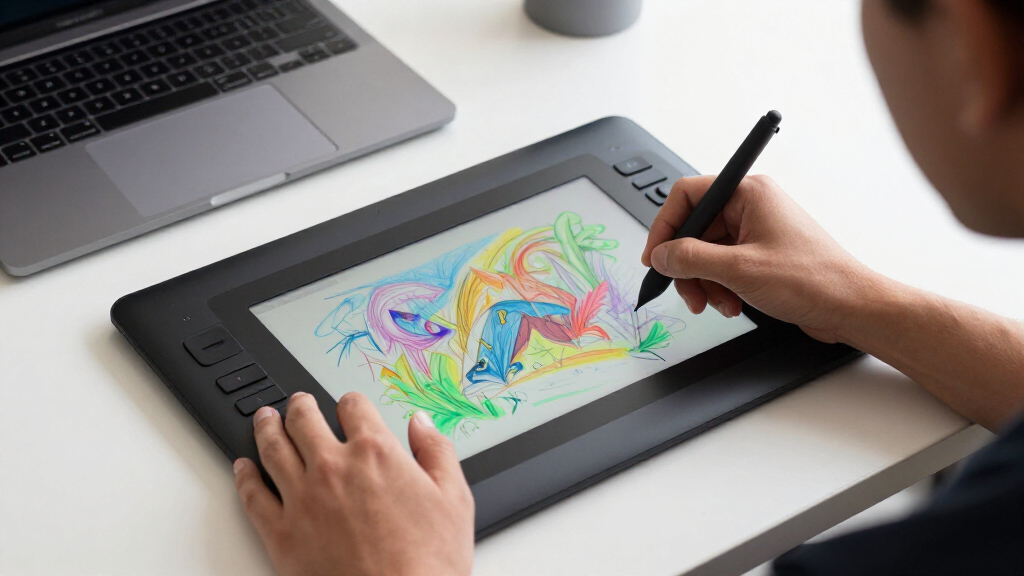
I evaluated these drawing tablets based on a combination of performance, usability, build quality, and value for beginners. Priority was given to models with intuitive interfaces, reliable stylus responsiveness, and compatibility with common software like Photoshop or Krita. Portability and setup ease also influenced rankings, along with user reviews highlighting durability and customer support. The goal was to find options that offer a smooth learning curve while providing room to grow as skills develop. The top picks balance affordability with features that support creative exploration, distinguishing them from more advanced, expensive options not suited for absolute newcomers.| drawing tablets for beginner | Connectivity |
|---|---|
| Huion Inspiroy H640P 6×4 Inch | — |
| XP-PEN Artist12 11.6 Inch FHD | HDMI, USB-A |
| HUION Inspiroy H1060P Graphics | — |
| XPPen Artist 13.3 Pro Drawing | — |
| Wacom Intuos Small Wired Graph | Wired |
| T8 Standalone 8-inch Drawing T | — |
| PicassoTab 10" Standalone Draw | — |
| RubensTab T11 Pro Standalone D | USB-C, supports power banks |
| XPPen Deco 01 V3 10×6 Drawing | USB-C, adapters included |
| HUION Kamvas 13 | USB-C |
Factors to Consider When Choosing Best Drawing Tablets For Beginners
When choosing the best drawing tablet for beginners, it’s essential to consider several factors that influence your learning experience and long-term satisfaction. Understanding these will help you avoid common pitfalls and select a device that aligns with your goals, budget, and workflow. The right tablet should feel intuitive, provide sufficient precision, and integrate smoothly with your existing setup.Size and Portability
Tablets come in various sizes, from compact models perfect for on-the-go use to larger screens that offer more drawing space. Smaller tablets are typically more affordable and easier to carry around, making them suitable for beginners who want portability. Larger screens, however, can improve accuracy and comfort during extended drawing sessions. Consider your workspace and whether portability or workspace size matters more to your creative process.
Pressure Sensitivity and Stylus Quality
Pressure sensitivity determines how well a tablet can detect variations in your drawing pressure, impacting line quality and shading. Most beginner models offer 2048 or 4096 levels, which are sufficient for learning and casual work. A good stylus should be responsive, comfortable to hold, and battery-free if possible, reducing maintenance. Investing in a stylus that feels natural enhances your control and helps you develop good drawing habits early on.
Compatibility and Software Support
Ensure the tablet works seamlessly with your computer or device, whether it’s Windows, macOS, Android, or iOS. Compatibility with popular art programs like Photoshop, Krita, or Clip Studio Paint is essential for a smooth workflow. Some tablets are also compatible with mobile apps, offering flexibility. Double-check that the device supports your preferred software and that drivers are easy to install and update.
Ease of Use and Learning Curve
Beginners benefit most from tablets with straightforward setup and intuitive controls. Features like customizable shortcut keys can speed up your workflow once you’re comfortable, but overly complex configurations can hinder initial learning. Look for devices with clear instructions, good customer support, and a user interface that doesn’t intimidate new users. A simple, reliable device helps build confidence and encourages ongoing practice.
Budget and Long-Term Value
While affordability is important, selecting a tablet that offers good value for money means considering durability, software compatibility, and future-proof features. Cheaper models may lack advanced pressure sensitivity or screen quality but can be ideal for beginners on a tight budget. Investing a bit more can yield a device that remains useful as your skills improve, reducing the need for an upgrade too soon.
Frequently Asked Questions
Do I need a screen on my drawing tablet as a beginner?
Not necessarily. Many beginners start with non-screen tablets, which are more affordable and help develop fundamental skills like hand-eye coordination. However, screen tablets provide immediate visual feedback, making them more intuitive and closer to traditional drawing on paper. If your budget allows, a screen model can accelerate learning, but starting with a tablet without a screen is a perfectly valid choice for most beginners.
Can I use a drawing tablet with my existing computer?
Yes, most drawing tablets are designed to be compatible with standard computers running Windows or macOS. It’s important to check the specific model’s compatibility list before purchasing. Connecting and installing drivers is usually straightforward, and many tablets are plug-and-play. Confirming compatibility with your operating system and preferred art software can prevent frustration later.
How much should I spend on my first drawing tablet?
Beginners can find quality tablets in the $50 to $150 range, which generally cover basic features like pressure sensitivity and decent build quality. Investing in a slightly more expensive model might provide better durability, stylus responsiveness, and software support, which can be beneficial as you improve. Balancing your budget with the features you need is key—avoid overspending on features you won’t use initially.
Are standalone tablets better for beginners than those requiring a computer?
Standalone tablets offer the advantage of not needing a computer, making them more portable and easier to set up. This can be appealing for beginners who want an all-in-one device without extra hardware. However, they tend to be more expensive and may have limited software options compared to connected tablets. The choice depends on your budget and whether you prioritize convenience over potential software flexibility.
What features should I prioritize if I want to grow as an artist?
Focus on tablets with higher pressure sensitivity (at least 4096 levels), a responsive stylus, and a comfortable size for extended use. Compatibility with a range of art software and the ability to upgrade or add features like customizable shortcut keys can support your development. Investing in a device with a good build quality and reliable support will also help you avoid frustrations as your skills progress.
Conclusion
For most beginners, the Wacom Intuos Small remains the best overall choice, offering reliable performance and ease of use at an accessible price. If affordability is your primary concern, the Huion Inspiroy H640P provides excellent value without sacrificing too much in features. Those seeking a more seamless, all-in-one experience might consider the standalone options like the PicassoTab or RubensTab. For creators ready to invest in a premium device, the Huion Kamvas 13 offers a high-quality screen and advanced controls. Your ideal pick depends on your budget, goals, and whether you prefer a traditional tablet, a screen model, or a portable device to grow your skills.Fall Picks
fall essentials
As an affiliate, we earn on qualifying purchases.