
TL;DR

Get audio and creator gear delivered free with Prime
- Fast, free delivery on millions of items
- Prime Video, Amazon Music and more included
- Member-only deals all year
One-handed shortcut workflows help digital artists work faster and more comfortably. By optimizing hardware, customizing software, and designing smart workflows, you can cut down task time and avoid fatigue—especially during long sessions.
Ever felt like your workflow is slowed down by constant hand movement or juggling multiple tools? Imagine slicing through your tasks with a single hand, like flipping a switch that instantly switches brushes, layers, or commands. That’s the power of one-handed shortcut workflows.
In this guide, you’ll learn how to set up your hardware and software for maximum efficiency. Whether you’re a hobbyist or a pro, mastering these shortcuts can transform your digital art process—saving time, reducing fatigue, and keeping your creative flow flowing.
Customize hardware like macro pads and stylus buttons to keep commands within easy reach.
Remap and assign shortcuts in your art software to minimize hand movement and boost speed.
Design a logical, consistent shortcut layout to develop muscle memory faster.
Leverage automation and scripting to perform complex tasks with one click or button press.
Prioritize ergonomic setup to avoid fatigue and injuries during extended work sessions.
How hardware can make one-handed workflows seamless
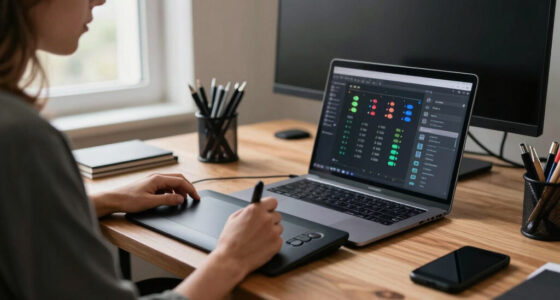
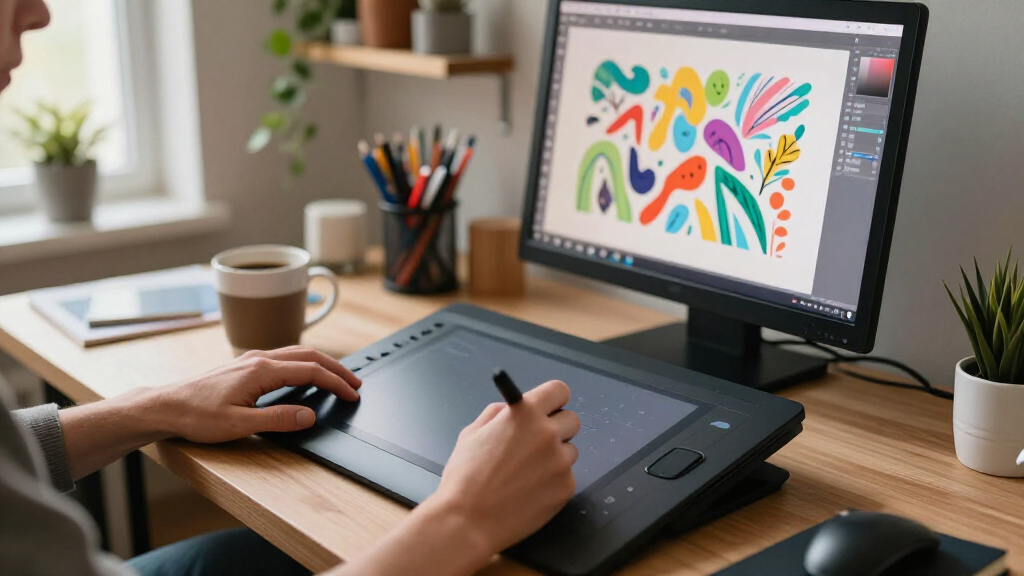
Hardware is the foundation. A good graphics tablet, like a Wacom or an iPad with Apple Pencil, offers customizable buttons and touch zones that can be mapped to your shortcuts. Adding a programmable macro pad like the Elgato Stream Deck or a custom-built keypad is a game-changer.
For example, assign frequently used tools—brush, eraser, undo—to individual keys. You can even set up specific gestures or pen buttons to switch tools instantly, keeping your drawing hand focused on the art, not the keyboard.
Ergonomics matter. A comfortable grip, proper wrist support, and strategic placement of your devices prevent fatigue. Think of it like transforming your workspace into a well-oiled machine, where every button is within a natural reach, reducing unnecessary movement.
Why it matters: Optimizing hardware isn’t just about convenience; it’s about reducing physical strain and enhancing workflow speed. When your tools are intuitively accessible, you spend less time searching and more time creating. The tradeoff is investing in quality gear upfront, but this pays dividends in comfort and efficiency over time.
programmable macro pad for digital artists
As an affiliate, we earn on qualifying purchases.
As an affiliate, we earn on qualifying purchases.
Mastering software shortcuts for lightning-fast commands
Customizing shortcuts in your favorite art software is essential. Programs like Photoshop, Clip Studio Paint, or Krita let you remap keys and create macros. Start by identifying your most-used tools and assigning them to nearby keys.
Why it matters: Proper shortcut customization reduces the need for your hand to move across the keyboard or menu, which can disrupt your flow and cause fatigue over time. By assigning frequently used tools to accessible keys, you streamline your process, enabling quicker transitions between tools and commands.
For example, set brushes, color pickers, and layer controls to keys you can press without shifting your hand position. Use touch gestures or pen buttons to toggle between tools, zoom, or navigate menus. This keeps your drawing hand engaged with your art, not hunting for commands. The tradeoff involves initial setup time and a learning curve but results in a more intuitive workflow.
According to ArtzArtz, a well-mapped shortcut setup can cut your workflow time by 30-50%. That’s hours saved over a workweek—more time for creativity, less for clicking around.
ergonomic graphics tablet with customizable buttons
As an affiliate, we earn on qualifying purchases.
As an affiliate, we earn on qualifying purchases.
Designing your shortcut workflow for maximum flow
Creating a logical shortcut layout is like organizing a toolbox. Group your most-used commands close together—think of it as setting up a mini command center for your hand.
Why it matters: An organized shortcut system minimizes unnecessary hand movements, which can cause fatigue and break your concentration. When you position your shortcuts thoughtfully, you develop muscle memory faster, leading to more fluid and less tiring work sessions.
Use a numbered list to organize key setups:
- Assign frequently used brushes, erasers, and color pickers to easy-to-reach keys. Consider grouping similar tools for intuitive access.
- Map layer controls and selection tools nearby for quick toggling, reducing the need to hunt through menus.
- Create macros for complex actions—like applying filters or batch resizing—that you can trigger with one button. This not only speeds up your workflow but also ensures consistency.
This setup minimizes hand movement and keeps your creative flow uninterrupted, especially during intensive projects like character design or concept art.
Remember—consistency is key. Keep your shortcuts the same across projects to build muscle memory fast, which is crucial for maintaining a smooth workflow over time.
one-handed shortcut keyboard for digital art
As an affiliate, we earn on qualifying purchases.
As an affiliate, we earn on qualifying purchases.
The latest tools and tricks for one-handed efficiency
Hardware and software are evolving fast. Programmable macro pads like the Elgato Stream Deck now support hundreds of custom buttons, perfect for artists who want quick access to tools and commands. Some artists even build their own devices with Arduino or Raspberry Pi, tailored for their unique needs.
Why it matters: Staying updated with the latest tools ensures you can customize your workflow to be faster and more intuitive. The tradeoff is that newer devices and software features may require a learning curve, but the efficiency gains often outweigh the initial investment of time.
Software updates add support for scripting and automation. Photoshop, for example, supports actions that can be triggered with a single keystroke or button press. AI-assisted shortcuts are emerging, suggesting or automating repetitive tasks based on your workflow patterns.
In communities like ArtzArtz, artists share shortcut presets and setup guides—making it easier to adopt new workflows quickly. Embracing these innovations can keep your workflow cutting-edge and minimize manual effort.
drawing tablet with touch zones and shortcut buttons
As an affiliate, we earn on qualifying purchases.
As an affiliate, we earn on qualifying purchases.
Key facts that prove the power of smart shortcuts
Research shows that artists who customize their shortcuts and hardware setup can cut their task time by up to 50%. This isn’t just about speed; it also significantly reduces physical strain, helping prevent repetitive strain injuries like carpal tunnel syndrome or tendinitis. Proper ergonomic setup combined with shortcut optimization creates a healthier, more sustainable workflow, allowing you to work longer without discomfort.
Many pros swear by minimal-movement workflows—using just a handful of keys to control dozens of functions—saving energy and keeping focus on the art, not the tools. The implication is that strategic planning of your shortcuts can lead to a more resilient and efficient creative process, with fewer breaks or interruptions due to fatigue or injury.
Your most common questions about one-handed workflows answered
- What hardware tools work best for one-handed workflows? Programmable macro pads, drawing tablets with customizable buttons, and pen devices with programmable gestures are top choices. Choosing ergonomic tools reduces fatigue and allows for more natural movements.
- How do I customize shortcuts in my software? Most programs allow remapping keys and creating macros—spend time setting these up for your most-used functions. A well-organized setup ensures quick access and minimizes unnecessary movements, which is crucial during long sessions.
- Can I automate complex tasks with macros? Yes, many programs support scripting and macros, enabling you to trigger multi-step actions with a single button press. This can drastically reduce repetitive work and help maintain consistency across projects.
- How do I prevent fatigue during long sessions? Use ergonomic device placement, take regular breaks, and keep your shortcuts within easy reach. Incorporating stretching and proper posture is also vital to sustain productivity and health.
- Are there tutorials to learn these workflows? Yes, online communities and platforms like ArtzArtz share tutorials, preset setups, and tips for building your ideal workflow. Consistent practice and adaptation are key to mastering these techniques.
Conclusion
Streamlining your workflow with one-handed shortcuts isn’t just about speed. It’s about creating a smoother, more natural process that keeps you focused on your art, not the tools. With a few tweaks, you’ll find your sessions more comfortable and your work more efficient.
Start small—map your most-used tools, set up a macro or two, and see how much faster you can create. Your hand, your time, your art—optimized.
Halloween Picks
halloween
As an affiliate, we earn on qualifying purchases.