
TL;DR
Open a free Amazon Business account
Business pricing, bulk buying and tax-exempt orders.
Create a free accountAs an affiliate, we earn on qualifying purchases.
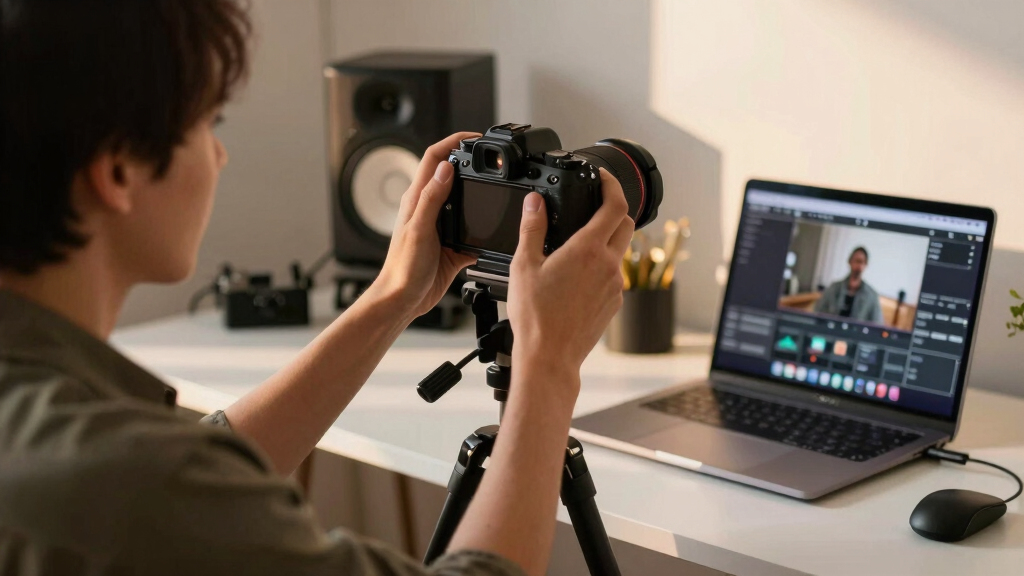
You can use your mirrorless camera as a webcam to get sharper, more vibrant video. Depending on your model, it may be a matter of plugging in a USB or connecting via HDMI with a capture card. Modern cameras and software now make this easier than ever.
Ever tried to look sharp on a video call, only to be stuck with a fuzzy, washed-out image? Your built-in webcam probably isn’t cutting it anymore. The good news: your mirrorless camera can step in and deliver studio-quality video, turning your workspace into a professional broadcast setup.
But how do you actually connect that shiny new camera? It’s not as complicated as it sounds—especially with recent firmware updates and smarter software. Whether you’re streaming, working from home, or hosting a virtual event, this guide will walk you through turning your mirrorless into a high-quality webcam, step by step.
Many modern mirrorless cameras support direct USB webcam mode, simplifying setup and saving money.
A capture card is still needed if your camera lacks built-in webcam support, but budget options exist.
Proper lighting, focus, and background framing dramatically boost your video quality.
Update your camera’s firmware regularly to access new features and improve compatibility.
Test your setup beforehand to avoid surprises during important calls or streams.
Sharper video calls start with the camera you already own.
A mirrorless camera can turn a fuzzy, washed-out webcam feed into a crisp studio-style image. The setup usually comes down to one choice: direct USB webcam mode for simplicity, or HDMI plus a capture card for maximum flexibility and quality.
Modern firmware and camera utilities have made mirrorless webcam setups far less fussy than they used to be.
Start with what your camera can output.
Your model determines the rest of the workflow. Some cameras connect over USB and appear as a webcam. Others need clean HDMI output, a capture card, a cable, and continuous power.
Fastest setup
Recent Canon, Sony, Panasonic, and Fujifilm models may work over USB through built-in webcam mode or manufacturer software.
Highest control
Clean HDMI removes icons and overlays from the feed, making the camera output suitable for Zoom, OBS, Ecamm, and streaming apps.
Unlock features
Firmware updates often add webcam support, improve stability, and fix compatibility issues with newer operating systems.
Build the signal chain before the call starts.
The smoother your chain, the fewer surprises you get when an important meeting or stream begins. Treat the camera like a small broadcast system.
Update
Install the latest firmware and webcam utility for your camera model.
Mount
Place the camera at eye level on a tripod, arm, or monitor mount.
Power
Use AC power or a dummy battery for long calls and stable sessions.
Connect
Choose USB webcam mode or HDMI into a capture card.
Test
Record a sample clip to check focus, color, framing, and audio sync.
Pick the route that fits your priorities.
USB is simpler and cheaper when supported. HDMI adds gear, but it often provides cleaner output, better resolution options, and more consistent results for long-term streaming.
| Factor | Direct USB Webcam Mode | HDMI + Capture Card | Best For |
|---|---|---|---|
| Extra hardware | ✓ Usually none beyond USB cable | ~ Requires capture card and HDMI cable | Minimal desk clutter |
| Setup complexity | ✓ Lower; often plug-and-play | ~ More settings and cable checks | Fast work calls |
| Resolution flexibility | ~ May be capped by software | ✓ Often stronger for HD or 4K workflows | Streaming and events |
| Older camera support | ✗ Limited by model and firmware | ✓ Works if clean HDMI is available | Reviving older bodies |
| Long-term reliability | ~ Depends on utility and OS support | ✓ Stable with quality capture hardware | Repeat broadcast setups |
Setup Impact
Simplicity to Quality Spectrum
USB webcam mode usually wins for convenience. HDMI capture wins when you need higher fidelity, cleaner control, and a setup you will reuse for streams, webinars, or recorded video.
Professional video is mostly preparation.
A mirrorless camera can look worse than a webcam if the settings are wrong. Lock the essentials so the camera does not keep changing the image mid-call.
Lock the image
Switch to video mode, disable auto shutoff, set manual focus, and adjust exposure, ISO, and white balance for your room.
- Manual focus prevents distracting focus hunting.
- Fixed white balance keeps skin tones natural.
- Clean HDMI removes camera menus and overlays.
Shape the scene
Lighting and lens choice matter as much as the camera body. Soft light slightly above eye level creates a flattering image and lowers noise.
- Use a wide aperture lens for background separation.
- Keep the background tidy but not empty.
- Test framing before joining the meeting.
The clean webcam chain.
Each decision affects the next one. Compatibility determines hardware, hardware determines software, and lighting determines whether the final image actually looks premium.
Do I need a capture card?
Not always. If your camera supports direct USB webcam mode, you can skip the capture card. If it does not, HDMI capture is the usual path.
Can it run for long calls?
Yes, but use AC power or a dummy battery and check whether your camera overheats during extended sessions.
What improves quality most?
Soft lighting, manual focus, stable exposure, clean framing, and a suitable lens usually matter more than chasing the newest body.
Check if Your Camera Supports Webcam Mode and What You Need
The first step is knowing if your mirrorless camera can act as a webcam. Modern models from Canon, Sony, Panasonic, and Fujifilm often support direct USB webcam functions, which can significantly streamline your setup. This support means you can connect your camera directly to your computer via USB, eliminating the need for extra hardware and reducing clutter. However, some cameras still rely on HDMI output, which involves additional components.
Understanding whether your camera supports this feature impacts your purchase and setup choices. If it does, you save money and complexity; if not, you’ll need to weigh the tradeoff between investing in a capture card or upgrading your camera. The choice affects your workflow: direct USB is more straightforward but may have limitations in resolution or features, while HDMI offers higher flexibility at a higher cost and setup complexity. Check your camera’s manual or manufacturer’s website carefully—some models require firmware updates to enable webcam mode, so keeping your firmware current can unlock new capabilities and ensure compatibility.
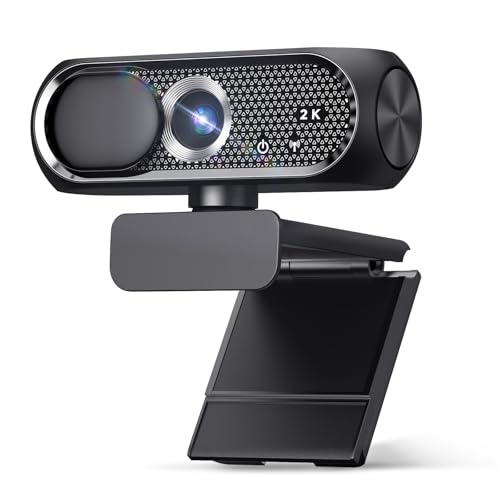
Shcngqio 1080P HD Webcam with Microphone, Privacy Cover, Wide-Angle Lens, Plug & Play USB Webcam for Laptop, Desktop, PC, Mac, Zoom, Skype (Deep Black)
- Full HD 1080P Resolution: Sharp, vibrant images and smooth video
- Wide-Angle Lens: Captures more in frame for wider shots
- Noise-Canceling Microphone: Ensures clear voice transmission in noisy environments
As an affiliate, we earn on qualifying purchases.
As an affiliate, we earn on qualifying purchases.
Set Up Your Camera for a Smooth Video Feed
Preparing your camera goes beyond just turning it on. Setting it up correctly ensures your video looks professional and avoids common pitfalls like flickering or focus hunting. Switching to a dedicated video mode and disabling auto shutoff prevents interruptions during calls. Manual focus is crucial because autofocus can hunt for focus during a live stream, causing distracting shifts. By setting focus manually, you maintain a consistent, sharp image.
Adjusting exposure, ISO, and white balance isn’t just about brightness; it influences the overall tone and realism of your video. For example, improper white balance can make skin tones appear unnatural, which can be distracting to viewers. Enabling clean HDMI output—where the camera outputs only the video feed without overlays—is vital for a clean, professional look. This setting ensures your video isn’t cluttered with icons or settings that are useful for shooting but distracting during streaming or conferencing.
Choosing the right lens affects depth of field and background separation. A wide aperture lens (like f/2.8) creates a pleasing background blur that isolates you from clutter, making your video more polished. Conversely, a sharper lens keeps more detail in the background, which might be desirable in some professional contexts. Testing your setup with a short recording helps you identify issues early, allowing you to tweak settings for optimal results.
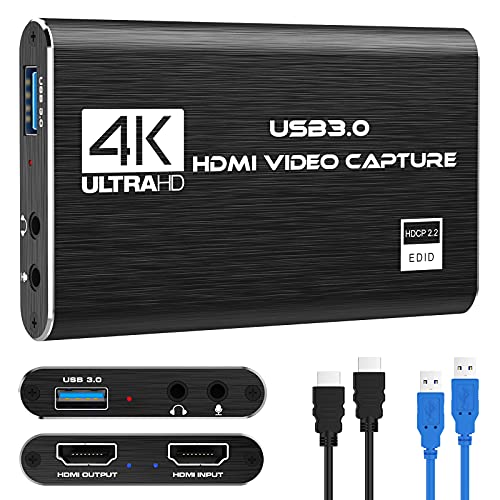
Capture Card, 4K HDMI Video Capture Card, Game Capture Card, 1080P 60FPS Video Capture Device, HDMI to USB 3.0 Capture Card for Streaming, Work with Camera/Xbox/PS4/PS5/PC/OBS
- High-Resolution Capture: Supports up to 1080p at 60FPS
- Wide Device Compatibility: Works with PS4, Xbox, DSLR, and more
- Plug and Play: No drivers or external power needed
As an affiliate, we earn on qualifying purchases.
As an affiliate, we earn on qualifying purchases.
Connect Your Camera to Your Computer — USB or HDMI?
Connecting your mirrorless camera to your computer can be achieved via two main methods, each with implications for quality, ease, and cost. Recent models like the Canon EOS R5 or Sony A7 IV support direct USB webcam mode, which simplifies the process significantly. This method provides a plug-and-play experience, reducing setup time and technical barriers. It’s ideal for those who want quick, reliable results without additional hardware.
If your camera doesn’t support USB webcam mode, an HDMI capture card is your best alternative. This device acts as a bridge, converting your camera’s HDMI output into a USB signal your computer recognizes as a webcam. While this adds hardware and cost, it often provides higher resolution and more stable video output, especially for older or less-supported models. The quality tradeoff is generally worth it if you need higher fidelity or plan to use the setup long-term.
Choosing between these methods depends on your priorities: simplicity and cost versus flexibility and quality. Remember that the connection method influences your setup time, portability, and potential for technical issues. Properly configuring your camera and software will ensure a seamless experience regardless of your choice.

Logitech Brio 101 Full HD 1080p Webcam for Streaming and Meetings – Black
- Nintendo Switch 2 Compatibility: Supports GameChat Mode
- Auto Light Balance: Enhances brightness and reduces shadows
- Privacy Cover: Built-in slide for privacy
As an affiliate, we earn on qualifying purchases.
As an affiliate, we earn on qualifying purchases.
Optimize Your Video for a Professional Look
Lighting fundamentally impacts how your camera captures your image. Soft, diffuse lighting reduces harsh shadows and creates a flattering glow, which is why ring lights or natural light through sheer curtains are popular choices. Positioning your light slightly above eye level prevents unflattering shadows under your eyes or nose, enhancing your appearance on camera. Good lighting not only improves visibility but also reduces the camera’s need to compensate with high ISO, which can introduce noise.
Manual focus is essential because autofocus can be unpredictable during live streams, causing distracting shifts. By setting focus manually, you ensure your shot remains consistently sharp. Adjusting exposure and white balance to match your environment prevents color shifts and maintains natural skin tones, avoiding the washed-out or overly warm look that can occur with auto settings. This is especially important if your room has mixed lighting sources, such as LED and daylight, which can confuse auto settings and degrade image quality.
Background management is often overlooked but critical. A clutter-free, well-framed background with some visual interest—like a plant or artwork—creates a more engaging visual experience. The choice of lens influences depth of field: a wide aperture (f/2.8 or lower) provides a beautiful blurred background, emphasizing you as the subject. However, keep in mind that a shallow depth of field can obscure important background details or context; choose your lens based on your setting and the message you want to convey. Testing different configurations helps you find the perfect balance between focus, background, and framing, elevating your video quality considerably.
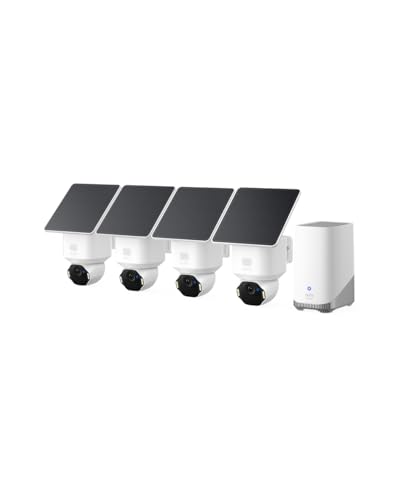
eufy Security SoloCam E42, 4-Cam Kit, 4K Solar Security Camera
- Ultra HD 4K Resolution: Captures detailed footage with true 4K UHD
- License Plate Recognition: Recognizes license plates up to 33 ft away
- AI Motion Detection: Detects and tracks people and vehicles automatically
As an affiliate, we earn on qualifying purchases.
As an affiliate, we earn on qualifying purchases.
Frequently Asked Questions
Do I need a capture card to use my mirrorless camera as a webcam?
Not always. Many recent models support direct USB webcam mode, which means you can connect via USB without extra hardware. If your camera doesn’t support this, a capture card becomes necessary to get high-quality video.Which mirrorless cameras are best for webcam use?
Cameras like the Canon EOS R5, Sony A7 IV, Panasonic Lumix G9, and Fujifilm X-T4 support clean HDMI output or direct USB webcam functionality. Choose one with recent firmware updates for smooth setup.Can I use my mirrorless camera for long video calls without issues?
Yes, but ensure your camera is plugged into AC power or a dummy battery to prevent battery drain. Also, avoid overheating by keeping the camera in a well-ventilated space and turning it off when not in use.How do I improve the video quality on my webcam setup?
Use good lighting—soft, diffuse light sources work best. Adjust exposure, white balance, and focus settings. Framing yourself at eye level and using a clean background also helps make your video look more professional.Are there any risks using my mirrorless as a webcam?
Extended use can lead to overheating or hardware wear, especially on budget or older models. Additionally, high usage can cause wear on the camera’s components over time. Monitoring your device’s temperature and taking breaks during long sessions helps mitigate these risks and prolongs your camera’s lifespan.Conclusion
Turning your mirrorless camera into a webcam isn’t just about better image quality—it’s about making your virtual presence more engaging and professional. With a little setup and some tweaks, you can transform your workspace into a studio everyone notices.
Remember: tech helps, but good lighting, framing, and a steady hand make all the difference. Your camera is ready—are you?
Fall Picks
fall essentials
As an affiliate, we earn on qualifying purchases.