
TL;DR

Get audio and creator gear delivered free with Prime
- Fast, free delivery on millions of items
- Prime Video, Amazon Music and more included
- Member-only deals all year
Express Keys and Radial Menus are game-changers for digital artists. They cut down on mouse movements, speed up common tasks, and can be tailored to any workflow. Proper setup makes all the difference.
Imagine shaving minutes off every brush change, undo, or color pick — sounds like a dream, right? That’s exactly what well-placed Express Keys and Radial Menus offer. They transform a cluttered menu maze into a sleek, intuitive command center.
Whether you’re a hobbyist or a pro, mastering these shortcut setups can make your art flow smoother and reduce fatigue. This guide walks through how to set up and customize these tools so they work *for you*, not against you.
Customize your Express Keys to match your most-used commands and reduce mouse travel.
Radial menus offer faster, more intuitive access to multiple options, keeping your hand relaxed.
Start simple and build your shortcut setup gradually — muscle memory rewards consistency.
Use logical grouping for commands, and practice daily for best results.
Proper setup can cut your workflow time by up to 30%, and reduce fatigue over long sessions.
What Are Express Keys and Radial Menus, and Why Do They Matter?
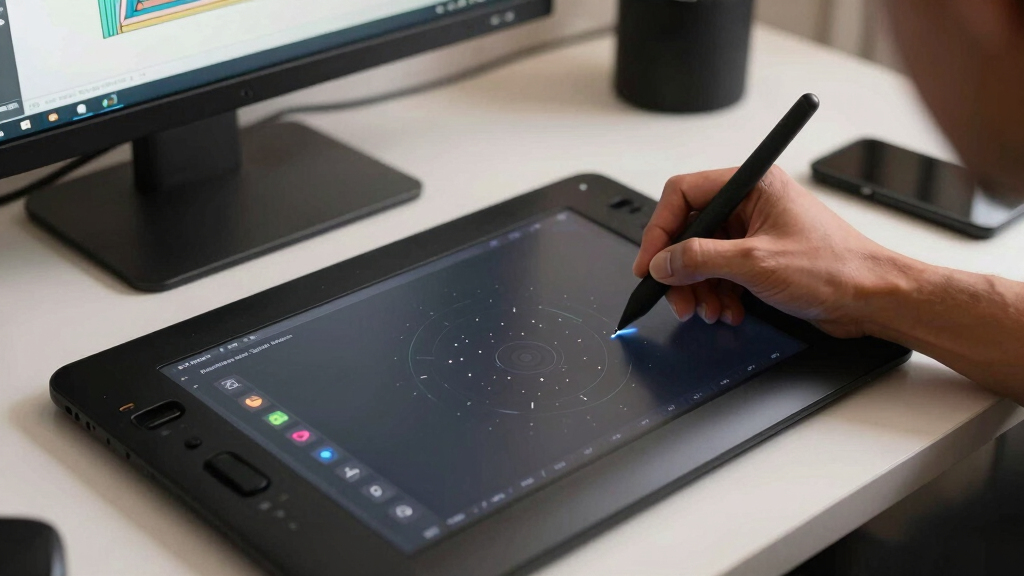
Express Keys are the physical buttons on your tablet or pen display that you assign to common commands. Radial Menus are circular shortcut menus that pop up with a quick press, offering quick access to multiple options.
For example, instead of clicking through layers or switching brushes in menus, you press a button to instantly change tools or undo an action. A radial menu might give you quick options to select a brush size, switch to eraser, or change opacity — all in one glance.
They matter because they cut down repetitive clicking, save time, and keep your hand in a natural position. Customizing these tools allows artists to streamline their workflow, reducing the cognitive load of navigating complex menus. The tradeoff, however, is that improper setup or over-reliance on shortcuts can lead to confusion or accidental commands, so thoughtful configuration is key.
digital artist customizable express keys
As an affiliate, we earn on qualifying purchases.
As an affiliate, we earn on qualifying purchases.
How to Map Your Shortcut Buttons for Maximum Speed
Customizing your buttons isn’t magic — it’s a simple process that pays off. Here’s a step-by-step:
- Identify your most-used commands — like undo, redo, switch brushes, or zoom. Understanding your workflow helps prioritize which commands to assign.
- Open your tablet’s configuration software. Many brands offer intuitive interfaces, but some may require a learning curve.
- Assign these commands to your Express Keys. For example, set ‘undo’ to button 1, ‘brush switch’ to button 2. Consider grouping related commands to minimize hand movement.
- Test your setup. Use it in your typical workflow and note any awkwardness or delays. Adjust the placement or commands as needed.
- Save your configuration and practice using it daily. Consistent use reinforces muscle memory, making your shortcuts second nature.
For instance, setting an Express Key for ‘undo’ and a side button for ‘brush size +’ can significantly reduce the time spent toggling tools. Over time, these small efficiencies compound, freeing up mental space and physical energy for creative focus.
As an affiliate, we earn on qualifying purchases.
Radial Menus vs. Traditional Menus: Which Speed Trick Wins?
| Feature | Radial Menus | Traditional Menus |
|---|---|---|
| Access Speed | Faster — one glance, multiple options. Radial menus allow quick switching between tools or commands without navigating through nested menus, reducing cognitive load and physical movement. | Slower — multiple clicks needed. Traditional menus often require sequential clicking, which can interrupt flow and increase fatigue over long sessions. |
| Ergonomics | Keeps hand in a natural position. The circular layout minimizes awkward reaching and allows for more fluid transitions between commands. | Requires more hand movement. Navigating nested menus can lead to repetitive strain, especially if poorly organized or used excessively. |
| Customization | Highly adaptable, context-sensitive. Radial menus can be dynamically adjusted based on the tool or task, offering tailored options that suit specific needs. | Limited to menu hierarchy. Traditional menus are constrained by fixed structures, which may not always align with the artist’s workflow. |
| Learning Curve | Moderate — needs setup and some practice. While initial configuration takes time, the intuitive layout facilitates faster learning and adaptation. | Low — familiar menus. Many artists are accustomed to traditional menu navigation, making it easier to pick up initially. |
Studies and user feedback indicate that radial menus, when well-implemented, can reduce the time spent switching between tools by up to 50%, especially when integrated into a consistent workflow. This efficiency gain, however, depends on thoughtful customization and regular use to develop muscle memory.
As an affiliate, we earn on qualifying purchases.
Design Your Perfect Shortcut Setup — Real Examples You Can Copy
Everyone’s workflow is different, but here are some setups that work for many artists:
- Painter: Assign ‘brush size +’, ‘brush size -‘, ‘color picker’, and ‘undo’ to Express Keys. Use a radial menu for layer controls and quick mask toggle. This setup prioritizes quick access to essential painting tools and layer management, reducing the need to navigate menus mid-stroke.
- Illustrator: Map ‘pen tool’, ‘eraser’, ‘zoom in/out’, and ‘hand tool’ to buttons. Radial menus work great for switching between brushes and textures on the fly. This configuration streamlines vector editing and detail work, minimizing hand movement between toolbars.
- Comic artist: Shortcut buttons for panel tools, speech bubbles, and background fills. Radial menus for quick palette access and layer visibility toggles. Such a layout helps manage complex scenes efficiently, allowing rapid toggling between drawing, coloring, and panel layout.
In each case, the key is to identify your most-used commands and assign them logically. This minimizes the cognitive load and physical effort needed during intense creative sessions, ultimately making your process more fluid and less fatiguing.
As an affiliate, we earn on qualifying purchases.
Tips to Make Your Shortcut Setup Feel Natural and Fast
Just customizing isn’t enough. You need to adapt your setup to your habits. Here are some quick tips:
- Start simple: Focus on 3–5 shortcuts you use daily. Overloading your setup can hinder learning and increase errors. Gradually expand as you become more comfortable.
- Use logical grouping: Keep related commands close together. For example, grouping all color controls or brush settings in one radial menu reduces search time and cognitive load.
- Practice regularly: Muscle memory develops over days or weeks. Incorporate your shortcuts into daily routines to reinforce their use and improve speed.
- Adjust as you go: If a shortcut feels awkward or inefficient, reassign it. Flexibility ensures your setup remains aligned with your evolving workflow.
- Label your buttons: Some tablets allow naming or icon assignment, which helps recall and reduces mistakes during intense sessions.
Consistent practice and thoughtful organization are key to making shortcuts feel natural. Over time, these small adjustments lead to significant improvements in speed and comfort, turning your tablet into an extension of your creative mind.
Frequently Asked Questions
How do I know which shortcuts to assign to my Express Keys?
Start with your most frequent commands — undo, zoom, brush switch, color pick. Track your workflow for a few days, then assign those commands to the most accessible buttons.Can I use radial menus on any drawing tablet?
Radial menus are primarily software-based, so they work with most tablets that support customizable shortcuts. Hardware support varies, but many devices with programmable buttons can integrate radial menus via third-party tools.What’s the biggest mistake artists make when setting up shortcuts?
Trying to cram too many commands into a small space. Focus on a handful of core shortcuts first. As muscle memory develops, add more gradually.How long does it take to see benefits from customized shortcuts?
Most artists notice a difference within a week of consistent use. It’s all about repetition and habit-building.Are there ergonomic benefits to using these shortcuts?
Absolutely. They reduce repetitive hand movements and can prevent strain over long sessions, especially if you keep your setup logical and comfortable.Conclusion
Your shortcut setup isn’t just a convenience — it’s a secret weapon. Properly mapped Express Keys and Radial Menus turn your tablet into a streamlined command hub. The more you customize, the more your workflow flows, turning hours into minutes.
Take time today to tweak your shortcuts. Your future self will thank you — faster, smoother, and less strained. After all, in art, speed and comfort make all the difference between a good piece and a great one.
Halloween Picks
halloween
As an affiliate, we earn on qualifying purchases.