TL;DR
Listen free for 30 days with Audible
Thousands of audiobooks and originals — cancel anytime.
Start your free trialAs an affiliate, we earn on qualifying purchases.
Transforming your mirrorless into a webcam delivers stunning visuals. Focus on clean HDMI output, managing heat, and using dummy batteries or USB power to keep it running all day. Proper setup makes pro-quality streaming simple.
Always verify your camera supports clean HDMI output and check if it can run indefinitely with a dummy battery or USB-C PD power.
Output at 1080p instead of 4K reduces heat buildup and extends streaming time—crucial for reliable long sessions.
Use a reputable capture device—preferably a 4K-capable card like Elgato Cam Link 4K—for best image quality and low latency.
Keep your camera cool and well-ventilated; flip the LCD away or turn it off, and consider external cooling if needed.
Stay updated with firmware and software improvements that enhance thermal management and webcam features.
How to Get a Clean HDMI Signal from Your Camera
Most mirrorless cameras can hide on-screen info, but not all do it automatically. ‘Clean HDMI’ means only your video shows up—no focus boxes, icons, or battery meters. It’s essential for a tidy stream or recording.
Understanding why clean HDMI matters is crucial: it ensures your viewers see only your intended video feed, free from distracting overlays, which enhances professionalism and viewer engagement. If overlays are left on, your stream looks cluttered and amateurish. To find out if your camera supports it, check the menu for options like ‘HDMI Info. Display: Off.’ Sony’s Alpha series (A6400, A7 III, ZV-E10) and Canon’s EOS R line often do. Panasonic, Nikon Z, and Fujifilm X bodies vary—research your model first.
Keep in mind: some cameras output 4K clean but crop or limit frame rates, or only do so in certain modes. Your capture device matters: a 4K-capable card like Elgato Cam Link 4K helps preserve quality at higher resolutions and frame rates. Choosing the right capture device impacts latency, color fidelity, and overall stream quality, so invest accordingly.
As an affiliate, we earn on qualifying purchases.
Why Overheating Kills Your Stream — and How to Prevent It
Overheating is the silent killer of long streams. Many mirrorless bodies, especially compact ones, hit their thermal limit after 30–60 minutes of continuous output—sometimes shutting down mid-call. That’s frustrating and unprofessional. Overheating not only causes interruptions but can also reduce your camera’s lifespan. Recognizing this, it’s vital to understand why heat builds up: the sensor, processor, and HDMI encoder work nonstop, generating heat that accumulates faster in warm environments or when shooting in high resolutions like 4K. The implications are clear—without proper cooling, your stream could be cut short unexpectedly, damaging your professional image.
Simple tricks: output at 1080p instead of 4K, flip the screen away or turn it off, and improve airflow with a small desk fan. Firmware updates from Canon and Sony have also improved thermal management, so keep your camera’s software current. These updates often include better heat dissipation algorithms or fan controls that can significantly extend your camera’s run time. For all-day reliability, consider video-specific models with built-in fans—like Sony FX3 or Panasonic S1H—designed to run continuously without overheating. These models often sacrifice some portability for thermal efficiency, making them ideal for long streaming sessions or professional broadcasts.
Understanding these tradeoffs helps you choose the right camera for your needs—compact for portability, or larger, fan-cooled models for endurance. Managing heat effectively is about balancing performance, size, and cost, and knowing the environment your camera operates in can inform smarter decisions about placement and cooling solutions.
dummy camera battery for mirrorless
As an affiliate, we earn on qualifying purchases.
As an affiliate, we earn on qualifying purchases.
Dummy Batteries & USB Power: Keep Your Camera Running All Day
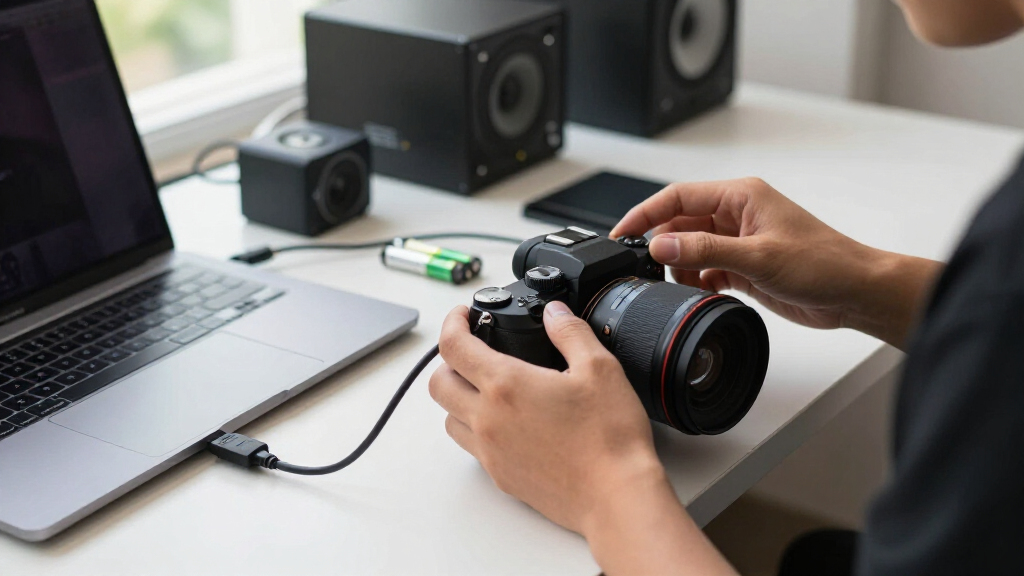
A dummy battery is a device that replaces your camera’s internal battery with an external power source—usually an AC adapter or USB-C PD. It keeps your camera powered for hours, perfect for long streams or meetings. Using a dummy battery ensures continuous power without the worry of battery depletion mid-session, which is essential for professional streaming setups. Most cameras drain a battery in about 1–3 hours of continuous HDMI output, so dummy batteries are a reliable solution to avoid interruptions.
Many models now support USB-C power delivery, which means you can run your camera off a portable power bank or wall adapter, eliminating the need for a dummy battery entirely. This approach offers greater flexibility and reduces clutter. When choosing a dummy battery, match it precisely to your camera model and use reputable brands to avoid voltage issues that could crash your device. Also, remember to keep the rubber flap on your battery door open or modify it for the cable to ensure proper fit and ventilation. Compatibility is key: some cameras can be USB-powered while recording, but behavior varies—check your model’s specs. Firmware updates can also improve compatibility and battery status reporting, making your setup more reliable over time.
Tradeoffs exist: dummy batteries and external power sources may add cost and complexity, but they provide peace of mind and uninterrupted operation. Properly setting up and testing your power solution before going live ensures a smooth broadcast experience.
external cooling fan for mirrorless camera
As an affiliate, we earn on qualifying purchases.
As an affiliate, we earn on qualifying purchases.
The Latest Tech Trends for Reliable Mirrorless Webcam Use
Newer cameras are increasingly plug-and-play with built-in webcam modes, making setup easier. Some, like Sony ZV series and recent Alpha bodies, support 4K30 UVC over USB-C, removing the need for capture cards. This simplifies the workflow and reduces latency, making high-quality streaming accessible even for beginners. Thermal design has also improved. Fan-equipped bodies like Sony FX30 and Panasonic GH6 can run all day without overheating, even in warm rooms. These models often incorporate advanced cooling systems, such as built-in fans or heat sinks, that dissipate heat more efficiently. USB-C PD power support is now standard on many models, letting you power your camera off a portable power bank or wall outlet, which is crucial for extended sessions.
Manufacturers are also updating software to support higher resolutions, better compatibility with macOS, and multi-camera setups. This means you can integrate multiple cameras seamlessly, creating professional multi-angle streams. Meanwhile, cheaper HDMI dongles are now viable for 1080p streaming, with some offering 4K at under $50. These developments collectively lower barriers to entry, making professional-quality webcam use more accessible and reliable for everyday creators.
All these advances mean your mirrorless can act as a reliable, high-quality webcam—if you pick models and accessories wisely. Staying informed about these trends ensures you invest in future-proof solutions that meet your streaming needs.
As an affiliate, we earn on qualifying purchases.
Your Top Questions About Mirrorless as Webcam Answered
- Does my camera support clean HDMI? Check your model’s menu—most recent Sony, Canon, Nikon, Panasonic, and Fujifilm cameras do. Search online for your exact model. Supporting clean HDMI is often a sign of a camera’s suitability for professional streaming, as it indicates the ability to output a clean video feed without overlays, which is critical for a polished look.
- Can I just use a USB cable instead of a capture card? Some newer models support direct UVC over USB-C, making a capture card unnecessary. This is a game-changer for simplicity and cost. Otherwise, a good HDMI capture device is still recommended for best quality, low latency, and compatibility with various streaming software. Choosing between these options depends on your camera’s capabilities and your quality expectations.
- Will my camera overheat during long streams? It depends on the model and settings. Outputting 1080p and ensuring good airflow can prevent shutdowns. Recognizing the thermal limits of your specific camera helps you plan for extended use, whether that involves external cooling solutions or choosing a model with better heat management.
- Are cheap HDMI dongles good enough? For 1080p, yes—many under $50 work well. For 4K, invest in a reputable capture card like Elgato Cam Link 4K. The tradeoff involves image quality, latency, and reliability; cheap dongles may introduce lag or artifacts at higher resolutions but are suitable for casual use.
- How do I hide UI overlays from my HDMI output? Disable info overlays in your camera’s settings. Most brands support this easily via menu options. Ensuring a clean feed is essential for professional-looking streams, and knowing how to quickly toggle overlays saves time during setup or live sessions.
Frequently Asked Questions
How do I know if my mirrorless camera supports clean HDMI output?
Check your camera’s menu for display options, or look up your model online. Most recent Sony, Canon, Panasonic, and Fujifilm cameras support clean HDMI, but older or entry-level models may not.Can I power my camera over USB instead of buying a dummy battery?
Many newer cameras support USB-C PD, letting you power them from a portable power bank or wall outlet. Check your model’s specs—some require specific firmware or settings to run while plugged in.Will my mirrorless camera overheat during a long stream?
It depends on the model and settings. Outputting only 1080p, turning off unnecessary features, and ensuring good airflow can prevent overheating and shutdowns.Is a cheap HDMI capture dongle good enough for streaming?
For 1080p, many budget dongles under $50 work surprisingly well. For higher resolutions like 4K, invest in a reputable card like Elgato Cam Link 4K for better quality and lower latency.How do I hide overlays and UI elements from my HDMI output?
Disable info overlays in your camera’s menu. Most brands offer straightforward options to show only the raw video feed, ensuring a clean look for your stream.Conclusion
Transforming a mirrorless into a webcam is about more than just plugging in. It’s a careful dance of settings, power, and cooling. When done right, you get professional-grade video that makes your stream stand out—and keeps you online without surprises. Your next step? Pick your camera wisely, set it up smartly, and watch your quality soar.Flea & tick season Picks
flea and tick prevention
As an affiliate, we earn on qualifying purchases.