
TL;DR

Get audio and creator gear delivered free with Prime
- Fast, free delivery on millions of items
- Prime Video, Amazon Music and more included
- Member-only deals all year
Autofocus hunting happens when the webcam’s contrast-based focus struggles with low contrast or movement. Lockting focus manually stops the bouncing, delivering sharp video. Lighting and background control are key to reducing hunting, especially in static desk setups.
Ever sat in front of your webcam and watched it do a weird back-and-forth dance — sharp, blurry, sharp — with no rhyme or reason? That’s autofocus hunting. It’s a common frustration for anyone working from a desk, especially because most webcams use contrast-detection AF that’s sensitive to what’s around you.
In this guide, you’ll learn what causes focus hunting, why your setup might be triggering it, and how to lock focus so your video stays crystal clear. Whether you’re streaming, making calls, or recording, fixing this issue makes your life way easier—and your viewers’ experience better.
Most focus hunting is environmental, caused by poor lighting and clutter, not a defective camera.
Lock focus manually—using your webcam’s software or third-party tools—is the easiest fix for stable video.
Lighting quality is more critical than resolution or price; bright, diffuse light boosts contrast and focus accuracy.
Fixed-focus webcams or phones with PDAF are immune to hunting, offering a hassle-free option.
Regularly update your firmware and control software to benefit from improvements in autofocus algorithms.
Webcam Autofocus Hunting: Locking Focus for Desk Setups
Sharp, blurry, sharp — that maddening back-and-forth dance is autofocus hunting, and it’s a predictable behavior of contrast-detection AF, not a broken camera. The fix for a desk setup is refreshingly simple: lock focus manually, then let lighting and background control do the rest.
What Autofocus Hunting Actually Is — and Why It Drives You Crazy
Autofocus hunting — also called focus pumping or “breathing” — is the visible cycle of your webcam’s lens racking back and forth, never settling. It’s like a bird pecking at a seed: constantly searching, never arriving.
It happens because contrast-detection AF measures edges and brightness to find focus. If the scene lacks contrast — a dim room, a blank wall, a bright window behind you — or keeps changing, the algorithm never finds a confident peak. When you lean in at 60 cm, that small move is a large relative distance change, and the camera starts re-evaluating all over again.
It’s not broken; it’s chasing shadows — literally. Even a successful focus pull slightly overshoots and comes back. Mild hunting is inherent to CDAF; your job is to remove the triggers, or remove the autofocus entirely.
Six Desk-Setup Triggers That Make or Break Focus Stability
Most focus hunting is environmental — caused by poor lighting and clutter, not a defective camera. Fix the scene and the AF settles down on its own.
Low or Uneven Lighting
The #1 enemy. Contrast AF needs luminance and edges; a dim room tanks both, turning focus into a game of hide-and-seek.
Bright Window Backlight
Sitting in front of a window is nearly as bad as darkness — contrast is all over the place and the camera can’t commit.
Busy Backgrounds
Shelves, posters and plants behind you cause the AF to jump to the background whenever you move out of the focus region.
Constant Distance Changes
Leaning in, gesturing, reaching for the keyboard — at desk distances (40–100 cm) small leans are large relative shifts.
Screen-Induced Light Shifts
A bright document, dark video or RGB lighting changes exposure and apparent contrast, triggering re-evaluation.
Smudged Lens & Face-Detection Edge Cases
Fingerprints, dust, half-closed privacy shutters — plus side profiles, masks or hats that break face-priority AF.
Hunting Risk by Scenario: Lighting Beats Price
Lighting quality is more critical than resolution or price. Bright, diffuse frontal light boosts contrast and lets the algorithm lock — and stay locked.
Illustrative index (0–100) based on how reliably contrast-detection AF can find a confident focus peak in each environment.
Fixed Focus vs. Autofocus vs. AI-Tracking Cameras
Fixed-focus webcams and phones with PDAF are immune to hunting — a hassle-free option if you’d rather never touch a focus slider.
| Attribute | Fixed Focus | Autofocus (Contrast CDAF) | AI-Tracking / PTZ |
|---|---|---|---|
| Focus mechanism | Hyperfocal lens — no moving parts | Lens steps through positions, measures contrast | Gimbal + face/body detection |
| Hunting risk | None | High in low light / busy scenes | Minimal — stays on subject |
| Setup effort | Zero — sharp within its fixed range | Lock focus once via software, then forget it | Higher cost; tracking handles the rest |
| Best use case | Static desk setups, streaming, recording | Desk setups with focus locked at 50–80 cm | Presenters who move around the frame |
Why Your Fancy 4K Webcam Hunts More Than Your Old Budget Cam
Higher-end webcams with large sensors and wide apertures (like an f/1.7 lens) can hunt more visibly — shallower depth of field makes every focus shift obvious. Better optics demand more precise focus control, not less.
Thin focus zone, visible bounce
With a very shallow depth of field, lean in slightly and you watch the focus change in real time. The hunting was always there — now you can see it. Lock it if you can.
Deep focus zone hides the shifts
Budget webcams have deeper depth of field and less sensitivity, masking focus movement. A fancy camera isn’t always better when focus stability is what matters.
Your Action Plan: Five Steps to a Locked, Sharp Image
The fastest, most reliable fix: disable autofocus and set a fixed focus distance — think of it as a firm instruction: “Stay sharp here, no matter what.”
Find Your Controls
Logitech: Logi Tune, Options+ or G HUB. Windows: OBS Studio / ManyCam expose UVC focus. macOS: third-party webcam settings apps.
Disable AF, Set Distance
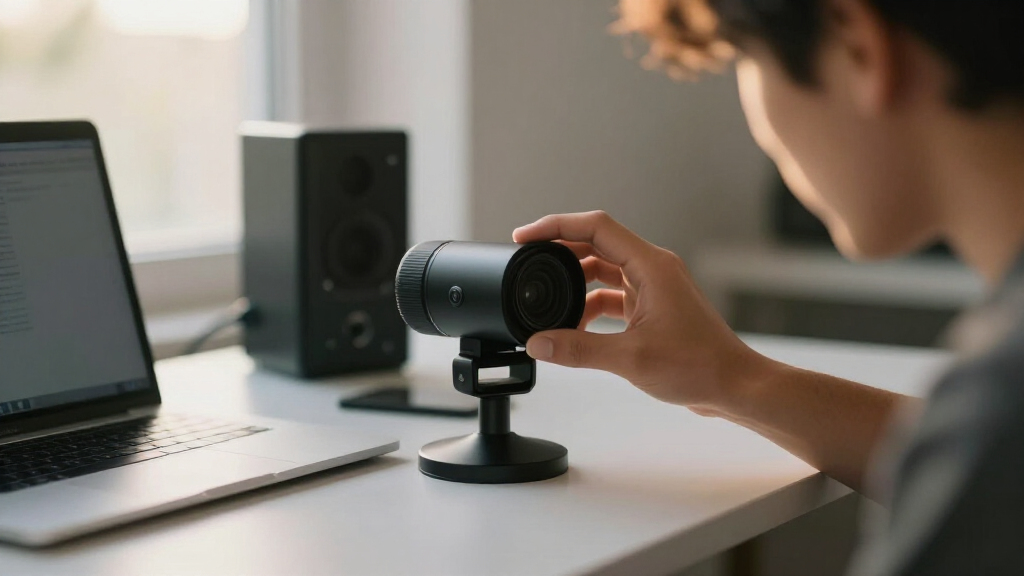
Slide focus to your seated position — around 50–80 cm for most desk cams. The lens won’t move, even when you lean.
Add Frontal Light
Ring light, LED panel or a lamp bounced off the wall. Even, diffuse light on your face; avoid harsh back or side light.
Simplify Background
A plain wall with separation from shelving gives the camera a clear target — no background to jump to.
Clean & Update
Wipe the lens, fully open the privacy shutter, and update firmware — vendors keep shipping AF-logic improvements.
The Logic Chain: From Blurry Mess to Locked & Sharp
Tech Trends Winning the Focus Battle — and One Stubborn Myth
Myth: background blur stops hunting. Blur filters in Zoom, Teams or NVIDIA Broadcast are applied after the sensor — the optics still hunt. Lock focus first; blur only hides the background’s focus changes.
Myth: Zoom/Teams can lock focus. Most video-call apps have no focus lock. Focus control lives at the driver/UVC level — set it in the manufacturer app or OS tool, and most apps inherit the last-set values.
Trend: AI tracking & gimbals. Cameras like the Insta360 Link use gimbal-style tracking, keeping focus locked on your face even as you move — no bounce, no re-searching.
Trend: phones with PDAF as webcams. Phase-detection autofocus locks focus instantly — no hunting necessary. The nuclear option for a hunting-proof setup.
What Exactly Is Autofocus Hunting and Why Does It Drive You Crazy?
Autofocus hunting is when your webcam’s lens keeps adjusting back and forth trying to find the perfect focus. It’s like a bird pecking at a seed—constantly searching, never settling. This happens because contrast-detection autofocus (CDAF) measures edges and brightness to find focus, but if the scene lacks contrast or changes, it can’t settle.
Imagine sitting at your desk with a bright window behind you. Your webcam struggles to lock focus because the contrast is all over the place. When you lean in or out, the camera keeps re-evaluating, causing that distracting focus bounce. It’s not broken; it’s just chasing shadows, literally.
Popular right now

Bose QuietComfort Headphones (2nd Gen), Wireless Over-Ear Noise-Cancelling Headphones, Hazelnut Taupe

TCL 65-Inch T7 Series 4K QLED Smart Google TV, 144Hz (65T7)

Dyson V8 Cyclone Cordless Vacuum
As an affiliate, we earn on qualifying purchases.
How Lighting and Background Setup Make or Break Focus Stability
Lighting is the biggest enemy of stable autofocus. A dim room with uneven light turns contrast detection into a game of hide and seek. Bright, diffuse light in front of you creates more contrast, helping the camera lock and stay locked.
Let’s say you’re on a call, sitting 60 cm from the camera, with a plain wall behind you. If you turn off your desk lamp or sit near a window with direct sunlight, the webcam’s contrast drops. The AF algorithm then starts hunting, trying to find a clearer image.
Similarly, background clutter—shelves, posters, busy walls—can confuse your webcam’s focus. It might jump to the background when you move, making your face blurry. Keeping a simple, consistent background and good lighting is like giving the camera a clear target.
The Simple Fix: Lock Your Focus Manually and Why It Works
The fastest, most reliable way to stop focus hunting? Lock it manually. Most webcams let you disable autofocus and set a fixed focus distance. Think of it as giving the camera a firm instruction: “Stay sharp here, no matter what.”
On Logitech models like the C920 or Brio, you can open their control software—Logi Tune, Logi Options+, or G HUB—and slide the focus to a specific point. Once set, the lens won’t move, even if you lean forward or back.
In Windows, third-party tools like OBS Studio or ManyCam can access UVC controls and lock focus. On Macs, dedicated apps or settings menus often let you do the same. This simple step transforms your focus bouncing mess into a stable, sharp image.
Lighting Hacks That Make Locked Focus Even More Reliable
Even with focus locked, poor lighting can cause issues. Bright, diffuse light from a ring light or a desk lamp bouncing off the wall improves contrast, making your webcam’s image clearer and more stable.
For example, I once set up a small LED panel in front of my face, angled to fill in shadows. The result? My camera no longer struggled to focus, even when I moved slightly. Better lighting means less hunting, even if the focus is fixed.
Pro tip: avoid harsh backlighting or strong side light, which can create contrast shadows and confuse your webcam’s focus. Aim for even, frontal light that illuminates your face evenly.
A Quick Comparison: Fixed Focus, Autofocus, and AI-Tracking Cameras
| Type of Camera | Focus Mechanism | Hunting Risk | Best Use Case |
|---|---|---|---|
| Fixed Focus | Hyperfocal lens, no moving parts | None | Static desk setups, streaming, recording |
| Autofocus (contrast-based) | Lens moves, measures contrast | High, especially in low light or busy backgrounds | |
| AI-Tracking / PTZ | Gimbal + face/body detection | Minimal, focus stays locked on subject |
Why Your Fancy 4K Webcam Might Hunt More Than Your Old Budget Cam
Higher-end webcams with large sensors and wide apertures (like the Razer Kiyo Pro Ultra at f/1.7) can actually hunt more visibly. Why? Because shallower depth of field makes focus shifts more obvious.
Imagine a lens with a very thin focus zone—lean in slightly, and you’ll see the focus changing in real time. Budget webcams often have deeper focus and less sensitivity, hiding focus shifts. So, a fancy camera isn’t always better if focus stability matters.
Bottom line: better optics demand more precise focus control, not less. Lock it if you can.
Recent Tech Trends That Help You Win the Focus Battle
Newer webcams with AI face-tracking, gimbal stabilization, or PDAF (phase-detection autofocus) are changing the game. They reduce hunting by keeping the focus fixed on your face, even if you move around.
For instance, the Insta360 Link series uses gimbal-like tracking, so the focus stays locked on your face without bouncing. Phones as webcams also use PDAF, which locks focus instantly, no hunting necessary.
Firmware updates from brands like Logitech are slowly improving autofocus behavior, but often it’s environmental tweaks that make the biggest difference.
Your Action Plan: How to Fix Autofocus Hunting Step-by-Step
- Identify your webcam’s control options—check if you can disable autofocus via software or app.
- Disable autofocus and set a manual focus distance suited to your sitting position (around 50–80 cm).
- Improve your lighting—add a ring light or bounce a lamp to brighten your face evenly.
- Simplify your background—use a plain wall or minimal clutter to boost contrast.
- Make sure your lens is clean and free of smudges or dust.
Repeat these steps for your specific setup. This process turns a focus-hunting nightmare into a stable, sharp image.
Frequently Asked Questions
Why does my webcam keep going blurry and refocusing every few seconds?
Most likely, your webcam’s contrast-detection autofocus is hunting because of low contrast, poor lighting, or busy backgrounds. Lockting focus manually or improving your environment can fix this.How do I turn off autofocus on a Logitech C920/C922/Brio?
Use Logitech’s software—Logi Tune, Logi Options+, or G HUB—to disable autofocus and set a fixed focus distance. This prevents the lens from moving and bouncing.How do I manually lock webcam focus on Windows 11? On macOS?
On Windows, third-party apps like OBS Studio or ManyCam can access focus controls. On macOS, check if your camera control app supports manual focus; native options are limited.Why is hunting worse at night or with the room lights off?
Dim lighting reduces contrast, making autofocus struggle. Adding bright, diffuse light in front of you helps the camera lock focus reliably.Will background blur in Zoom/Teams stop the focus from jumping?
No. Background blur filters are applied after the sensor, so the optics still hunt. Lock focus first, then add blur for best results.Conclusion
Autofocus hunting often feels like an unavoidable curse, but it’s mostly about what’s around you—not your camera’s quality. Locking focus manually stops the bouncing, while good lighting and a tidy background keep your video sharp and steady. That’s a simple fix that makes your stream or call look professional, every time.
Imagine a setup where your face stays perfectly sharp, no matter how much you gesture or lean. That’s the power of understanding focus and environment. Take control, lock it, and never worry about focus hunting again.