
TL;DR

Get audio and creator gear delivered free with Prime
- Fast, free delivery on millions of items
- Prime Video, Amazon Music and more included
- Member-only deals all year
Mixed color temperatures happen when a scene contains light sources with different warm-to-cool appearances, such as a tungsten lamp and daylight from a window. One white-balance setting cannot make both sources neutral, and different tints or spectra can still make skin look orange, blue, or green. Choose the light on the face as your reference, control competing sources, and lock white balance before recording.
Your face can look orange on one cheek and blue on the other, even when your camera shows a perfectly sensible white-balance number. That happens when different lights hit the same subject, and the camera has to choose one overall color correction. Skin reveals the mismatch quickly; a white wall often lets it slide.
This guide explains why skin looks off under mixed color temperatures, why two lamps marked with the same Kelvin value can still disagree, and what you can fix before filming. You’ll also get a practical sequence for setting white balance and deciding when a warm lamp against cool window light adds atmosphere instead of trouble.
Choose the light on the face as your white-balance reference, then let the background keep its own color if that suits the scene.
Kelvin describes warm-to-cool appearance; tint and spectral output can still make two similarly rated lights render skin differently.
Turn off, block, move, or match a competing source before recording when separate lights cast different colors across the face.
Lock white balance for a consistent scene, and use a gray card as a starting reference rather than a guarantee of flattering skin.
Use selective corrections in post for small differences; fix strong mixed lighting at the source when you can.
Camera craft / Lighting guide
Mixed Color Temperatures on Camera: Why Skin Looks Off
A face can look orange on one cheek and blue on the other—even when the white-balance number seems right. Different lights hit the subject; one camera setting makes one global color correction.
01 / The mismatch
Why one face turns orange, blue, or green
A warm household bulb can light one cheek while cool window daylight reaches the other. White balance is a global compromise: set it for daylight and tungsten may stay orange; set it for tungsten and daylight may turn blue.
Neutralize the window?
If the camera balances for daylight, the lamp-lit side can remain warm. Skin makes the boundary easy to notice, even when a white wall seems acceptable.
Neutralize the lamp?
Set the camera for tungsten and the window side can shift cool. Auto white balance may also vary between clips as framing or background colors change.
Start with the face, not the room. Pick the light that should shape the subject, then let the background keep a mild warm or cool cast if it suits the scene.
02 / Read the source
Kelvin is only part of the color story
Color temperature describes a source’s warm-to-cool appearance in kelvin. Tint describes a green-to-magenta shift. Similar Kelvin ratings do not guarantee that two lights will render skin alike.
Warm ↔ cool
A Kelvin label describes the source’s apparent warmth or coolness. It is a useful starting point, not a complete color-quality report.
Green ↔ magenta
Two lights at a similar Kelvin value can still disagree because one carries a greener or more magenta cast.
What the lamp emits
Some LEDs and fluorescents have uneven spectra. Skin may look dull or green under one lamp beside cleaner daylight.
Judge the image, not the printed number. Put the light on the subject, record a short clip, and inspect forehead, cheeks, and shadow side on a calibrated monitor when available. A neutral card is a reference, not a skin-quality guarantee.
03 / Before you roll
Balance the scene in five steps
Make the subject’s light coherent first. Then decide how much color contrast belongs in the rest of the frame.
Pick the face light
Decide which source should look neutral. Often it is the key light on the presenter.
Reduce conflicts
Switch off a competing bulb, close curtains, move the subject, or match the sources.
Match when useful
Use a gel to shift a source toward your target. Diffusion softens light; it does not correct its color.
White balance + lock
Use a preset or custom neutral-card reading under the chosen face light. Lock it for the scene.
Record a test
Inspect skin across highlights and shadows. Adjust the source or position before filming.
04 / Creative choice
Warm and cool can work together
Mixed light can add depth and atmosphere. The distraction usually comes from an unintended or uneven cast across the subject—not from having two colors in the room.
Keep the contrast at the edges
A warm practical behind you can add a cozy amber pool in a cool evening room, while a steady key light keeps skin even and comfortable to watch.
Ask where the viewer should look. If orange and blue patches compete with your expression, move the subject or reshape the sources. If the mood calls for color crossing the face, make it an intentional choice.
What should carry the color?
05 / Capture to edit
Fix the strongest mismatch before post
Modern auto white balance, RAW workflows, tracking masks, and selective color tools can help. They cannot change the fact that different sources illuminate skin with different spectra.
Control the source
Turn off, block, move, or match a conflicting light. A coherent face light gives the edit a cleaner starting point.
Correct selectively
Set the dominant facial light first. Use local masks for smaller differences; strong mixed casts take more work and can look uneven.
Protect the scene
Do not force skin toward a generic “correct” hue if the intended mood is warmer or cooler. Consistency matters more than neutrality everywhere.
Choose the light on the face as your reference, control competing sources, then lock white balance before recording. A gray card helps establish neutral; your test image tells you whether skin actually looks right.
Trace the decision
From light source to reliable skin tone
Why one face turns orange, blue, or green
Mixed color temperatures on camera make skin look uneven because one white-balance setting cannot neutralize two differently colored lights at once. A warm household bulb can paint one side of your face orange while cool daylight reaches the other, leaving the camera to balance the whole frame toward one source. The result can feel like two different rooms stitched across your cheeks.
White balance is a global compromise, not a separate correction for every lamp. If you set the camera for daylight, a tungsten-lit area can stay orange; if you set it for tungsten, daylight may turn blue. Auto white balance can add another wrinkle by choosing a slightly different correction from one clip to the next, especially if framing or background colors change.
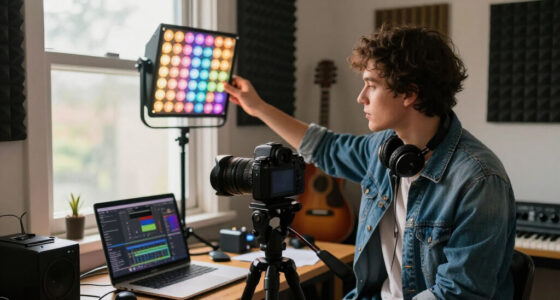
Imagine recording a talking-head video at a desk beside a window. Your left cheek catches cool afternoon daylight, and a warm table lamp lights your right cheek. The camera can make a white sheet near the window look neutral, or one under the lamp look neutral, but a single setting cannot do both. That’s why skin makes small color shifts obvious even when the background still looks appealing.
Start with the face, not the room. If your priority is a natural, consistent appearance, decide which light should shape your subject and let the background keep a mild warm or cool cast. You can then move the subject, turn off a competing lamp, or change the light setup before the mismatch becomes a repair job.
Popular right now

Dyson V8 Cyclone Cordless Vacuum

Dyson Car+Boat Cordless Handheld Vacuum

Apple AirPods Pro 3 Wireless Earbuds with Active Noise Cancellation
As an affiliate, we earn on qualifying purchases.
Why Kelvin numbers don’t tell you how a light renders skin
Color temperature describes a source’s warm-to-cool appearance, usually in kelvin; tint describes its shift toward green or magenta. Those are different qualities. Two lights with similar Kelvin ratings can still make the same face look different because their tints or spectral output differ.
A Kelvin label is not a full color-quality report. Some LEDs and fluorescent lamps produce an uneven spectrum, with gaps or spikes across the colors they emit. Skin reflects that light, and your camera records the result. A nominally daylight-balanced lamp can still leave a face looking slightly green or dull beside another daylight source.
Picture a small creator studio with a daylight window and an inexpensive LED panel set to 5600K. The number suggests the lights should match, but the LED may push skin toward green while the window light looks clean. Changing the camera’s Kelvin setting shifts both sources together, so it may improve one side of the face while making the other look worse.
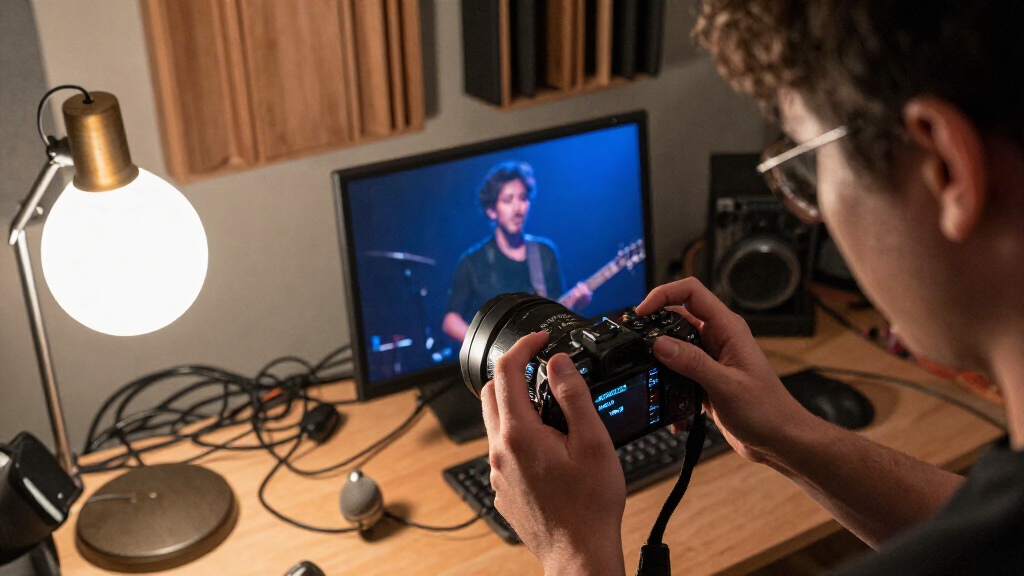
Judge the actual image, not the printed number. Put the light on the subject, record a short test, and inspect skin on the camera display or a calibrated monitor. A gray card helps you establish a neutral reference under the chosen face light, but it cannot repair a lamp whose spectrum renders skin poorly. A cheap lamp can be enough for a background glow; for a close-up, test it on a face before building the whole setup around it.
How to balance a mixed-light scene before you record
To balance mixed lighting, choose a face light, reduce competing sources, set a fixed white balance, and check a test recording. This order keeps the decision practical: first make the subject’s light coherent, then decide how much color contrast you want in the rest of the frame.
- Choose the light that should look neutral. For a presenter, that’s usually the key light on the face. If the window gives you the best skin, build around daylight; if you need to shoot at night, build around your controlled lamp.
- Remove or match the strongest conflicting source. Turn off a warm ceiling bulb, close the curtains, move away from the window, or replace a bulb with one that better matches your key light.
- Use a gel when it solves the mismatch. A color gel can shift a light toward your target. Diffusion softens and spreads light, but it does not by itself correct its color.
- Set and lock white balance. Use a suitable preset or a custom reading from a neutral card under the light that hits the subject. Lock it for the scene so auto white balance doesn’t drift between takes.
- Record a short test and inspect skin. Check the forehead, cheeks, and shadow side—not only a gray card or a white wall. If the color still feels wrong, change the source or subject position before rolling.
For example, if you’re filming beside a bright window at 3 p.m., switch off the warm desk lamp and use the window as your face light. If that lamp matters to the composition, leave it in the background as a practical, but keep its pool of light off the face. Control the light before capture and your edit will have fewer awkward patches to chase.
When warm and cool light adds atmosphere instead of trouble
Mixed lighting can look intentional when the face stays consistent and the color contrast supports the scene. Warm practical lights against cooler window light can create depth, like a cozy amber pool inside a blue evening room. The problem is usually an inconsistent color cast across the subject, not the mere presence of two colors.
A useful test is to ask where the viewer should look. If the warm lamp glows behind you while a soft, steady key light keeps your skin even, the contrast can help separate you from the background. If the lamp makes one ear orange and the window turns your forehead blue, the color shift competes with your expression instead of supporting it.
Keep the contrast in the scene’s edges. Say you’re recording a home-office tutorial after sunset. A warm practical on a shelf can add a lived-in feel, while a neutral key light on your face preserves a clear, comfortable look. In a short film scene, you may choose to let the warm and cool colors cross the face because the mood calls for it; that’s a creative decision, not a white-balance failure.
The tradeoff is consistency. If you like a deliberate warm-versus-cool look, keep the subject’s position and key light steady across takes, and lock your white balance. Repeatable color contrast reads as style; a changing face tint from clip to clip reads as a setup that moved while you were working.
What post-production can fix—and what it can’t
Post-production can refine mixed-light footage, but a global white-balance adjustment cannot independently neutralize differently lit parts of a face. If you cool the whole image to tame an orange lamp, the daylight side may turn too blue. Editing tools can apply local masks and selective color corrections, though they take more time and may leave uneven transitions.
Modern editors offer tracking masks and selective color controls, and RAW workflows can give you more room to adjust a shot. Those tools help when the color difference is mild or limited to a small area. They do not change the fact that different sources illuminated the subject with different spectra, and an automatic correction can make inconsistent choices across shots.
Consider a close-up where a window lights the left cheek and a greenish overhead LED lights the right. You might correct the general balance first, then use a soft tracked mask to nudge the green side toward a more pleasing tone. If the subject turns their head, the mask needs attention; if the green light changes as they move, the correction can become patchy.
Correct the dominant face light first, then use selective adjustments only where they help. Don’t chase a generic “correct” skin hue if the scene is meant to feel warm or cool. A short test clip and a moved lamp often save more time than a long session smoothing color across every frame.
How to keep skin color steady across a whole shoot
Consistent skin color comes from repeating the same lighting and camera reference for every take. White balance that looks right on one setup can shift when you move across the room, change windows, or point the camera at a different mix of colors. Treat each lighting arrangement as a scene that needs its own quick check.
Before a shoot, mark where your subject and key light stand. Note whether curtains are open and which practical lights are on. If you’re recording several clips for one video, use the same face light and locked white balance; don’t let the camera choose again every time you press record.
For example, you might film three tutorial segments at a desk and then move to a kitchen counter. At the desk, the window is your key; in the kitchen, overhead LEDs and warm under-cabinet lights may hit your face together. Take a new test and set a fresh reference for the kitchen rather than assuming the desk’s setting will still fit.
Use a gray card as a starting point, then inspect skin. A neutral card can guide custom white balance under the light on the subject, but a neutral reading does not prove the source renders skin well. Look at the image on a trustworthy display, especially the cheeks and shadow side. That small check helps keep a useful warm background glow from turning into an accidental orange face.
A quick comparison: change the light or change white balance?
Change the light when separate sources create separate colors on the face; change white balance when the face is lit consistently but the whole image has the wrong overall cast. White balance shifts the image globally, while source control lets you decide which colors reach each part of the subject.
| What you see | Best first move | Why it helps |
|---|---|---|
| One cheek orange, the other blue | Turn off, block, or match one source | A global setting cannot neutralize both sides independently |
| Face looks evenly too warm | Adjust white balance or set a custom reading | The dominant light is consistent, so a global correction can help |
| Skin looks green under one LED | Test another lamp or add a tint correction | Kelvin alone does not describe tint or spectral output |
| Background lamp is warm, face is even | Keep the practical and lock the face balance | Intentional color contrast can add depth |
Suppose your test shows an evenly warm face under a single lamp. A custom white-balance reading may be all you need. If one side is warm and the other cool, first move the subject or remove a source; otherwise, you’ll push the whole frame back and forth without solving the divide.
Use the camera setting for the overall cast and the lighting setup for local differences. A color gel can shift a source, a bulb change can bring it closer to the key, and a curtain can block daylight. Pick the smallest change that solves the visible problem, then record another short test.
Frequently Asked Questions
Why does my face look orange near a lamp but blue near a window?
The lamp and window send different color light onto your face. One white-balance setting corrects the frame globally, so it cannot make both sides neutral at once. Turn off or block one source, move your subject, or let one source define the face and keep the other off the skin.
Can one white-balance setting correct all the lights in a room?
No. A single setting shifts the whole image, so it can neutralize one dominant light while leaving another warm, cool, or tinted. Control the sources first if they fall differently across your subject; then set white balance for the light you chose as the face reference.
Why do two lights with the same Kelvin rating make skin look different?
Kelvin describes a light’s warm-to-cool appearance, but it does not fully describe its tint or spectrum. LEDs and fluorescent lights can emit uneven ranges of color, which may render skin differently from daylight or another lamp with the same nominal rating. Test the actual light on a face instead of relying on the printed number.
Should I use auto white balance, a preset, or custom white balance?
For a fixed setup, use a preset or custom white balance and lock it so the color stays consistent across takes. Auto white balance can shift when the framing or background changes. A custom reading from a neutral card under the chosen face light is a useful starting point, followed by a visual check of skin.
Is a gray card enough to get accurate skin color?
A gray card helps the camera establish a neutral reference under the light that hits it. It cannot neutralize two differently colored sources on one face, and it cannot guarantee flattering skin under a lamp with poor spectral output. Use the card, then inspect the recorded skin on a trustworthy display.
Conclusion
Make the face your color reference. Choose one light to shape the skin, control the sources that fight it, and lock white balance after a quick test. A warm lamp can still glow in the background like a little amber ember; it just doesn’t need to paint one cheek orange while the window paints the other blue.
Before your next take, look at the skin on the camera display and ask whether the color feels deliberate. If it doesn’t, move a light before you move a slider.