
TL;DR

Get audio and creator gear delivered free with Prime
- Fast, free delivery on millions of items
- Prime Video, Amazon Music and more included
- Member-only deals all year
Linux support for drawing tablets varies widely. Wacom devices generally work well thanks to native drivers, but many other tablets need community-developed solutions or workarounds. Staying updated and knowing your hardware is key to a smooth setup.
If you’ve ever tried to plug a drawing tablet into Linux and felt like you stepped into a maze of driver issues, you’re not alone. For years, Linux users faced a reputation for sketchy support, especially for creative hardware. But things are changing—slowly but surely. This isn’t just about getting a device to show up; it’s about how well your tablet works, what features are supported, and how much tweaking it takes to get there.
If you’re serious about using Linux for your digital art, understanding the driver landscape is essential. You’ll learn what’s possible, what’s still tricky, and how to make your setup as smooth as possible. Whether you’re eyeing a Wacom Cintiq or a budget-friendly non-Wacom, this guide lays out the reality, not hype.
Wacom devices have the most reliable Linux support thanks to native drivers integrated into the kernel.
Many non-Wacom tablets depend on community projects like digimend, which can be less stable but are improving.
Proper calibration and configuration are critical—tools like xsetwacom are your friends.
Support for advanced features like tilt and customizable buttons varies widely; check your device’s compatibility first.
Staying updated on kernel and driver releases can significantly improve your drawing experience on Linux.
Linux Creative Hardware Report
Drawing Tablets on Linux: A Driver Reality Check
The short version: Wacom remains the safest Linux choice, while many non-Wacom tablets depend on community drivers, model-specific fixes, or manual configuration. Compatibility is not simply “works” or “does not work”—pressure, tilt, touch, buttons, calibration, and display mapping can each tell a different story.
Three routes to a working canvas
The brand name is only a starting point. Model generation, USB identifiers, kernel version, display server, and driver maturity all influence the final experience.
Wacom ecosystem
Intuos and Cintiq models generally benefit from mature kernel and X.Org support. Pen input, pressure, tilt, and buttons are more likely to function with minimal intervention.
Community-supported tablets
Many Huion, XP-Pen, and other devices can work through projects such as digimend or other community tools. Support quality may differ even between visually similar models.
Unsupported revisions
A tablet may expose basic pen movement while leaving tilt, touch, displays, or shortcut keys unavailable. Manual rules, scripts, patches, or a newer kernel may be required.
“Recognized” is not the same as “fully supported”
Check every capability your workflow uses. A device can draw a line successfully and still fall short as a professional production tool.
| Capability | Wacom with native stack | Community-supported model | Unsupported or new revision | Why artists care |
|---|---|---|---|---|
| Basic pen input | ✓ Usually reliable | ✓ Often available | ~ May be partial | Cursor tracking and usable strokes |
| Pressure sensitivity | ✓ Widely supported | ~ Model-dependent | ✗ Not guaranteed | Natural line weight and brush opacity |
| Tilt detection | ✓ Common on supported models | ~ Inconsistent | ✗ Frequently missing | Shading and directional brush behavior |
| Express keys | ~ Usually configurable | ~ May need scripts | ✗ Often unavailable | Fast access to tools and modifiers |
| Multi-touch | ~ Varies by desktop | ✗ Common weak point | ✗ Rarely complete | Canvas rotation, zoom, and navigation |
| Display mapping | ✓ Strong tooling | ~ Manual calibration likely | ~ Troubleshooting likely | Accurate pen placement on screen tablets |
Legend: ✓ broadly dependable ~ conditional or model-specific ✗ commonly absent or incomplete
From USB connection to confident brush stroke
Troubleshoot layer by layer. Confirm detection first, validate input second, then tune creative features. This keeps a configuration problem from looking like a hardware failure.
Confirm the exact device
Record the model, hardware revision, and USB identity. Similar product names can conceal different internal hardware.
Test core pen input
Check cursor motion, pressure events, stylus buttons, eraser input, and whether the correct monitor is mapped.
Tune the behavior
Use xsetwacom or desktop settings to adjust pressure response, button mappings, orientation, and active area.
Test inside the art app
Validate the final experience in Krita, GIMP, or MyPaint. Application input settings can affect otherwise working hardware.
Support strength drops as features become more specialized
These bars are a qualitative guide to the typical Linux landscape—not a universal score. Exact results remain dependent on the tablet model and software stack.
Every stroke passes through a stack
A failure at any link can remove features or change pen behavior. Knowing the chain helps identify where to investigate.
Hardware Compatibility: Which Tablets Play Nice on Linux?
Not all drawing tablets are born equal when it comes to Linux. Wacom’s line—especially the Intuos and Cintiq series—is generally supported out of the box. These devices use a standard protocol that Linux drivers have supported for over a decade. This compatibility matters because it ensures a reliable, plug-and-play experience that artists can depend on for professional work or casual sketching alike. The maturity of these drivers means fewer surprises and less time spent troubleshooting.
On the flip side, many non-Wacom tablets, especially budget models from brands like Huion or XP-Pen, often rely on proprietary drivers from Windows or macOS. Linux support for these devices hinges on community efforts or third-party projects like digimend. This reliance on community-developed solutions introduces variability. Some devices work flawlessly, while others may require manual configuration, custom scripts, or even kernel patches. The implications are significant: your choice of hardware can determine whether your workflow is seamless or frustratingly inconsistent. When considering a non-Wacom device, it’s essential to weigh the convenience of native support against the cost and features of the device, and to be prepared for some tinkering.
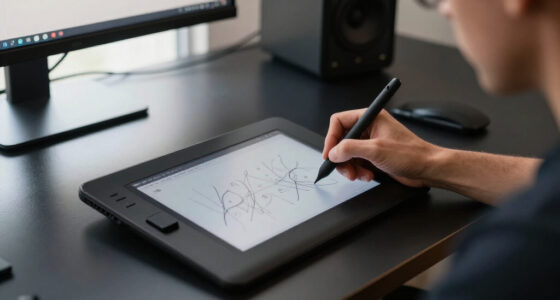
Wacom drawing tablet Linux compatible
As an affiliate, we earn on qualifying purchases.
As an affiliate, we earn on qualifying purchases.
Drivers and Software Support: What Makes or Breaks Your Setup?
Linux’s driver support for drawing tablets mainly hinges on two things: the kernel’s built-in drivers and community-developed solutions. For Wacom, the wacom driver is integrated into the Linux kernel and X.Org, providing native support for pressure, tilt, and buttons. This native support means that once your device is recognized, most features are available without additional configuration, making it ideal for professional artists who require precise and responsive input. The stability and completeness of these drivers are crucial because they directly influence how natural and reliable your drawing experience feels, impacting productivity and creative flow.
Other devices often depend on the digimend project, which extends support to a wider range of tablets. This community effort is vital because it democratizes access to hardware that might otherwise be unsupported, but it also introduces tradeoffs. Community drivers may lack the polish of native solutions, sometimes requiring manual installation, configuration, or kernel recompilation. The implications are that users need to understand the technical steps involved and accept potential instability or limited feature sets. For artists, this means balancing cost savings against the potential for a less predictable or less feature-rich experience. Recognizing these nuances helps users plan for possible troubleshooting and ensures they choose hardware aligned with their technical comfort level and artistic needs.
drawing tablet with Linux driver support
As an affiliate, we earn on qualifying purchases.
As an affiliate, we earn on qualifying purchases.
Features and Limitations: What Can You Expect from Linux Support?
Pressure sensitivity? Usually supported on Wacom devices—most models have reliable support. Tilt detection? Also generally good for Wacom, especially newer models. These features are critical for digital artists because they mimic traditional drawing tools, offering nuance and control that elevate the quality of work. Reliable support for these features ensures that artists can trust their tools to respond naturally, which directly impacts the quality and efficiency of their creative process.
But don’t expect all features. Multi-touch gestures, customizable express keys, or advanced tilt support may be spotty or absent on non-Wacom tablets. It’s a tradeoff—cheaper devices often cut corners in Linux compatibility. For example, a Huion Kamvas might support basic pen input, but advanced features like tilt or programmable buttons may require custom scripts or might not work at all. This limitation can influence an artist’s workflow, forcing compromises or additional setup time. Understanding what features are reliably supported allows artists to select hardware that aligns with their creative needs and minimizes frustration during use.
non-Wacom drawing tablet Linux compatibility
As an affiliate, we earn on qualifying purchases.
As an affiliate, we earn on qualifying purchases.
Configuring and Calibrating Your Drawing Tablet on Linux
Getting your tablet working perfectly on Linux often involves manual setup. Tools like xsetwacom allow you to calibrate pressure curves, assign buttons, and tweak behavior. These adjustments are vital because factory settings or default configurations may not match your drawing style or the specific hardware quirks of your device, leading to inconsistent or unnatural input. Proper calibration ensures that your pen pressure feels intuitive, and button mappings align with your workflow, which can significantly improve productivity and comfort.
For example, if your pressure sensitivity feels off—either too sensitive or not sensitive enough—you can run commands like xsetwacom set to adjust the pressure curve. This fine-tuning allows you to emulate the responsiveness of a traditional brush or pencil, making digital drawing feel more natural. Graphical tools like Wacom Tablet Settings or software within applications like Krita help visualize and customize these parameters, providing a more user-friendly way to calibrate without deep command-line knowledge. Recognizing the importance of calibration and configuration helps artists maintain a consistent, comfortable drawing experience despite hardware or software updates.
As an affiliate, we earn on qualifying purchases.
Latest Improvements: Are Things Getting Better?
Yes, support is improving steadily. Kernel updates every few months bring better device recognition and stability. The libwacom library now supports hundreds of new devices, making setup easier and more reliable. This means that newer hardware is increasingly likely to be supported out of the box, reducing the need for complex workarounds or manual driver installations. The implications are significant: artists and hobbyists can expect a smoother experience with each system update, which lowers the barrier to entry for Linux as a creative platform.
Open-source projects like digimend expand device compatibility, and community patches help support newer or less common tablets. For instance, users report that recent Huion Kamvas models are now recognized with pressure and tilt support after recent driver updates. These developments mean that hardware that previously required extensive configuration can now work more seamlessly, allowing artists to focus on their work rather than troubleshooting technical issues.
Software like Krita, GIMP, and MyPaint now handle tablet input more seamlessly, with pressure and tilt features integrated more reliably. This convergence of driver improvements and software support signifies a positive trend toward a more integrated and natural drawing experience on Linux, comparable to other operating systems.
What Should You Do Before Buying a Drawing Tablet for Linux?
Research is your best friend. Check if your device is supported by the latest kernel or community drivers. Look for Linux-specific user experiences on forums or Reddit. Understanding the current support status helps you avoid buying hardware that may require extensive troubleshooting or may not work as expected, saving time and frustration later.
Go for Wacom if you want a hassle-free experience. Non-Wacom? Search for supported models on sites like ArtzArtz or Linux compatibility lists. Read reviews from Linux users who’ve tested your target device. This research helps you identify hardware that offers a stable, feature-rich experience, aligning your expectations with real-world performance.
And consider your needs. If you only want basic pen input, a cheaper device might suffice. For pressure and tilt, Wacom’s proven support makes it a safer bet. Knowing your priorities helps you choose a device that balances cost, features, and Linux compatibility, ensuring a smoother artistic journey.
Best Practices for a Smooth Linux Drawing Experience
Keep your system updated—kernel, drivers, and software. Use recent Linux distributions like Ubuntu LTS or Fedora Workstation for better hardware support. Regular updates often include driver improvements and bug fixes that directly impact performance and stability, reducing the need for manual workarounds.
Install essential packages: xserver-xorg-input-wacom, libwacom, and relevant tools. Regularly check community forums for driver updates or tweak guides. Engaging with the community can provide insights into optimizing your setup and troubleshooting issues promptly, minimizing downtime and enhancing your creative workflow.
Calibrate your device early and often. Save your configuration scripts so you can restore settings after updates. Be patient—sometimes, a little fiddling leads to a much better experience. Recognizing that calibration and maintenance are ongoing processes helps ensure consistent performance and prevents frustration during creative sessions.
The Future of Drawing Tablets on Linux
Support is steadily improving, thanks to kernel updates, open-source projects, and community effort. Expect more device compatibility, better feature support, and easier setup in the coming years. These advancements are driven by both community enthusiasm and increased manufacturer recognition of Linux as a viable platform for creative professionals.
Manufacturers who recognize Linux as a key platform might release official drivers or Linux-specific firmware, reducing the need for workarounds and increasing reliability. Meanwhile, the community continues patching and enhancing support, making Linux a more competitive option for artists seeking a free and flexible environment. This collaborative momentum suggests that Linux’s role in digital art will only grow, offering more stability, features, and straightforward setup.
If you’re willing to keep an eye on driver updates and contribute feedback, your setup can stay ahead of the curve. The day when Linux equals Windows for creative hardware is not far off—just requires patience, community involvement, and a willingness to adapt as the ecosystem matures.
Conclusion
Linux support for drawing tablets is far from perfect, but it’s getting better—especially for Wacom users. With recent kernel improvements and active community projects, many artists now find Linux a workable platform. The key is staying informed, choosing hardware wisely, and being ready to tinker a bit.
If you’re committed, your Linux setup can deliver a surprisingly capable drawing experience—no Windows or macOS needed. So, before you buy, do your homework, and prepare to get hands-on. Your next great digital masterpiece might just come from a Linux machine.
Halloween Picks
halloween
As an affiliate, we earn on qualifying purchases.