
TL;DR

Get audio and creator gear delivered free with Prime
- Fast, free delivery on millions of items
- Prime Video, Amazon Music and more included
- Member-only deals all year
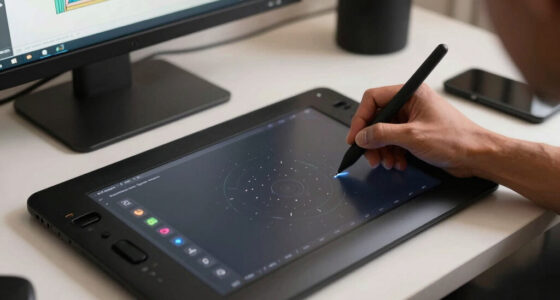
Single-cable USB-C pen displays rely on one connection for video, data, and power, but compatibility issues often cause power failures. Checking port capabilities, cable quality, and power negotiation is key to reliable operation.
Chances are, you’ve seen the promise: a sleek, single cable connecting your tablet to your laptop, simplifying your workspace. But beneath that clean look lurks a web of technical pitfalls that can turn your setup into a headache. You might find your display flickering, the pen dropping out, or the screen refusing to turn on, all because of one overlooked detail: power delivery.
In this guide, you’ll learn why power delivery is often the bottleneck—what your cable, port, and device need to communicate effectively—and how to avoid common pitfalls that turn a dream setup into a frustrating experience. Whether you’re a digital artist, designer, or hobbyist, understanding these issues saves you time, money, and a lot of head-scratching.
Why a USB-C Port Isn’t Always Your Display’s Best Friend
When you see a USB-C port on your laptop, you might assume it supports everything: video, data, and power. In reality, not all USB-C ports are created equal. Some only transfer data or charge your device, while others support video and power—if they support them at all.
For example, a laptop might support 100 W charging through a USB-C port, but that doesn’t mean it supplies enough power to a connected display. Many ports only provide a fraction of that wattage to peripherals, often 7.5 W or 15 W, which is barely enough to keep a pen display running at low brightness.
Imagine plugging in your sleek 15.6″ pen display expecting it to turn on instantly. Instead, the screen stays black, or flickers. That’s because your port’s downstream power output doesn’t match what your display needs. Always check the host port’s actual power capabilities—what’s labeled as ‘charging’ might not be enough for your display’s backlight and digitizer.
USB-C pen display power delivery cable
As an affiliate, we earn on qualifying purchases.
As an affiliate, we earn on qualifying purchases.
How To Know If Your USB-C Supports Video Output
Not every USB-C port can send video to your pen display. This is a common misconception that trips up many creators. The port must support specific alternate modes like DisplayPort Alt Mode, USB4 with DisplayPort tunneling, or Thunderbolt 3/4/5.
For instance, your laptop might have a USB-C port that charges your phone but can’t output a video signal. Connecting your pen display to that port won’t produce an image. Instead, your device’s specifications or technical documentation should confirm support for video output.
Verify if your port supports DisplayPort Alt Mode by checking the manufacturer’s specs or testing with a compatible cable and monitor. If it doesn’t, no amount of driver updates will make it work—your hardware simply isn’t capable.
USB-C to HDMI DisplayPort Alt Mode cable
As an affiliate, we earn on qualifying purchases.
As an affiliate, we earn on qualifying purchases.
The Cable Matters: Why Quality and Features Count
The cable you choose can make or break your single-cable setup. A cheap, charging-only cable might power your display’s backlight but won’t carry the video signal. Conversely, a high-quality cable supports DisplayPort Alt Mode, USB data, and sufficient power—if it’s rated for it.
Short, certified cables generally perform better. Long or unverified cables, especially magnetic or right-angle adapters, can introduce signal loss or drops. For example, a 2-meter cable labeled as ‘USB-C 4K HDMI’ might fail to transmit high-resolution video or sustain enough power, causing flickering or disconnects.
Always verify your cable supports:
- DisplayPort Alt Mode or comparable standard
- Sufficient USB data rate (preferably USB 3.1 or higher)
- Power Delivery ratings matching your display’s needs
- Electronic marking for high wattage or bandwidth
A quality cable with proper certification ensures a stable, reliable connection. Avoid cheap or generic cables that hide their capabilities.
USB-C power delivery compatible monitor
As an affiliate, we earn on qualifying purchases.
As an affiliate, we earn on qualifying purchases.
Power Negotiation: Why Your Display Might Still Be Starving
USB Power Delivery (USB PD) isn’t just about maximum wattage; it’s about negotiation. Your display and host negotiate a profile—voltage and current—that both support. If they don’t match perfectly, your display might not turn on or stay dim.
For example, your host might supply 20 V at 3 A (60 W), but your display only supports 12 V at 3 A (36 W). If the cable or port can’t support this mismatch, power delivery stalls, and your display stays dark or flickers. Sometimes, the host reduces power while on battery, causing instability.
Check your device’s specifications for supported profiles. If your display expects 20 V/3 A but your port only supplies 15 V/2 A, you’ll run into problems. Proper negotiation ensures your display gets the power it needs, without overloading or underpowering.
high quality USB-C cable for pen display
As an affiliate, we earn on qualifying purchases.
As an affiliate, we earn on qualifying purchases.
Peak Power Demands: Why Brightness and Touch Matter
Your pen display might work fine at low brightness or with no touch input. But crank up the brightness or activate touch, and suddenly it flickers or cuts out. That’s because power draw spikes during startup or high-demand modes.
For example, turning on the backlight from 50% to full brightness can create a short power spike that the port can’t sustain. Similarly, activating touch or pen input draws additional USB data bandwidth and power.
If your display only works with the charger plugged in, that’s a sign your host port and cable can’t supply the peak power needed. To avoid this, choose a display and setup that support higher power profiles or add auxiliary power options.
What ‘Single Cable’ Really Means (And What It Doesn’t)
Many manufacturers say ‘single cable’ to describe setups that might not be fully bus-powered or might include proprietary solutions. It could mean one cable with no external power, or a combined cable ending in multiple connectors. The key is understanding the actual capabilities.
For example, some displays rely on a single cable for video, data, and power, but still need an external power source or dock. Others might have a proprietary cable that actually connects to a power brick and a separate video port.
Always clarify whether ‘single cable’ means fully bus-powered or just a simplified connection. This prevents surprises when your display dims, flickers, or refuses to turn on without external power.
Bandwidth Battles: Video vs. USB Data
Using four lanes for video in DisplayPort Alt Mode provides higher resolution and refresh rates but leaves less bandwidth for USB data. If you’re running a 4K display at 60Hz with high color depth, you might need to prioritize bandwidth allocation.
For example, switching from two lanes to four lanes could improve resolution but reduce USB hub speeds to USB 2.0 levels. That impacts your pen, touchscreen, or connected peripherals.
Some setups rely on Display Stream Compression (DSC) to push high-res video over limited bandwidth, but support varies. Check if your device supports DSC if you need high resolution without sacrificing USB data speeds.
Size Matters: Resolution and Power Needs
Not all 13″ or 15″ pen displays are created equal. Two similar sizes can have vastly different power needs based on brightness, touch support, resolution, and internal features. A high-brightness, HDR-enabled display demands more power than a basic panel.
For instance, a 4K touchscreen with high maximum brightness might need 60 W or more, while a 1080p display with no touch can run comfortably on 15 W. Using a small display on a low-powered port can lead to flickering or shutdowns.
Always verify the power specifications of your display and match them carefully with your host’s capabilities. Don’t assume size alone guarantees compatibility.
Docks: A Double-Edged Sword for Power and Video
Docks can be helpful by providing a single point for power, video, and USB data, but they come with limitations. Shared bandwidth, limited downstream power, and potential firmware issues can cause headaches.
Imagine plugging your pen display into a dock that supports 85 W charging but only supplies 15 W to its downstream ports. Your display might turn on, but with flickering or reduced brightness. Or, the dock’s DisplayLink-based video might introduce latency or compatibility issues.
Check the dock’s specifications carefully. Ensure it supports high-wattage downstream power, native DisplayPort or Thunderbolt video, and proper routing for your pen input and device control.
OS and Driver Quirks: When Software Causes Hardware Headaches
If your pen works but the screen stays black, or vice versa, the problem might be software-related. Drivers, permissions, or system settings can block video or pen signals, even if hardware is fine.
For example, on Windows, issues with GPU routing or conflicting tablet software can cause the pen to stop registering. On macOS, screen recording or accessibility permissions might prevent full tablet functionality.
Always keep your drivers updated, check permissions, and test with different USB-C ports. Sometimes, a simple software tweak fixes what appears to be a hardware problem.
Common Failures: What Symptoms Tell You About Power and Signal Problems
Understanding failure patterns saves time. Here are typical signs and what they mean:
- No image, no power indicator: Likely insufficient power, wrong port, or damaged cable.
- Power indicator but no signal: Video support missing, incompatible port, or faulty cable.
- Image but no pen: USB data not reaching the tablet, driver issues, or permissions.
- Reconnecting repeatedly: Marginal power, cable issues, or hub sharing problems.
- Works only at low brightness: Power can’t support full backlight load.
Matching symptoms to causes helps you troubleshoot faster and avoid wasting time on incompatible gear.
What’s Next? New Standards and How They Impact You
USB Power Delivery 3.1 now supports up to 240 W, but most pen displays and laptops operate far below that. USB4 and newer Thunderbolt versions improve bandwidth and compatibility but still depend on correct implementation.
DisplayPort 2.x over USB-C promises higher resolutions and refresh rates, but widespread adoption remains slow, often relying on older DisplayPort 1.4 or compressed streams. Meanwhile, high-brightness, touch-enabled displays push power requirements higher, making bus-powered operation even trickier.
Manufacturers are adding auxiliary power inputs, recognizing that a single cable can’t always handle everything. This hybrid approach offers reliability while maintaining clean setups.
Your Checklist Before Buying or Connecting
To avoid surprises, verify these key points before committing:
- The host port supports video output (DisplayPort Alt Mode, Thunderbolt, or USB4).
- The port provides enough downstream power for your display’s needs.
- The display states its required voltage, current, and wattage.
- The cable supports video, USB data, and adequate power.
- The resolution, refresh rate, and color depth are within your link’s bandwidth.
- Optional auxiliary power or pass-through options are available for marginal ports.
- Your OS and GPU drivers support your display model and features.
- You’ve confirmed compatibility with any dock or hub involved.
- For mobile setups, ensure the device supports external display output and power requirements.
This checklist helps you avoid buying gear that won’t work reliably or at all.
Your Most Common Questions (And Honest Answers)
Does every USB-C port support a pen display? No. It must support video output, USB data, and enough downstream power. Many ports only support data and charging.
If my laptop charges at 100 W through USB-C, can it power the display? Not automatically. Charging power is separate from accessory power. Your port might accept 100 W but only supply a fraction of that to peripherals.
Is Thunderbolt required? Not always. DisplayPort Alt Mode over USB-C often suffices. Thunderbolt offers more bandwidth but doesn’t guarantee power support.
Why does the pen work but the screen remains black? Likely a video path issue—wrong port, incompatible cable, or unsupported mode. USB data might reach the tablet but no video signal is sent.
Why is there an image but no pen input? The cable may carry video but lack USB data, or driver and permissions issues block pen signals. Check connections and driver status.
Can I use any USB-C charging cable? No. Many charging cables don’t carry video or support high power and data rates. Use certified, high-quality cables designed for video and power.
Can I use an extension or magnetic adapter? It’s risky. Signal loss and incompatibility increase, especially at high resolutions or power demands. Use only certified, short extensions.
Why does it only work when plugged into external power? The host’s port can provide data and video but not enough power for full operation. External power or auxiliary inputs are often necessary.
Will a higher-wattage charger damage the display? Usually no, as long as the devices support proper USB PD profiles. Poorly made or noncompliant gear can pose risks.
Can the display charge the laptop at the same time? Only if it supports USB-C pass-through. Otherwise, the display consumes part of the power, reducing available wattage for the laptop.
Why does it work on one port but not another? Different ports have different capabilities—check your device’s documentation rather than assuming all USB-C ports are equal.
Can a phone or tablet run a USB-C pen display? Sometimes, if it supports external video, USB data, and enough power. Many mobile devices fall short on one or more of these fronts.
Does 4K require Thunderbolt? No. DisplayPort Alt Mode can carry 4K at 60Hz without Thunderbolt, but bandwidth and compression support impact performance.
Does USB Power Delivery 3.1 eliminate power problems? No. It raises the maximum potential but doesn’t guarantee your setup can handle peak demands—compatibility still matters.
What’s the safest fallback? Use the display’s official cable and power supply, with external power or auxiliary options if needed. This reduces surprises and ensures stability.
Conclusion
The promise of a single cable is tempting, but power delivery remains the hidden challenge. A small oversight—like using the wrong cable or port—can turn a sleek setup into a flickering, unreliable mess. Take the time to verify your port capabilities, choose quality cables, and understand how power negotiation works.
With that knowledge, you can confidently build a clean, simple workspace that delivers reliable video, responsive pen input, and stable power—no surprises. Remember, in the world of USB-C pen displays, thorough prep beats troubleshooting, every time.
Halloween Picks
halloween
As an affiliate, we earn on qualifying purchases.