
TL;DR

Get audio and creator gear delivered free with Prime
- Fast, free delivery on millions of items
- Prime Video, Amazon Music and more included
- Member-only deals all year
Interface loopback allows you to record system or call audio directly from your audio interface without extra hardware. Modern interfaces and software make setup simple, reducing latency and complexity. It’s a game-changer for podcasters, streamers, and remote interviewers.
Imagine recording a phone call or a Zoom interview without juggling multiple cables or fighting with external mixers. Sound too good to be true? It’s not. Thanks to interface loopback, you can route audio internally within your hardware, capturing high-quality sound directly into your recording software. Whether you’re podcasting on a budget or streaming with professional polish, this feature simplifies your setup and cuts down on latency.
In this guide, you’ll learn exactly what interface loopback is, how it works, recent tech advances, and practical tips to get started. No fluff. Just real-world advice for making your recordings cleaner, easier, and more reliable.
Modern audio interfaces often include native loopback features, simplifying call and system audio recording.
Virtual audio routing software expands your options, especially if your interface lacks native support.
Always test your setup before recording or streaming live to avoid feedback or missing audio.
Keep your drivers and firmware updated for the most stable and low-latency performance.
Be aware of legal restrictions and always get consent when recording calls.
What is interface loopback — and why does it matter?
Interface loopback is a feature that lets your audio interface send the output back into its input channels internally. This isn’t just about convenience; it has profound implications for how efficiently and cleanly you can record or stream audio. By creating a virtual routing path within the device, you eliminate the need for external cabling, which reduces potential points of failure, signal degradation, and latency. This internal routing ensures that your system audio or calls are captured with minimal delay and maximum clarity, which is crucial for high-quality recordings or live streams. Think of it as having a built-in shortcut that preserves audio fidelity while simplifying your setup. The tradeoff? Not all interfaces support this feature, and some virtual routing options can introduce latency if not properly configured, so understanding your hardware’s capabilities and limitations is key.
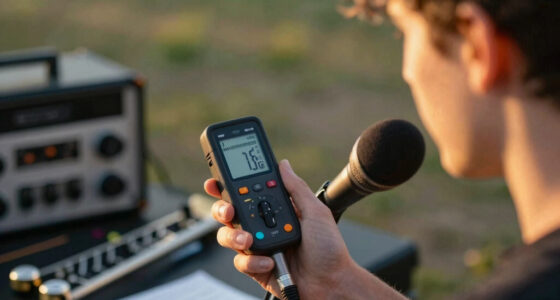
audio interface with loopback recording
As an affiliate, we earn on qualifying purchases.
As an affiliate, we earn on qualifying purchases.
How modern interfaces make internal routing easier than ever
Today’s audio interfaces often include native virtual loopback features—sometimes called “mix return” or “internal routing”—built right into the hardware or drivers. These tools aren’t just conveniences; they significantly impact workflow efficiency. For example, they allow streamers and podcasters to capture system sounds or call audio without complicated setups, enabling more reliable and professional recordings. The flexibility of these features means you can route multiple outputs into inputs, creating complex mixes or isolations tailored to your needs. This reduces the need for external mixers, which can be bulky and introduce additional latency or noise. Operating systems have also evolved to support virtual audio devices that integrate seamlessly with these interfaces, further streamlining the process. However, while native support simplifies setup, it’s essential to recognize the tradeoff: some interfaces offer limited routing options, and the complexity of routing configurations can sometimes lead to missettings that cause echo or latency. Choosing the right hardware and understanding its routing capabilities is therefore crucial for optimal results.
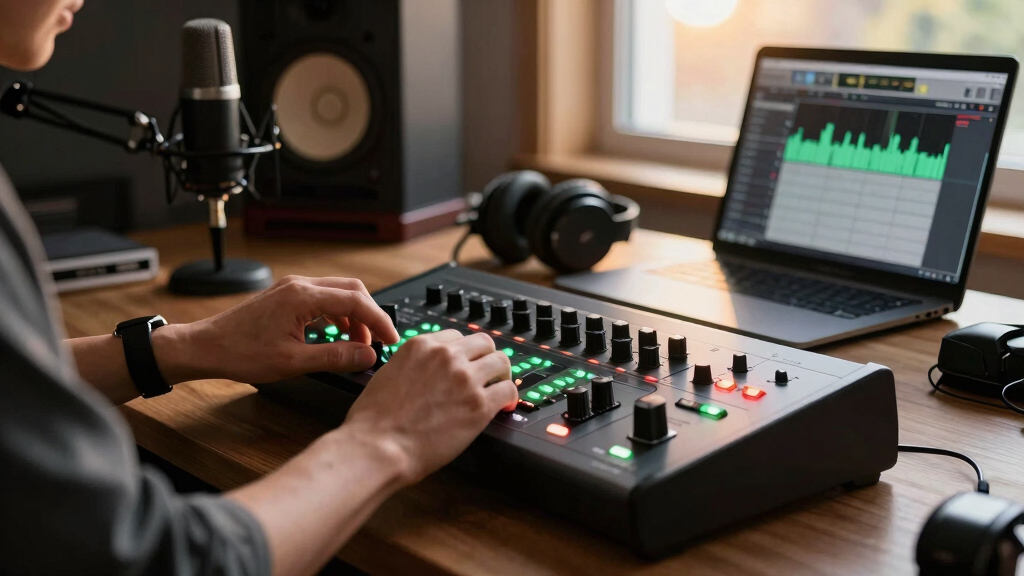
virtual audio routing software for streaming
As an affiliate, we earn on qualifying purchases.
As an affiliate, we earn on qualifying purchases.
Step-by-step: Setting up interface loopback in 3 easy steps
- Check if your audio interface supports native loopback or internal routing. Review the manual or control software to understand available features and limitations.
- Enable loopback or internal routing via the device’s software or driver panel. Assign your system or call output to a virtual input, and consider adjusting buffer sizes to optimize latency and stability.
- Configure your recording or streaming software. Select the virtual input or the interface’s loopback channel as your source. Test the setup thoroughly to ensure the audio flows correctly and without delay or feedback.
For example, if you’re using a Focusrite Scarlett 2i2 with Loopback enabled, open your DAW or OBS, select “Loopback” as the input device, and start recording. Your call audio now flows directly into your project, crystal clear. Remember, proper testing helps identify potential issues like echo or latency, which can be mitigated by adjusting buffer sizes or routing configurations.
Pro tip: Always test your setup before going live. Play a call or media, check levels, and listen for echo or feedback to ensure optimal sound quality and minimal latency.
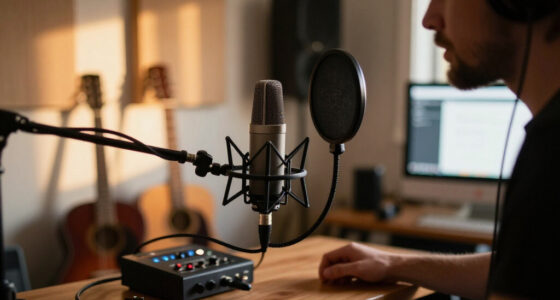
USB audio interface for podcasting
As an affiliate, we earn on qualifying purchases.
As an affiliate, we earn on qualifying purchases.
Comparison table: Hardware with native loopback vs. third-party virtual routing
| Feature | Native Loopback (Example: RME, Focusrite) | Third-Party Virtual Routing (Example: VoiceMeeter, Soundflower) |
|---|---|---|
| Ease of setup | High—built into device/software, simple toggle | Moderate—requires additional software setup and configuration |
| Flexibility | Limited to device’s routing options, which might restrict complex configurations | Very flexible—can route multiple sources and outputs, enabling advanced mixing and routing scenarios |
| Cost | Included with high-end and some mid-range interfaces, adding value but possibly increasing initial investment | Free or inexpensive, open-source options available, making advanced routing accessible to budget setups |
| Compatibility | Depends on device support and driver stability; some older devices may lack support | Works with almost any device and OS, but may require additional configuration or drivers |
| Latency | Minimal—optimized in hardware, ideal for live recording and streaming | Very low—depends on system performance and configuration, but generally suitable for real-time use |
As an affiliate, we earn on qualifying purchases.
Common pitfalls and how to avoid them
Using interface loopback isn’t foolproof. You might encounter echo, feedback, or latency if settings aren’t right. For example, if your DAW picks up both the microphone and the loopback channel, you risk a feedback loop that causes squealing. This can be especially problematic in live scenarios or when monitoring through speakers instead of headphones, which can create a loop that amplifies unwanted noise. To prevent this, mute your mic or monitor channels when recording, and always use headphones to isolate your playback from your microphone. Additionally, improper routing configurations can cause audio to be silent or distorted, so double-check your device’s routing matrix or software controls before recording. Keep your drivers updated; firmware bugs or incompatibilities can cause instability or dropouts. Lastly, be aware that some setups may introduce latency that affects sync—testing and adjusting buffer sizes can mitigate this. Recognizing these potential issues and proactively addressing them ensures a smoother recording experience.
Always test your setup with simple recordings before starting critical sessions. This helps you identify and fix problems early, saving time and frustration during live recordings or streams.
Legal and ethical notes: When recording calls, do it right
Recording calls with loopback is straightforward, but laws vary by jurisdiction. In some places, you need explicit consent from all parties involved, while others require only one-party consent. Failing to adhere to local laws can lead to serious legal consequences, including fines or criminal charges. If you’re doing interviews or podcasts, always mention that you’re recording at the outset, and obtain explicit permission when necessary. Respect privacy rights and ensure your recordings are stored securely to prevent unauthorized access. Being transparent not only keeps you compliant but also fosters trust with your audience or interviewees. Using loopback makes recording easier, but it doesn’t exempt you from legal responsibilities. Always research your local regulations and document consent where required, ensuring your practice remains ethical and lawful.
Remember, technology is a tool—your responsibility is to use it ethically. Respecting privacy and obtaining proper consent are essential for maintaining credibility and avoiding legal issues.
Frequently Asked Questions
Can I use interface loopback with any sound card?
No. Check if your audio interface supports native loopback or has flexible routing options. Some budget models lack this feature, so third-party virtual routing might be necessary.Does loopback affect audio quality?
Typically, no. Modern interfaces and drivers process loopback internally with minimal or no added noise. Proper setup ensures high-quality recordings.Is it hard to set up interface loopback for beginners?
Not really. Most interfaces with native support have straightforward controls, and third-party tools are user-friendly. Just follow the setup steps, test, and tweak as needed.Can I record multiple sources using loopback?
Yes. Advanced routing software allows multiple inputs and outputs to be routed simultaneously, giving you flexible recording options.Are there any risks or downsides?
Improper setup can cause feedback or echo. Also, latency, though minimal, can be noticeable if your system isn’t optimized. Always test thoroughly before critical recordings.Conclusion
Interface loopback turns your complex-sounding setup into a one-click solution. It’s a simple, reliable way to record calls and system audio without extra gear cluttering your space. Once you try it, you’ll wonder how you ever managed without it.
So next time you need clear, fuss-free recordings, remember: inside your interface lies a hidden power. Tweak your settings, hit record, and enjoy the cleanest sound possible. Your future self will thank you.
Evergreen bestsellers Picks
bestsellers
As an affiliate, we earn on qualifying purchases.