TL;DR

Get audio and creator gear delivered free with Prime
- Fast, free delivery on millions of items
- Prime Video, Amazon Music and more included
- Member-only deals all year
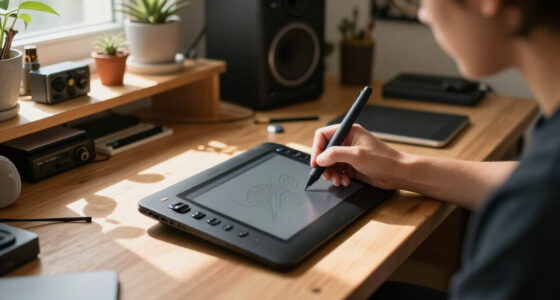
Using a pen tablet for photo retouching offers far greater accuracy than a mouse, thanks to pressure sensitivity and natural control. Recent upgrades in tablet tech make this switch easier and more effective, whether you’re a beginner or pro.
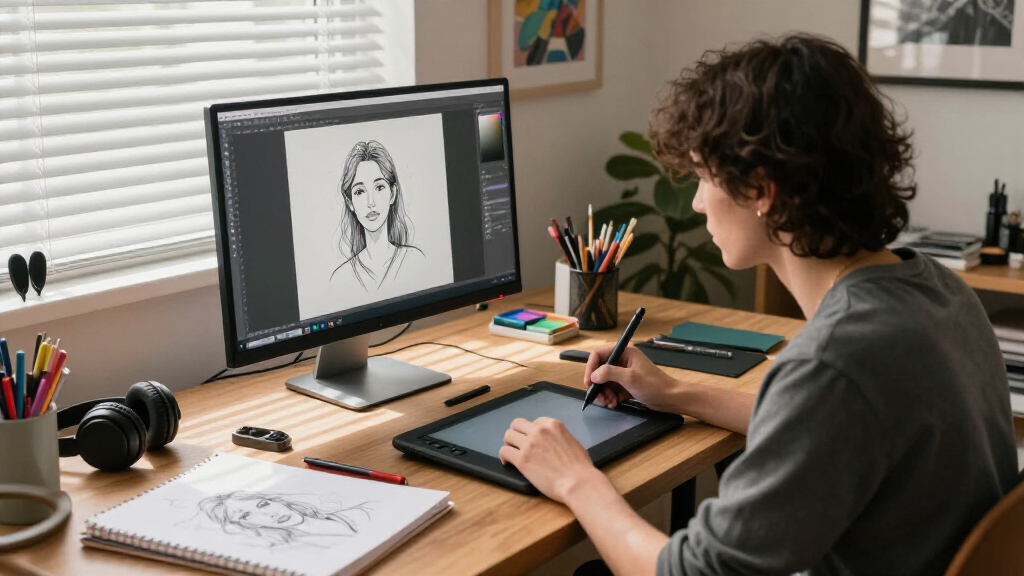
If you’ve ever struggled with a mouse trying to do detailed photo retouching, you’re not alone. The tiny, jittery cursor feels like trying to carve with a butter knife when your goal is precision. A pen tablet can change that. It’s like swapping out a rusty spoon for a fine-tipped pen. Suddenly, every line, curve, and feathered detail becomes easier to control.
Switching from mouse to pen isn’t just about better accuracy—though that’s a big part of it. It’s about feeling more connected to your work. The pressure sensitivity, tilt recognition, and natural grip make editing feel more intuitive. You’ll notice smoother transitions, more control over subtle adjustments, and less fatigue during long sessions. This guide walks you through why it’s worth making the leap, what’s new in tablet tech, and how to do it without losing your mind.
A pen tablet offers superior precision and control, especially for detailed retouching tasks.
Recent tech advances—like higher pressure sensitivity and wireless options—make tablets more accessible and powerful.
Choosing the right tablet depends on your workflow, budget, and whether you prefer a display or non-display model.
Practice and customization are key to smoothly transitioning from mouse to pen tablet.
Investing in a quality pen tablet can cut your editing time and boost your creative potential.
Photo Retouching With a Pen Tablet: Switching From the Mouse
A mouse feels like carving with a butter knife — a pen tablet swaps it for a fine-tipped pen. Pressure sensitivity, tilt recognition, and a natural grip turn correction into a controlled, artistic process with smoother transitions, subtler adjustments, and less fatigue during long sessions.
Modern pen tablets now feature up to 8192 levels of pressure sensitivity, enabling artists to mimic traditional brush strokes with astonishing nuance in digital retouching.
Key Insight · ArtzArtzWhy a Pen Tablet Outshines Your Mouse
A paintbrush versus a squeegee. The mouse only reports position; the pen captures your hand’s natural movement, pressure, and tilt — the difference between overshooting a skin adjustment and feathering it with a few gentle presses.
| Retouching Task | Mouse | Pen Tablet | Why It Matters |
|---|---|---|---|
| Skin retouching | ✗ Jittery, overshoots | ✓ Feather & blend gently | Realistic skin tones need delicate pressure |
| Hair masking | ✗ Coarse selections | ✓ Nuanced strands | Soft gradients without tool-switching |
| Dodging & burning | ~ Workable, slow | ✓ Natural opacity flow | Pressure maps to flow & exposure |
| Long sessions | ✗ Wrist strain | ✓ Ergonomic grip | Natural hand position reduces fatigue |
| Gesture navigation | ~ Keyboard-dependent | ✓ Pinch, swipe, rotate | Focus stays on creative decisions |
The Latest Pen Tablet Upgrades You Need
Recent models have skyrocketed in capability — one photographer upgrading from a basic Wacom Bamboo to a Huion Kamvas Pro 20 saw immediate gains in control and precision during hours-long sessions.
Up to 8,192 Levels
Smoother gradations and subtler stroke weight reduce the need for multiple blending passes — slight variations make a big difference in realism and texture.
Wireless & Bluetooth
Less clutter, more freedom of movement. Note: wireless may add slight latency and requires charging — weigh your priorities.
Larger Active Areas
Bigger surfaces emulate a physical canvas, cutting constant zoom in-and-out so you maintain flow and see finer detail.
Touch & Multi-Touch
Pinch-to-zoom and swipe navigation mirror familiar tablet interactions, reducing reliance on keyboard shortcuts and menus.
Enhanced Drivers
Smoother integration with Photoshop, Lightroom, and Capture One — fewer lag, calibration, and driver conflicts that hinder productivity.
Affordable Entry Tier
Beginner-friendly models like the XP-Pen Deco or Huion Inspiroy bring professional pressure sensitivity to hobbyist budgets.
Mouse to Pen: The Transition Path
Six practical steps to move from mouse to pen without losing your mind — start small, stay consistent, and your hand-eye coordination improves naturally.
Choose the Tablet
Display vs. non-display, budget, workspace — try before you buy.
Set Up Ergonomics
Comfortable position, tuned sensitivity, learned pen buttons.
Practice Strokes
Lines, curves, zoom and rotate gestures with built-in tutorials.
Customize Tools
Tailor brushes; assign shortcuts to pen buttons for speed.
Go Gradual
Start with small retouching tasks and build real confidence.
Stay Patient
Regular practice makes precision and speed feel natural.
Precision Flow
Faster, more artistic, fatigue-free retouching.
Control Comparison: Mouse vs. Pen
Relative capability ratings for core retouching controls, based on hardware capabilities and user-reported workflow gains.
Pen tablet advantage ratings (0–100) versus a standard mouse baseline of ~35. Ratings synthesize hardware pressure levels, tilt support, and reported editing-time reductions of roughly 30% after full adaptation.
Five Things to Remember
Superior precision and control — especially for detailed retouching like skin, hair, and subtle color shifts.
Tech advances lower the barrier — higher pressure sensitivity and wireless options make tablets more accessible and powerful.
Match the tablet to your workflow — budget, habits, and display vs. non-display preference all matter.
Practice and customization are key — a smooth transition is built on consistent use and tuned shortcuts.
Quality pays for itself — a good tablet cuts editing time and expands your creative potential.
Frequently Asked Questions
Is switching from a mouse to a pen tablet difficult?
It takes a few days to a week to adapt to new hand movements and pressure control. With consistent practice, most users see significant gains in precision and workflow.
What’s the best budget tablet for retouching?
The XP-Pen Deco series and Huion Inspiroy are affordable with good pressure sensitivity — ideal for beginners and hobbyists.
Display or non-display tablet?
Both work well. Display tablets let you draw directly on screen — more intuitive but pricier. Non-display models are affordable and portable.
Can I use a pen tablet for other tasks?
Yes — they’re versatile tools for illustration, digital painting, 3D modeling, and more. Full support in Photoshop, Lightroom, and Capture One.
Why a Pen Tablet Outshines Your Mouse for Photo Retouching
The difference between a mouse and a pen tablet is like comparing a paintbrush to a squeegee. With a mouse, you rely on a tiny pad of plastic that only reports position. It’s great for clicking and dragging but falls short on nuance. A pen tablet, on the other hand, captures your hand’s natural movements, pressure, and tilt.
Imagine retouching a portrait’s skin. With a mouse, you might struggle to make delicate adjustments without overshooting. A pen allows you to feather, blend, and refine with a few gentle presses. This nuanced control is crucial for achieving realistic results, especially in areas like skin tone, hair, or subtle color shifts. The pressure sensitivity enables you to vary opacity and stroke weight naturally, mimicking traditional art techniques. This means you can create soft gradients or sharp details without switching tools constantly, streamlining your workflow.
This isn’t just about precision. It’s about speed and efficiency. When your tools respond more like natural media, your editing becomes more intuitive. The ability to quickly switch between brushes, zoom, and rotate with gestures keeps your focus on the creative process rather than on technical adjustments. Plus, a well-designed pen tablet reduces wrist strain because it encourages a more natural hand position, which is vital during long editing sessions. These factors combined elevate your retouching from mere correction to a more artistic, controlled process.
best pen tablets for photo retouching
As an affiliate, we earn on qualifying purchases.
As an affiliate, we earn on qualifying purchases.
What’s New in Pen Tablet Tech? The Latest Upgrades You Need
Recent pen tablet models have skyrocketed in capability, making the switch more appealing than ever. Here’s what’s new and why these features matter:
- Higher pressure sensitivity: Increasing up to 8192 levels means more subtle and precise control over your strokes. This is especially important for delicate retouching where slight variations can make a big difference in realism or texture. More pressure levels allow for smoother gradations, reducing the need for multiple passes and blending, thus saving time and effort.
- Wireless options: Wireless connectivity reduces clutter and allows more freedom of movement. This flexibility can improve your comfort and workflow, especially if you work in a spacious studio or like to move around. However, it’s worth noting that wireless models may sometimes have slightly higher latency or require regular charging, so consider your priorities.
- Better resolution and larger active areas: Higher resolution screens and bigger workspaces mean more detail and a more natural drawing experience. These upgrades enable you to see your work more clearly and make finer adjustments, which is critical for professional retouching. Larger active areas emulate the feeling of working on a physical canvas, reducing the need to zoom in and out constantly, thus maintaining your flow.
- Touch and gesture support: Features like pinch-to-zoom and swipe gestures mirror familiar tablet interactions, making navigation more intuitive. This reduces reliance on keyboard shortcuts and menu navigation, allowing you to focus more on creative decisions. These enhancements can significantly speed up your workflow and make complex edits feel more seamless.
- Enhanced drivers and software compatibility: Improved software support ensures your tablet works smoothly with popular editing programs like Photoshop, Lightroom, and others. This minimizes lag, calibration issues, and driver conflicts, which can otherwise hinder productivity. Reliable hardware-software integration is essential for professional environments where time and precision are critical.
For example, a photographer upgrading from a basic Wacom Bamboo to a Huion Kamvas Pro 20 experienced immediate improvements in control, especially during detailed retouching. The higher pressure sensitivity and larger display provided more nuanced control, reducing fatigue and increasing precision, which is vital during hours-long editing sessions.
pressure sensitive drawing tablets
As an affiliate, we earn on qualifying purchases.
As an affiliate, we earn on qualifying purchases.
How to Transition from Mouse to Pen Tablet: Practical Steps
Making the switch can seem daunting at first, but with a few practical steps, you can transition smoothly and start reaping the benefits quickly:
- Choose the right tablet: Consider your budget, workspace, and whether you prefer a display model or a non-display tablet. Read reviews and, if possible, try out a few options in person.
- Set up your workspace: Find a comfortable, ergonomic position. Adjust your tablet’s sensitivity settings and familiarize yourself with the pen’s buttons and shortcuts.
- Practice basic strokes and gestures: Spend time drawing simple lines, curves, and practicing gestures like zooming and rotating. Many tablets come with beginner tutorials or calibration tools.
- Customize your brushes and shortcuts: Tailor your digital brushes and assign shortcuts to pen buttons to streamline your workflow.
- Gradually incorporate into your workflow: Start with small projects or retouching tasks to build confidence. Observe how your control improves over time.
- Be patient and consistent: Like any new skill, mastery takes time. Regular practice will help your hand-eye coordination and speed improve naturally.
By following these steps, you’ll develop a more natural feel for your new tool, making your retouching more precise and enjoyable.
wireless pen tablets for digital art
As an affiliate, we earn on qualifying purchases.
As an affiliate, we earn on qualifying purchases.
Frequently Asked Questions
Is switching from a mouse to a pen tablet difficult?
It can take a few days to a week to get used to the new hand movements and pressure control. However, with consistent practice, most users find that their precision and workflow improve significantly, making the learning curve worthwhile.
What’s the best pen tablet for photo retouching on a budget?
Options like the XP-Pen Deco series or Huion Inspiroy are affordable and offer good pressure sensitivity and compatibility. They’re great for beginners and hobbyists who want to experience the benefits without a big investment.
Do I need a display tablet or can I use a non-display one?
Both work well. Display tablets let you draw directly on the screen, which feels more natural, especially for detailed retouching. Non-display tablets are more affordable and portable, and many professionals prefer them once they’re accustomed to looking at a separate screen.
Can I use a pen tablet for other creative projects?
Absolutely. Besides photo retouching, pen tablets excel at digital illustration, painting, 3D modeling, and even handwriting or note-taking. They’re versatile tools for any digital craft.
What’s the main advantage of a pen tablet over a mouse?
The main advantage is the ability to control brush strokes, selections, and masking with pressure and tilt sensitivity—offering a natural, intuitive feel that a mouse simply can’t match.
graphic tablets with tilt recognition
As an affiliate, we earn on qualifying purchases.
As an affiliate, we earn on qualifying purchases.
Conclusion
Switching from a mouse to a pen tablet isn’t just an upgrade—it’s a paradigm shift in how you approach photo retouching. The natural feel, combined with recent technological leaps, makes it easier than ever to gain mastery and produce better results faster. Your workflow will feel more fluid, your edits more nuanced, and your creative control deeper.
Imagine the sensation of sketching on paper but with the flexibility of digital editing—more freedom, less frustration. If you’re serious about refining your craft, a pen tablet isn’t just a tool; it’s a game-changer. Time to make the leap and see how much better your retouching can get.
Halloween Picks
halloween
As an affiliate, we earn on qualifying purchases.