
TL;DR

Get audio and creator gear delivered free with Prime
- Fast, free delivery on millions of items
- Prime Video, Amazon Music and more included
- Member-only deals all year
Pen displays generate heat during prolonged use, which can cause discomfort and hardware issues. Using cooling features, proper setup, and ergonomic habits help keep your device and your hands happy through long sessions.
Ever felt your drawing tablet or pen display warm enough to make your hand sweat? That’s no coincidence. As you push your device with long, detailed sessions, it naturally heats up. And that heat isn’t just a minor annoyance—it can affect your comfort, your work, and even your device’s lifespan.
In this guide, you’ll learn exactly how pen displays generate heat, what modern tech is doing to keep things cool, and simple habits that make hours of work feel less like a sauna. Whether you’re a hobbyist or a professional artist, keeping your device at a comfortable temperature means better work, less fatigue, and fewer hardware headaches.
Pen Display Heat: Keeping Long Sessions Comfortable
Pen displays generate heat during prolonged use, causing discomfort and hardware stress. Cooling features, proper setup, and ergonomic habits keep your device — and your hands — happy through marathon creative sessions.
How Pen Displays Get Hot — and Why It Matters
Processors, graphics chips, and the display backlight all generate warmth when active — like a laptop’s heat build-up, but more concentrated on the surface where your hand rests. Sketching in high resolution or running intensive software pushes components into overtime.
Hand Sweat & Irritation
Rising surface temperature makes your hand sweat; prolonged contact with a warm panel can even lead to skin irritation and fatigue over hours of detailed work.
Thermal Throttling
When temperatures climb too high, the device reduces performance to protect itself — causing lag and stutters exactly when you need smooth strokes most.
Accelerated Wear
Sustained high temperatures accelerate wear on internal components, potentially shortening lifespan, degrading performance, and leading to earlier repairs.
Heat Output by Task Intensity
Heat generation is proportional to usage intensity. Demanding workloads push the GPU, CPU, and backlight harder — raising surface temperature significantly.
The Latest Cooling Tech That Keeps Your Pen Display Chill
Modern pen displays incorporate clever engineering to combat heat — from tiny heat pipes to graphene spreaders. These innovations allow prolonged intensive use without thermal throttling.
Liquid Cooling Systems
Tiny heat pipes whisk heat away from critical components to external radiators and heat sinks far faster than air alone — maintaining peak performance through long sessions.
Graphene & Heat Spreaders
Graphene’s exceptional thermal conductivity spreads heat evenly across the surface, preventing hotspots. Heat spreaders enlarge dissipation area for demanding tasks.
Fans & Thermoelectric Modules
Built-in fans and thermoelectric cooling units kick in during extended use, significantly reducing overheating risk with customizable speeds and thermal profiles.
Sensors & Smart Management
Integrated temperature sensors automatically adjust performance or alert you, while firmware updates optimize power consumption and heat output in real time.
Cooling Approaches at a Glance
Each cooling strategy trades off noise, cost, and effectiveness. Choose the approach that matches your workload and workspace.
| Approach | Cooling Power | Noise Level | Cost | Best For |
|---|---|---|---|---|
| Passive Heat Spreaders | ~ Moderate | ✓ Silent | $ Low | Standard sketching |
| Graphene Materials | ✓ Strong | ✓ Silent | $$ Mid | Hotspot prevention |
| Built-In Fans | ✓ Strong | ✗ Audible | $$ Mid | Intensive marathons |
| Liquid Cooling Pipes | ✓ Excellent | ✓ Near-Silent | $$$ High | 3D / pro workloads |
| External Cooling Pad | ~ Moderate | ~ Depends | $ Low | Any existing setup |
Your Cool-Session Routine
Simple habits and ergonomic choices prevent heat buildup before it becomes a problem — protecting both comfort and your investment.
🌬️ Ventilate
Position the display with clear airflow. Direct a fan across the surface — never into ports or vents.
📐 Angle It
Use an adjustable stand to minimize palm contact with the warm panel and improve air circulation.
🌡️ Monitor
Watch built-in temperature alerts or third-party software. Hot to the touch or lagging? Time to act.
⏸️ Break
Take 5 minutes off every hour of intensive work — and follow the 20-20-20 rule for eyes and posture.
Pro Brands Lead on Thermals
High-end professional models from Wacom, Huion, and XP-Pen prioritize thermal management with advanced heat sinks, liquid cooling, and smart sensors — built for demanding workloads without overheating. Check user feedback and cooling specs before you buy.
Frequently Asked Questions
Quick answers to the most common questions about pen display heat, safety, and best practices.
Q1 How do I know if my pen display is overheating?
Many modern tablets have built-in sensors that alert you when temperatures climb. If the device feels unusually hot to the touch or performance drops during long sessions, it’s a sign to cool down and adjust your setup. Ignoring these signs can lead to thermal throttling or even hardware failure over time.
Q2 Can I use a fan or cooling pad without damaging my tablet?
Yes — external fans and cooling pads are generally safe when used properly and can significantly lower surface temperature. Just avoid blowing air directly into ports or vents, which could introduce dust or moisture. Directing airflow across the surface improves dissipation safely.
Q3 Will cooling solutions hurt my device’s warranty?
Generally no, as long as you use external accessories properly and avoid hardware modifications. Using a fan or cooling pad is common practice among professionals. Always check your manufacturer’s warranty terms — misuse or inappropriate modifications can sometimes void coverage.
Q4 How often should I take breaks to prevent heat buildup?
Follow the 20-20-20 rule — every 20 minutes, look away and stretch. For device cooling, a 5-minute break every hour during intensive sessions lets internal components cool down. If the device feels hot or performance lags, extend your breaks to dissipate accumulated heat.
Q5 Are there brands known for better heat management?
High-end professional models from Wacom, Huion, and XP-Pen often prioritize thermal management, incorporating advanced heat sinks, liquid cooling, and smart sensors. Investing in a model with proven heat management saves you from performance issues and hardware wear over the long run.
How Pen Displays Get Hot — and Why It Matters
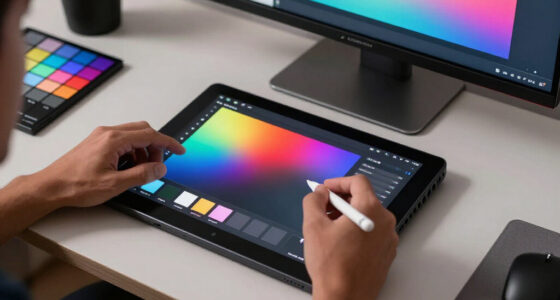
Pen displays heat up because of the electronic guts inside—processors, graphics chips, and the display itself all generate warmth when active. Think of it like your laptop’s heat build-up, but often more concentrated on the surface where your hand rests.
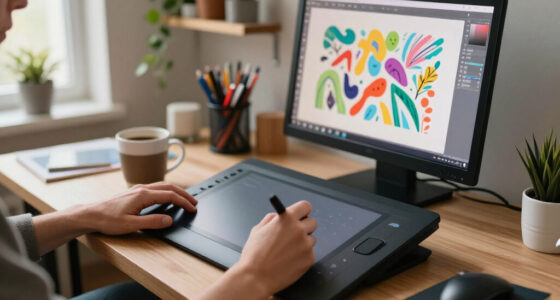
For example, when you’re sketching in high resolution or running intensive software, your device’s internal components work overtime, raising the surface temperature. This can cause discomfort—your hand starts to sweat, and prolonged contact can even lead to skin irritation. Over time, sustained high temperatures can accelerate wear on internal components, potentially leading to hardware failures or degraded performance. This means that if your device overheats frequently, it might need repairs sooner, and its lifespan could be shortened. Therefore, understanding what makes your tablet hot is essential not just for comfort but for maintaining the device’s longevity and ensuring consistent performance during critical projects.
So, understanding what makes your tablet hot is the first step. It’s not just about comfort; it’s about protecting your investment and keeping your creative flow smooth.
As an affiliate, we earn on qualifying purchases.
The Latest Cooling Tech That Keeps Your Pen Display Chill
Modern pen displays incorporate clever cooling features to combat heat. Some high-end models now include liquid cooling systems—tiny heat pipes that whisk heat away faster than air alone. These systems are designed to transfer heat efficiently from critical internal components to external radiators or heat sinks, which then dissipate the heat more effectively. This technology allows for prolonged intensive use without thermal throttling, ensuring your device maintains optimal performance.
Other models rely on advanced materials like graphene or specially designed heat spreaders to disperse heat rapidly across the device’s surface. Graphene, with its exceptional thermal conductivity, helps spread heat evenly, preventing hotspots that can cause discomfort or damage. Heat spreaders increase the surface area for heat dissipation, enabling the device to stay cooler during demanding tasks.
In addition to hardware innovations, some manufacturers include active cooling features such as built-in fans or thermoelectric cooling modules that kick in during extended use. These enhancements significantly reduce the risk of overheating, allowing you to work longer without interruption or performance loss. When choosing a pen display, considering these cooling features can make a big difference in your workflow and device longevity.
As an affiliate, we earn on qualifying purchases.
Defining the Causes of Heat Buildup
Before applying solutions, it’s helpful to understand what causes heat buildup in your device. Primarily, the internal components—especially the GPU, CPU, and display backlight—generate heat during operation. Tasks like high-resolution drawing, 3D rendering, or running complex software put more strain on these parts, increasing heat output. Additionally, the placement of internal components and the quality of thermal management within the device influence how efficiently heat is dissipated. Poor airflow, inadequate internal heat sinks, or thermal paste issues can cause heat to accumulate, raising surface temperatures.
Knowing these causes helps you identify when your device is at risk of overheating and guides you in choosing the right cooling strategies or device models with better thermal design. Simple measures like adjusting your workflow or improving your workspace setup can also help mitigate heat buildup.
As an affiliate, we earn on qualifying purchases.
Frequently Asked Questions
How do I know if my pen display is overheating?
Many modern tablets have built-in sensors that alert you if temperatures get too high. If your device feels unusually hot to the touch or performance drops during long sessions, it’s a sign to cool down and adjust your setup. Ignoring these signs can lead to thermal throttling, where the device reduces performance to prevent damage, or even hardware failure over time. Regularly monitoring your device’s temperature—via built-in alerts or third-party software—can help you catch overheating early, preventing long-term damage and maintaining optimal performance.
Can I use a fan or cooling pad with my tablet without damaging it?
Yes. External fans or cooling pads are generally safe when used properly. They can significantly lower surface temperature, especially during extended, intensive use. Just ensure you’re not blowing directly into ports or vents, which could introduce dust or moisture. Placing the fan so it directs airflow across the device’s surface helps improve heat dissipation without risking damage. Using these tools correctly can extend your device’s lifespan, improve comfort, and maintain performance during marathon work sessions.
Will cooling solutions hurt my device’s warranty?
Generally no, as long as you use external accessories properly and avoid modifications that alter the device’s hardware or internal components. Using a fan or cooling pad is a common practice among professionals to prevent overheating and extend device life. However, always check your manufacturer’s warranty terms; misuse or inappropriate modifications can sometimes void coverage. When used as intended, external cooling tools are a safe and effective way to manage heat without risking your warranty.
How often should I take breaks to prevent heat buildup?
Following the 20-20-20 rule—every 20 minutes, look away and stretch—is a good practice for eye and physical health. For device cooling, taking a 5-minute break every hour during intensive sessions allows internal components to cool down and prevents sustained heat buildup. If your device feels hot or performance begins to lag, extending breaks can help dissipate accumulated heat. Regularly scheduled pauses not only protect your device but also improve your overall comfort and productivity during long creative periods.
Are there specific brands or models known for better heat management?
High-end professional models from brands like Wacom, Huion, and XP-Pen often prioritize thermal management, incorporating features like advanced heat sinks, liquid cooling, and smart sensors. These devices are designed for demanding workloads, making them better suited for long, intensive sessions without overheating. When choosing a pen display, consider reviewing user feedback and technical specifications focusing on cooling features. Investing in a model with proven heat management capabilities can save you from performance issues and hardware wear, ensuring your creative flow remains uninterrupted.
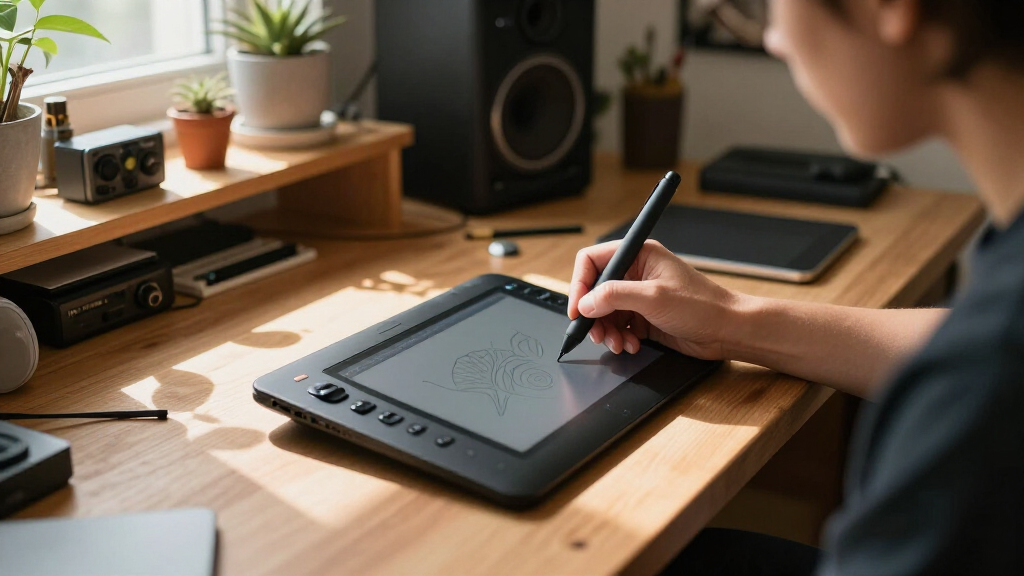
liquid cooling system for drawing tablet
As an affiliate, we earn on qualifying purchases.
As an affiliate, we earn on qualifying purchases.
Conclusion
Long creative sessions don’t have to turn into sweat-fests. With the right setup, smart habits, and understanding of your device’s cooling tech, you can keep your pen display cool and comfortable—no matter how intense your work gets.
Remember, a cooler device means a happier hand, clearer focus, and a longer-lasting tool. So, invest in good positioning, stay vigilant, and keep the heat in check—your art deserves it.
Halloween Picks
halloween
As an affiliate, we earn on qualifying purchases.