TL;DR

Get audio and creator gear delivered free with Prime
- Fast, free delivery on millions of items
- Prime Video, Amazon Music and more included
- Member-only deals all year
Proper tablet mapping across multiple monitors enhances accuracy and workflow. Adjust display arrangements, calibrate your tablet, and use specialized software for best results. Recent updates make this process easier than ever.
Ever try drawing on your tablet, only to find your strokes land miles away from where you intended? Multi-monitor setups can make your workspace more expansive, but they also bring new challenges for tablet mapping. If your pen feels off, or you’re constantly fighting lag, you’re not alone. Getting it right isn’t just about software — it’s about understanding how your tablet, your screens, and your workspace come together.
This guide will walk you through the essentials of configuring your tablet across multiple screens. From physical arrangement to calibration tricks, you’ll learn how to make your digital drawing feel natural and precise. Whether you’re a professional artist or a serious hobbyist, these tips will help you work smarter, not harder.
Align your physical monitor layout with your virtual display setup to prevent input misfires.
Calibrate each monitor separately to achieve pixel-perfect accuracy across screens.
Use dedicated mapping software to create custom zones and switch configurations easily.
Larger, high-resolution tablets improve control and reduce visual discrepancies in multi-monitor setups.
Stay updated with driver and software enhancements to simplify multi-display calibration.
Why Proper Tablet Mapping Makes or Breaks Your Workflow
Think of your tablet and monitors as a coordinated team. When they’re in sync, your strokes feel natural, and your workspace becomes an extension of your hand. If not, you’ll struggle with inaccuracies, lag, and frustration. Proper mapping ensures that every line you draw on your tablet lands exactly where you want on the screen, especially across multiple displays.
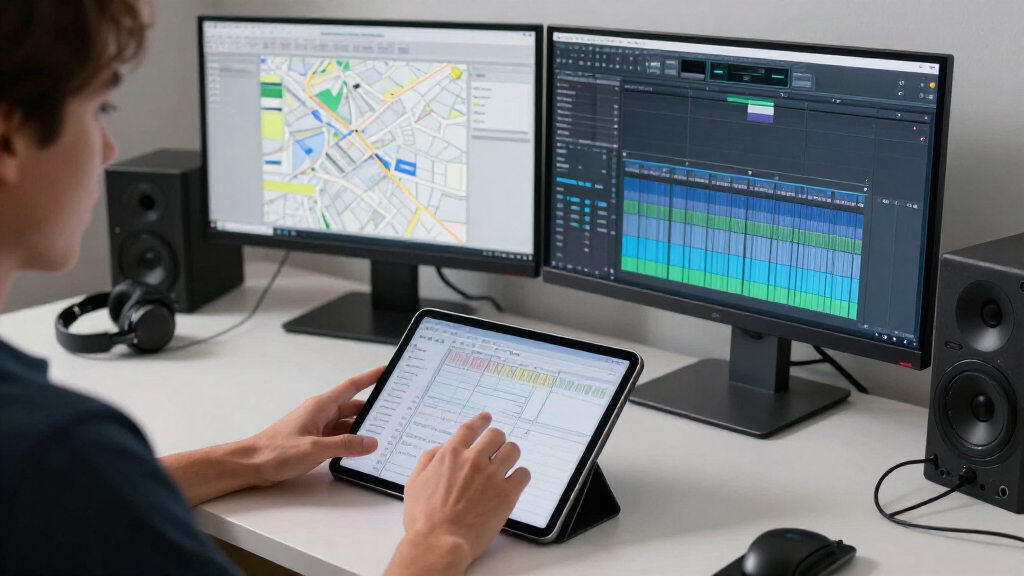
For example, imagine working on a detailed illustration across three monitors. If your tablet’s active area doesn’t match the physical layout, you might find your brush strokes appearing on the wrong screen or with inconsistent pressure response. That mismatch kills flow and wastes time. Correct mapping turns your workspace into a seamless extension of your creativity.
Beyond just alignment, proper mapping influences your workflow efficiency. When input is accurate, you spend less time correcting mistakes or readjusting your workspace. Conversely, poor mapping can cause fatigue, as you constantly fight against misalignments. Achieving precise mapping might involve trade-offs, such as dedicating time for calibration or accepting some initial setup complexity, but the resulting smoothness justifies these efforts.
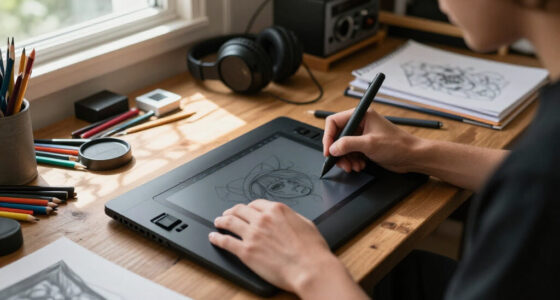
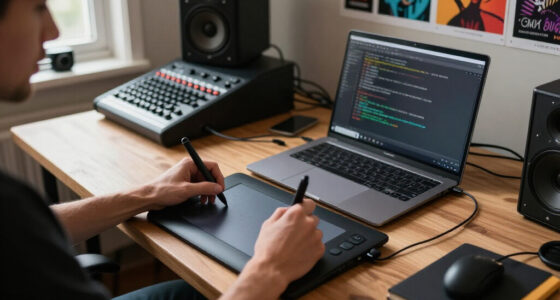
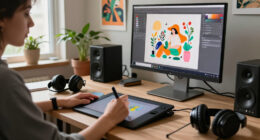
drawing tablet multi-monitor setup
As an affiliate, we earn on qualifying purchases.
As an affiliate, we earn on qualifying purchases.
How to Arrange Your Monitors for Effortless Mapping
- Physically position your monitors to match your virtual setup in the OS display settings. For instance, if your left monitor is physically on the left, it should be set as such in Windows or macOS. This alignment reduces cognitive load and prevents cursor jumps that can disrupt your workflow.
- Open your display settings and drag the monitor icons to match their real-world placement. This step is crucial because mismatched arrangements can cause your stylus to behave unpredictably, making drawing feel disconnected from your visual workspace.
- If you have a curved or ultrawide monitor, consider splitting it into multiple virtual displays for better control. This allows you to assign specific zones or regions for different tasks, which can be especially helpful when working on detailed illustrations or multi-layered projects.
- Test the arrangement by moving your mouse or stylus across screens. The movement should feel natural, with no abrupt jumps or lag. If you notice inconsistencies, revisit your virtual layout and physical setup until they align perfectly. This process may seem tedious, but it’s foundational for a seamless drawing experience.
For instance, a digital artist working on a multi-monitor setup with a wide Cintiq found that carefully matching her virtual and physical layouts eliminated a lot of frustration when switching between screens, allowing her to focus more on her art and less on technical adjustments.
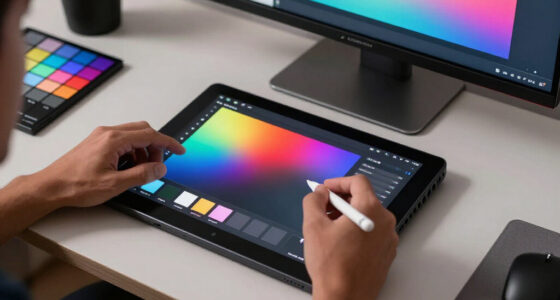
calibrated pen display for artists
As an affiliate, we earn on qualifying purchases.
As an affiliate, we earn on qualifying purchases.
Calibrating Your Tablet for Multi-Monitor Accuracy
Calibration is essential because it ensures that the stylus’s active area corresponds precisely to the display region, which is especially critical in multi-monitor setups. Without proper calibration, your strokes might land off-target, causing frustration and inconsistent results. When calibration is done correctly, it creates a direct, intuitive connection between your hand movements and the on-screen response, making your work feel natural and precise.
Start by using your tablet’s built-in calibration tools or third-party calibration software. The process typically involves clicking on specific points on your display, which helps the software understand the spatial relationship between your stylus and the screen. This is vital because different monitors have varying resolutions, sizes, and aspect ratios that can skew input if not accounted for.
For example, Wacom’s calibration tool allows you to click on a series of points on each monitor, aligning the stylus tip with the cursor at those locations. Repeat this process for each monitor, especially if they differ in size or resolution. This ensures that your strokes are accurately mapped across all displays. Additionally, you might want to set specific zones within your tablet’s active area to correspond with particular monitors or regions, which can streamline your workflow.
Pro tip: During calibration, place a grid or ruler on your screens. This visual aid helps you identify any misalignments or distortions, allowing you to fine-tune the active area so that your strokes match what you see on each monitor. Proper calibration minimizes the need for constant adjustments and enhances your overall control and accuracy.
multi-monitor mapping software for tablets
As an affiliate, we earn on qualifying purchases.
As an affiliate, we earn on qualifying purchases.
Using Software Tools to Fine-Tune Your Mapping
Dedicated software can significantly improve your multi-monitor mapping precision. These tools allow you to define custom zones, split your tablet’s active area into regions corresponding to each monitor, and create hotkeys for quick configuration switches. This flexibility is especially valuable when working on complex setups or switching between different projects requiring different mappings.
For instance, if you frequently move between a large main monitor and a secondary display, setting predefined zones ensures your strokes land correctly without constant manual adjustments. Some advanced software even supports multi-zone mapping with AI-assisted adjustments, automatically detecting misalignments and optimizing settings on the fly. This reduces the trial-and-error process and speeds up your workflow.
Recent innovations include AI-driven calibration that analyzes your input patterns and automatically fine-tunes the active area, pressure sensitivity, and tilt response. This means less time spent manually tweaking settings and more time creating. Using these tools effectively can turn a cumbersome multi-monitor setup into a seamless, intuitive workspace, boosting productivity and reducing frustration.
As an affiliate, we earn on qualifying purchases.
Hardware Choices That Make Multi-Monitor Mapping Easier
Your tablet’s size and resolution play a crucial role in multi-monitor setups. Larger tablets, such as 16-inch or above, provide more surface area for detailed work, reducing the need for complex zone mapping and making it easier to control strokes across multiple displays. High-resolution tablets (QHD or 4K) can match the pixel density of high-end monitors, resulting in more accurate and visually consistent strokes, which is vital for professional-level work where precision is non-negotiable.
Connection type also influences your experience. USB-C or Thunderbolt connections offer faster data transfer rates and lower latency, especially when working with high-resolution displays or multiple monitors. This reduces lag, providing a more natural drawing experience. Wireless options like Sidecar or Duet Display offer flexibility by eliminating cables, but they may introduce slight latency, which can affect precision during detailed work. Choosing the right hardware depends on your workflow priorities—whether maximum control, minimal latency, or workspace flexibility.
Additionally, your physical monitor arrangement affects how you should configure your tablet. An ergonomic, well-organized desk setup minimizes the need for extensive calibration or zone adjustments, allowing you to focus on your art rather than technical tweaks. Investing in a sturdy stand or adjustable arm can help position your tablet optimally, ensuring natural hand movements and reducing fatigue over long sessions.
Recent Tech Updates Making Your Life Easier
Software and hardware are evolving rapidly, bringing new tools and features that simplify multi-monitor calibration. Recent driver updates from manufacturers like Wacom, Huion, and XP-Pen support more robust multi-display configurations and include multi-point, multi-zone calibration options that allow for more precise adjustments. These advancements mean less time spent fiddling with settings and more time focused on your creative process.
Wireless tablets are gaining popularity, offering greater flexibility by allowing you to position your device anywhere in your workspace without cable clutter. While wireless solutions can introduce some latency, recent improvements have minimized this issue, making them viable for professional work. AI-assisted calibration tools are also emerging, capable of automatically detecting misalignments and adjusting settings in real-time, further reducing setup time and enhancing accuracy.
For example, an artist using a Wacom Intuos Pro reported that recent driver updates cut her calibration time in half, and the improved wireless latency made her workflow smoother and less constrained by cables. Staying current with these technological advancements ensures your setup remains efficient and reliable, keeping your focus on creating rather than troubleshooting.
What You Need to Do Today to Get It Right
- Arrange your monitors in display settings to match their physical positions. This reduces input errors and makes switching screens feel natural.
- Calibrate your tablet for each monitor or zone, using built-in tools or third-party software. Proper calibration is the foundation for accurate input across all displays.
- Use mapping software to define zones, split active areas, or create hotkeys for quick switches. This allows for quick adaptation as your workflow changes.
- Test your setup with real projects, adjusting until strokes land exactly where you want. Practical testing ensures the setup works under real conditions.
- Keep your drivers updated and consider larger, higher-res tablets for more precise control. Staying current with technology minimizes issues and maximizes control.
For instance, a freelance illustrator found that spending 15 minutes on calibration and arrangement boosted her workflow speed by nearly 20%, demonstrating the value of a well-tuned setup.
Frequently Asked Questions
How do I set up my tablet to work correctly across multiple monitors?
Start by arranging your monitors in your OS settings to match their physical positions. Then, calibrate your tablet for each display or zone, and use mapping software to define active areas. Testing and fine-tuning will ensure your strokes land where you expect.What software can help with multi-monitor tablet mapping?
Popular options include Wacom Display Settings, DisplayFusion, UltraMon, and third-party calibration tools. These allow you to create custom zones, switch configurations easily, and fine-tune your input alignment.How can I calibrate my tablet for multiple screens?
Use your tablet’s built-in calibration tools or third-party apps to click on specific points on each monitor, aligning the active area with the display. Repeat for each monitor, especially if they differ in resolution or size.Why is my tablet input inaccurate or lagging on one of the screens?
Potential causes include improper calibration, outdated drivers, or hardware limitations. Ensuring your drivers are current and your calibration is precise can fix most issues.Can I use a tablet wirelessly across multiple monitors?
Yes, with solutions like Sidecar or Duet Display, you can connect wirelessly, giving you flexibility. Keep in mind that wireless setups may introduce slight latency but are great for flexible workspace arrangements.Conclusion
Getting your tablet mapped correctly across multiple monitors transforms your workspace from a frustrating maze into a seamless extension of your hand. It’s about small tweaks — physical arrangement, calibration, and smart software — that make a huge difference. When your tools work as naturally as your ideas flow, you’ll wonder why you ever struggled with misaligned strokes.
Take a moment today to re-express your workspace. The right setup isn’t just a luxury — it’s the foundation for your best work. After all, your art deserves to flow freely, unencumbered by technical hurdles.
Fall Picks
fall essentials
As an affiliate, we earn on qualifying purchases.