
TL;DR

Get audio and creator gear delivered free with Prime
- Fast, free delivery on millions of items
- Prime Video, Amazon Music and more included
- Member-only deals all year
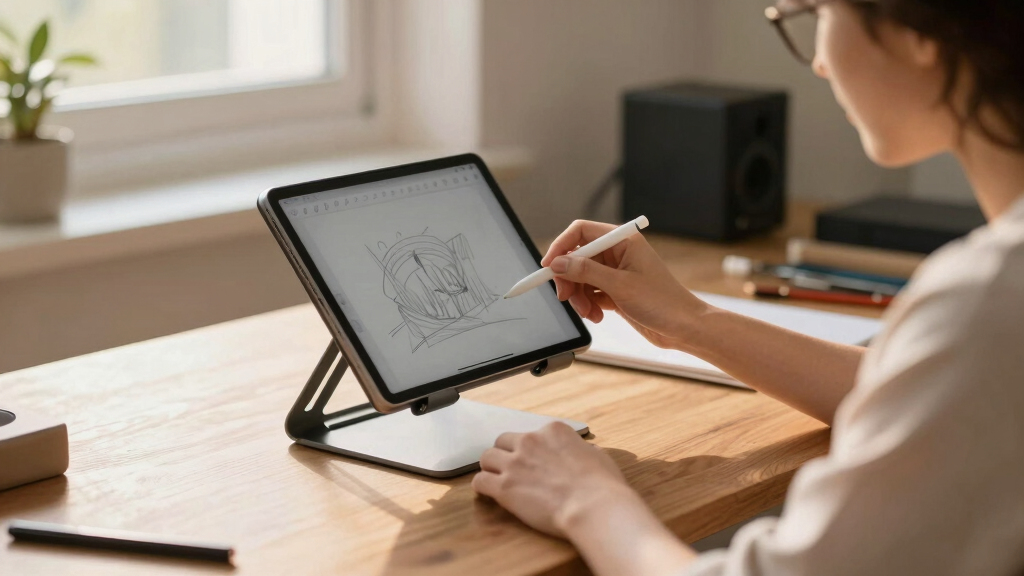
Using an adjustable, ergonomic tablet stand helps maintain neutral wrist and neck positions, reducing strain during long sessions. Prioritizing stability and flexibility in your setup improves comfort and prevents injuries.
If you spend hours drawing or working on a tablet, chances are you’ve felt that ache in your neck or the numbness in your wrist. That discomfort isn’t just annoying — it’s a sign your setup isn’t doing you any favors. The good news? A simple change in your tablet stand can transform your long sessions into pain-free productivity.
This guide digs into how choosing the right stand and adjusting your drawing angles can make all the difference. You’ll learn what features to look for, how to set up your workspace for maximum comfort, and practical tips to keep your body happy even after hours of digital work.
Tablet Stands & Drawing Angles
A well-positioned tablet keeps your neck, shoulders, elbows and wrists closer to neutral—turning hours of drawing from a test of endurance into a sustainable creative practice.
Raise the view
Bring the working area closer to eye level to reduce forward neck bend.
Tilt the surface
A 30°–70° range supports viewing, sketching and detailed line work.
Stabilize every stroke
A firm base prevents wobble and unnecessary muscular bracing.
Find the angle your body can sustain
A flat tablet pulls the head and torso forward. Elevation and tilt bring the work toward you, helping the neck remain long, the shoulders loose and the drawing wrist straighter.
The practical drawing zone
Use the lower end for active pen work and the upper end for reviewing, reference viewing or lighter interaction. Comfort—not a single “perfect” number—is the target.
Neutral posture check
Five features that earn their desk space
The best stand is not necessarily the most complex. It is the one that fits your device, stays planted and lets you adjust your working position without interrupting your flow.
Adjustable tilt
Supports different drawing tasks and lets you respond to fatigue before an awkward angle becomes painful.
Height control
Raises the working surface toward eye level without forcing the shoulders upward or the neck downward.
Stable base
Rubber feet, sufficient weight and rigid hinges prevent wobble during precise strokes and gestures.
Durable build
Aluminum, thick plastic or bamboo withstand repeated adjustment while maintaining consistent support.
Correct fit
A secure mount sized for an 8–15 inch device prevents slipping, blocked controls and uneven pressure.
Workflow details
Rotation, folding, cable routing, airflow, charging access and a stylus holder reduce friction around the work.
What each stand feature solves
Evaluate features by the strain or workflow problem they remove—not by the length of the product specification.
| Feature | Why it matters | Useful specification | Without it |
|---|---|---|---|
| ✓Adjustable tilt | Reduces wrist strain and recreates the feel of a traditional drawing surface. | Approximately 30°–70° with a hinge that holds under hand pressure. | One fixed posture; more wrist bending and torso compensation. |
| ✓Height adjustment | Brings the screen closer to the natural line of sight and reduces prolonged neck flexion. | About 10–20 inches, or enough travel to suit sitting and standing. | Neck cranes down or shoulders rise to reach the surface. |
| ✓Stable base | Supports controlled strokes without requiring the arm and shoulder to brace against wobble. | Weighted metal base, broad footprint or high-grip rubber feet. | Slips, vibration, disrupted lines and avoidable muscular tension. |
| ✓Material quality | Keeps hinges firm and the device safely supported through frequent repositioning. | Aluminum, thick reinforced plastic, bamboo or silicone contact points. | Loose joints, flexing surfaces and inconsistent positioning. |
| ✓Compatibility | Distributes device weight correctly and keeps ports, buttons and ventilation accessible. | Secure support for 8–15 inch tablets, including the case if one is used. | Poor balance, blocked access or an insecure device fit. |
Build comfort from the desk outward
The stand works as part of a system. Surface height, chair support, arm position, screen distance and movement breaks all influence whether the setup remains comfortable after several hours.
Plant the stand
Use a rigid, level surface with enough room for the forearms.
Raise the tablet
Move the active area closer to your line of sight.
Set the tilt
Keep the wrist near straight while retaining pen control.
Support the body
Sit back, relax the shoulders and keep elbows nearby.
Move regularly
Change position before stiffness becomes discomfort.
Micro-breaks protect the setup from becoming static
Pause, look into the distance, release your grip, roll the shoulders and walk briefly. A good ergonomic position is still only one position; movement supplies the variety your body needs.
Prioritize the fundamentals, then add convenience
This relative weighting is a practical buying framework: stability, adjustability and fit directly shape posture and control, while integrated technology should support—not replace—those essentials.
Useful newer directions
How a better stand becomes a better session
Why Your Tablet Stand Matters for Comfort and Health
A good tablet stand isn’t just a fancy accessory. It’s a health tool. When your tablet sits too low or at an awkward angle, your neck cranes forward, and your wrists bend in ways that cause strain. Over time, this leads to RSI, neck pain, and eye fatigue.
Imagine trying to draw with your tablet placed flat on your desk. You lean over, neck bent, wrist twisted at odd angles. Now, picture elevating that tablet to eye level, with a slight tilt. The difference is night and day. Proper stands promote a neutral posture, which keeps your body in alignment.
Why does this matter? Maintaining neutral postures reduces muscular tension, minimizes strain on joints, and prevents long-term injuries like carpal tunnel syndrome or chronic neck pain. Conversely, neglecting ergonomics may seem convenient initially but can lead to persistent discomfort, decreased productivity, and even permanent damage. For example, a digital artist working on detailed illustrations might spend hours in front of their tablet. The right stand reduces the risk of discomfort so they can focus on creating, not suffering from avoidable pain.
As an affiliate, we earn on qualifying purchases.
How to Pick a Stand That Supports Long Drawing Sessions
- Adjustability is key. Look for stands that tilt and rotate. Being able to change angles means you can find your perfect posture, which is crucial because different tasks or fatigue levels may require slight adjustments. Without adjustability, you might be forced into awkward positions that cause strain over time.
- Height matters. An adjustable height feature helps align your tablet with your eyes, preventing neck strain. If your tablet is too low, you’ll crane your neck downward, leading to discomfort. If it’s too high, your shoulders may tense up. The ability to fine-tune height ensures your posture remains neutral, reducing fatigue during prolonged use.
- Stability is non-negotiable. A sturdy base prevents slips or wobbling, especially during precise strokes. Unstable stands force you to tense your muscles to compensate, which can cause fatigue. Stability allows you to focus on your work without distraction or the risk of damaging your device.
- Material quality impacts durability. Metal or high-quality plastic lasts longer and feels more stable than cheap plastic. Durable materials also mean the stand can withstand frequent adjustments without loosening, maintaining ergonomic consistency over time. Cheaper materials may wobble or break, compromising your setup and risking damage to your tablet.
- Compatibility is a must. Ensure your stand fits your tablet size and model, from small 8-inch models to larger 13-inch or 15-inch tablets. A proper fit ensures stability and ease of use. An incompatible stand may wobble or require cumbersome adjustments, which can interrupt your workflow and cause unnecessary strain.
For instance, a freelance illustrator might choose a stand with a multi-angle tilt and a height adjustment that allows them to sit comfortably at their desk or stand during long hours. This flexibility helps prevent postural fatigue, allowing them to work longer with less discomfort. It’s a small investment that pays off in comfort and health, especially when considering the cumulative effects of hours spent drawing.
drawing tablet stand with tilt and height adjustment
As an affiliate, we earn on qualifying purchases.
As an affiliate, we earn on qualifying purchases.
Comparison Table: Best Features for Ergonomic Tablet Stands
| Feature | Why It Matters | Examples |
|---|---|---|
| Adjustable tilt | Allows you to find the perfect drawing angle, reducing wrist strain and preventing awkward postures that can cause repetitive stress injuries. Proper tilt also mimics traditional drawing tables, making the transition smoother and more natural. | 30°-70° tilt range helps mimic traditional drawing tables |
| Height adjustment | Aligns the tablet with your eye level for neck comfort, which is critical because even slight misalignments can cause neck and shoulder tension over hours of work. Proper height adjustment ensures your head remains in a neutral position, decreasing the risk of chronic neck issues. | Adjustable from 10-20 inches in height |
| Stable base | Prevents wobbling during detailed strokes, which can disrupt your focus and cause tension in your arms and shoulders. A stable base allows for precise control and reduces the mental load of stabilizing your device. | Heavy metal or rubber feet |
| Material quality | Ensures durability and safety, preventing the stand from wobbling or breaking under frequent use. High-quality materials also contribute to a more stable and comfortable experience, reducing the need for frequent replacements or adjustments. | Aluminum, thick plastic, or bamboo |
| Compatibility | Fits various tablet sizes, which is essential because different artists use different devices. Compatibility ensures the stand provides proper support and stability, avoiding awkward angles or insecure fits that can cause strain or damage. | Universal mounts for 8-15 inch tablets |
tablet stand for digital art and sketching
As an affiliate, we earn on qualifying purchases.
As an affiliate, we earn on qualifying purchases.
Setting Up Your Workspace for Long Drawing Sessions
The right stand is just the start. How you set up your workspace makes all the difference. Your goal: keep your tablet at eye level, your chair supporting a neutral posture, and your arms comfortable.
Imagine you’re working on a detailed character design. Your monitor is slightly below eye level, forcing you to crane your neck. Now, lift that monitor or switch to a stand that raises your tablet, so you look straight ahead. Your neck relaxes, and your shoulders stay loose.
Here are quick tips:
- Place your stand on a sturdy surface at the right height.
- Use an adjustable chair that supports your lower back.
- Keep your elbows close to your sides and wrists straight.
- Take regular breaks — every 30 minutes, stretch or walk around.
Proper setup not only prevents immediate discomfort but also reduces the risk of developing chronic issues. When your workspace supports a neutral posture, your muscles don’t have to work overtime to compensate for awkward positions, which over the long term can lead to joint degeneration, repetitive strain injuries, or chronic pain. For example, a digital artist working in a small apartment can set up their tablet at a desk with a riser, avoiding the need to hunch over or strain their neck after hours.
As an affiliate, we earn on qualifying purchases.
Smart and Creative Ways to Improve Comfort During Long Sessions
Beyond just a stand, small adjustments can make huge differences. Use a tablet stand with a built-in stylus holder or a cable management system to keep the workspace tidy and accessible.
Try using a monitor arm or adjustable desk mount for your tablet. It frees up space and allows instant angle tweaks, which is especially helpful during long sessions where fatigue can cause subtle shifts in posture. For example, during a long illustration session, a flexible arm lets you switch between drawing and reference images without fumbling or hunching forward, minimizing muscular strain and maintaining a comfortable position.
Remember, taking care of your body includes stretching your hands, wrists, neck, and shoulders. Incorporate simple stretches every 20-30 minutes to prevent stiffness and promote circulation. Think of your workspace as an extension of your body — ergonomic, adaptable, and comfortable, which directly influences your endurance and quality of work.
Key Takeaways for Staying Comfortable and Healthy Long-Term
- Choose a stand that’s adjustable and stable. It’s worth investing in quality to prevent discomfort and injury. A stable, adjustable stand allows you to maintain proper posture with minimal effort, reducing muscular fatigue and joint strain.
- Position your tablet at eye level. This keeps your neck relaxed and reduces the risk of developing chronic neck and shoulder problems. Proper positioning minimizes the need for awkward head tilts, which can cause long-term musculoskeletal issues.
- Set up your workspace ergonomically. Proper chair height, good lighting, and taking regular breaks matter because they collectively prevent strain accumulation. An ergonomic workspace supports your body’s natural alignment, reducing the likelihood of repetitive stress injuries.
- Stay active and stretch frequently. Breaks prevent stiffness and fatigue, allowing muscles to recover and maintain flexibility. Regular movement reduces the risk of repetitive strain injuries and improves circulation, which is vital during extended sessions.
- Prioritize comfort over aesthetics. A functional setup beats a fancy but awkward one every time. Comfort encourages good posture habits, which are essential for long-term health and sustained productivity.
Frequently Asked Questions
What features should I look for in an ergonomic tablet stand for long sessions?
Prioritize adjustable tilt, height, and stability. Look for durable materials and compatibility with your tablet size. Features like cable management or a stylus holder add convenience, especially during extended use.
How can I set up my workspace to prevent strain when using a tablet for extended periods?
Place your tablet at eye level using a stand, sit with your back supported, and keep your elbows close to your sides. Take regular breaks to stretch your hands, neck, and shoulders. Proper lighting and a comfortable chair complete the ergonomic setup.
Are there specific stands recommended for digital artists or designers?
Look for stands with adjustable angles, stable bases, and compatibility with larger tablets. Many artists prefer models that tilt up to 70 degrees and have height adjustability to mimic traditional drawing tables — making long hours more comfortable.
What materials are best for durability and comfort?
Metal, high-quality plastic, or bamboo are durable choices. They provide stability and feel comfortable to handle. Avoid cheap plastic that wobbles or wears quickly, especially if you plan to use the stand daily.
How do I adjust my tablet stand for optimal ergonomic positioning?
Start by setting the stand so your tablet’s top edge is roughly at eye level. Tilt the screen slightly to reduce glare and find a comfortable viewing angle. Adjust the height until your elbows are relaxed and your wrists stay neutral during drawing.
Conclusion
Investing in a well-designed, adjustable tablet stand isn’t just about comfort — it’s about your health. Think of it as an extension of your body, helping you draw, write, or work without pain or fatigue. Your long sessions can be productive, pain-free, and even enjoyable.
So, next time you set up your workspace, remember: small adjustments today save you from big pains tomorrow. Your body will thank you, and your art will look better for it.
Halloween Picks
halloween
As an affiliate, we earn on qualifying purchases.