
TL;DR

Get audio and creator gear delivered free with Prime
- Fast, free delivery on millions of items
- Prime Video, Amazon Music and more included
- Member-only deals all year
Only certain brushes in popular digital art programs respond to pen tilt and rotation. These features can mimic traditional media effects, but require compatible hardware and brushes designed to use them. Experimenting with these tools enhances your creative control and realism.
Ever wonder why some strokes in your digital art feel more alive, more textured? It’s often because you’re using a brush that responds to pen tilt or rotation. These features mimic the subtle angles and twists you naturally create with traditional media. If you’re working with a high-end stylus or want to push the limits of your tablet, understanding which brushes use these inputs can change how you draw, shade, and add detail.
This guide breaks down what pen tilt and rotation do, which brushes leverage them, and how you can get the most out of these features with your current setup. No fluff—just practical info to make your digital art more expressive and realistic.
Only a subset of brushes in your software respond to tilt and rotation; check your brush settings or documentation.
Advanced hardware like Wacom Pro Pen 3D or Apple Pencil 2nd gen enhances control over tilt and rotation effects.
Brushes like calligraphy, textured shading, and some custom brushes are designed to leverage tilt and rotation for realistic effects.
Enabling tilt and rotation involves simple steps in your software, but mastering their use unlocks a new level of expressiveness.
Experiment and combine tilt, rotation, and pressure to mimic real media and bring more life to your digital strokes.
Pen Tilt and Rotation: Which Brushes Actually Use Them
Only certain brushes in popular digital art programs respond to pen tilt and rotation. These features mimic the subtle angles and twists of traditional media — but they require compatible hardware and brushes designed to use them. This guide shows which brushes respond, and how to unlock them.
What Are Pen Tilt and Rotation?
These two stylus inputs mirror how you naturally handle real tools — leaning a pencil for shading, twisting a brush for texture. Here’s what each one does.
Pen Tilt
The angle at which you hold the stylus relative to the drawing surface. Imagine shading with a pencil held steeply versus flat on the paper — a watercolor brush might spread more widely when tilted, creating softer edges and natural shading gradients.
Pen Rotation
Twisting the stylus around its own axis changes the orientation of the brush tip. Think of turning a paintbrush to vary a stroke’s texture or shape — rotation can change a calligraphy pen’s stroke width, adding flair to lettering.
Brush Responsiveness at a Glance
Not every brush reacts to tilt or rotation. Some are built for it; others ignore it entirely. This is the clear rundown:
| Brush Type | Uses Tilt? | Uses Rotation? | Typical Examples |
|---|---|---|---|
| Calligraphy & Ink | ✓ Yes | ✓ Yes | Custom calligraphy brushes in Clip Studio Paint |
| Textured & Charcoal | ✓ Yes | ~ Sometimes | Krita’s textured brushes respond to tilt for shading |
| Airbrushes | ✗ No | ✗ No | Standard soft or hard airbrushes in Photoshop |
| Pencil & Sketching | ✓ Yes | ✗ No | Some Photoshop pencil brushes tilt for shading |
| Custom Brushes | ~ Varies | ~ Varies | Depends entirely on the brush’s programming |
Turn On Tilt & Rotation in 5 Steps
Unsure whether a brush responds? Start in the brush settings or documentation. Most programs let you toggle these effects on or off and fine-tune sensitivity.
Open Settings
Open your brush or tool settings panel in your art software.
Find the Option
Look for “Tilt Response,” “Rotation,” or similar labels.
Enable & Adjust
Toggle the effect on and tune the sensitivity sliders.
Test Live
Tilt and twist your stylus, watching how strokes change.
Refine
Iterate settings until the effect feels natural.
You Need the Right Gear — and the Right App
Tilt and rotation only work when both the stylus detects the input and the software interprets it. Recent tablets and styluses pair high-precision sensors with smarter brush engines.
- Wacom Pro Pen 3D — full tilt + rotation sensing
- Apple Pencil (2nd gen) — precise tilt detection
- Huion / XP-Pen — select stylus models
- Krita — textured brushes respond fluidly to tilt
- Adobe Photoshop — tilt-driven pencil shading
- Clip Studio Paint — calligraphy tilt + rotation
- Corel Painter — robust traditional-media emulation
Make the Most of Tilt and Rotation
Once you know your brushes respond, it’s time to experiment. In Photoshop, twisting a stylus with a textured brush produces shading variations that mimic real pencil strokes.
Practice with Texture
Use a tilt-responsive brush for shading — think of how a charcoal or pastel pencil works when held at an angle.
Twist for Variety
Rotate your stylus mid-stroke to change shape or texture dynamically, like turning a real paintbrush for different effects.
Combine with Pressure
Use tilt and pressure together to control stroke width and shading intensity, mimicking real media behavior.
Use Custom Brushes
Download or create brushes that specifically leverage tilt and rotation — flowing ink, calligraphy, expressive shading.
Record Your Gestures
Some software records tilt and rotation data with each stroke, letting you refine gestures later for precision.
Check Your Hardware
A stylus with adjustable tilt sensitivity and a tablet that detects subtle angles gives the best results.
What You Gain When You Use Them Properly
Mastering tilt and rotation makes your digital brushes feel like real-world tools — alive, expressive, and full of personality.
Natural Texture
Sketch fur where tilting the stylus creates soft shading strokes, layering organic detail impossible with pressure alone.
Lively Lettering
Twist your pen mid-stroke to turn a calligraphy letter into a flourishing, dynamic line with real-world character.
Professional Depth
High-sensitivity hardware captures nuanced gestures, producing more detailed, layered, professional-looking artwork.
What Are Pen Tilt and Rotation, and Why Do They Matter?
Pen tilt is the angle at which you hold your stylus relative to the drawing surface. It influences how brushes behave—imagine shading with a pencil held at a steep angle versus flat on the paper. Rotation, on the other hand, is about twisting the stylus around its axis, changing the orientation of the brush tip. Think of it like turning a paintbrush to vary the stroke’s texture or shape.
These features give you control over how your strokes look and feel, mimicking real-world tools. For example, with tilt, a watercolor brush might spread more widely when held at an angle, creating softer edges. Rotation can change a calligraphy pen’s stroke width or texture, adding flair to your lettering.
But not all devices or software support tilt and rotation. If your stylus lacks sensors or your program doesn’t interpret the data, you won’t see these effects. Knowing what hardware and software support these features is the first step toward making your digital art more dynamic.
As an affiliate, we earn on qualifying purchases.
How Hardware and Software Have Improved for Better Control
Recent years have brought big leaps in pen technology. High-sensitivity styluses like Wacom’s Pro Pen 3D or Apple Pencil 2nd generation detect tilt and rotation with precision, down to a few degrees. This means your strokes can vary in width, texture, and shading depending on how you tilt or twist.
On the software side, programs like Photoshop, Krita, and Clip Studio Paint have upgraded how they interpret this data. You’ll find options to adjust how much tilt influences brush behavior or to turn tilt effects on or off entirely.
For example, Krita’s textured brushes now respond fluidly to tilt, creating realistic shading effects that mimic charcoal or pencil. Meanwhile, AI-driven features in some apps learn your tilt gestures, simulating complex traditional techniques effortlessly.
All this means that if you’re using a recent tablet and stylus combo, chances are high that your brushes can respond to tilt and rotation, opening new avenues for expression.
Apple Pencil 2nd gen with tilt support
As an affiliate, we earn on qualifying purchases.
As an affiliate, we earn on qualifying purchases.
Which Brushes Actually Respond to Pen Tilt and Rotation?
Not every brush in your digital studio reacts to tilt or rotation. Some are designed to respond, others aren’t. Here’s a clear rundown of common brush types and their tilt/rotation responsiveness:
| Brush Type | Uses Tilt? | Uses Rotation? | Typical Examples |
|---|---|---|---|
| Calligraphy & Ink | Yes | Yes | Custom calligraphy brushes in Clip Studio Paint |
| Textured & Charcoal | Yes | Sometimes | Krita’s textured brushes for shading |
| Airbrushes | No | No | Standard soft/hard airbrushes in Photoshop |
| Pencil & Sketching | Yes | No | Some Photoshop pencil brushes respond to tilt for shading |
| Custom Brushes | Varies | Varies | Depends on the programming behind each brush |
For example, a calligraphy brush in Clip Studio Paint will twist or spread depending on tilt and rotation, making lettering look more natural. Conversely, your basic airbrush won’t change with tilt or twist at all. Always check the brush settings or documentation to see if they support these features.
digital art brushes responsive to tilt and rotation
As an affiliate, we earn on qualifying purchases.
As an affiliate, we earn on qualifying purchases.
How to Know if Your Brush Uses Tilt or Rotation, and How to Turn It On
If you’re unsure whether a brush responds to tilt or rotation, start by checking the brush settings or documentation. Most programs let you toggle these effects on or off. Here’s a quick step-by-step:
- Open your brush or tool settings.
- Look for options labeled “Tilt Response,” “Rotation,” or similar.
- Enable or adjust the sensitivity sliders.
- Test your stylus by tilting or twisting and observing the stroke changes.
- Refine your settings until you get the desired effect.
For example, in Krita, turning on tilt sensitivity in the brush editor instantly makes textured brushes respond to your pen’s angle, adding shading variation with minimal effort. Each software varies, so check tutorials for your specific program.
Pro tip: Use a stylus with adjustable tilt sensitivity and a tablet capable of detecting subtle angles for best results.
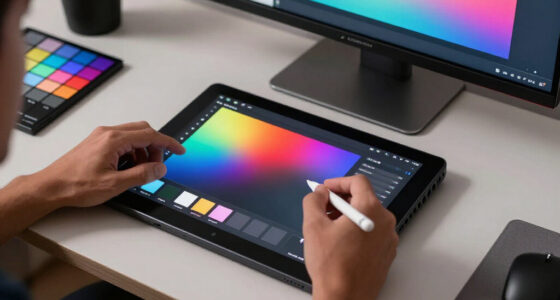
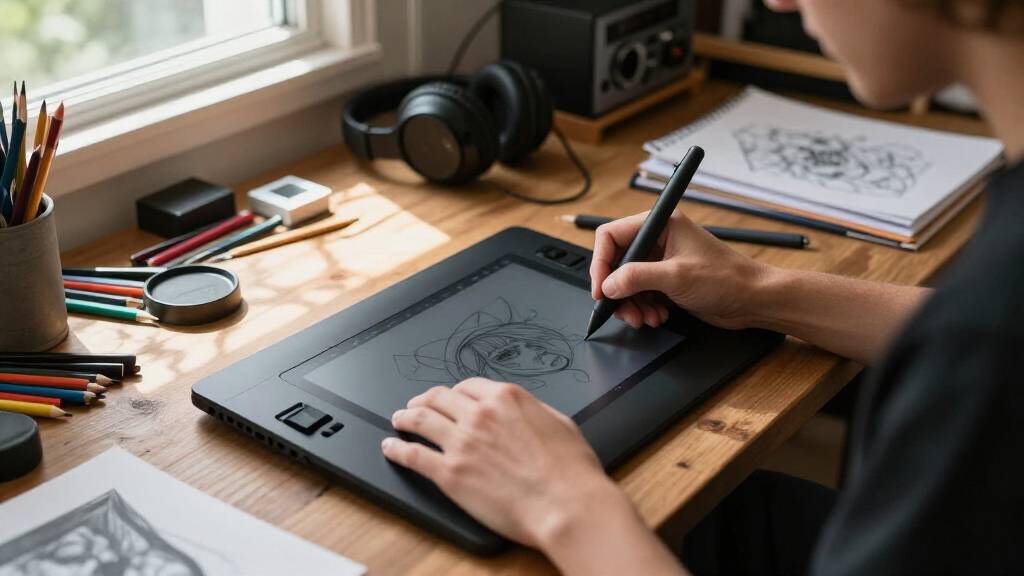
graphic tablet with tilt and rotation sensitivity
As an affiliate, we earn on qualifying purchases.
As an affiliate, we earn on qualifying purchases.
Tips to Make the Most of Tilt and Rotation in Your Artwork
Once you know your brushes respond to tilt and rotation, it’s time to experiment. Here are practical tips:
- Practice with a textured brush: Use a brush that responds to tilt for shading or adding texture—think of how a charcoal or pastel pencil works.
- Twist for variety: Rotate your stylus during strokes to change the shape or texture dynamically, like turning a real paintbrush for different effects.
- Combine tilt and pressure: Use both to control stroke width and shading intensity, mimicking real media behavior.
- Use custom brushes: Download or create brushes that specifically leverage tilt and rotation for unique effects, like flowing ink or calligraphy.
- Record your gestures: Some software allows you to record tilt and rotation data as part of your stroke, which you can refine later for precision.
For example, in Photoshop, twisting a stylus while using a textured brush can produce shading variations that mimic real pencil strokes, adding depth to your digital sketches.
What You Gain When You Use Tilt and Rotation Properly
Using tilt and rotation effectively can transform your digital art. You gain more control over brush shape, texture, and shading, making your strokes more natural and expressive. It’s like adding a new dimension to your toolkit.
Imagine sketching a fur texture where tilting your stylus creates softer, shading strokes or twisting your pen to turn a calligraphy letter into a lively flourish. These subtle changes bring your work closer to traditional media’s organic feel.
Plus, with high-sensitivity hardware, you can capture nuanced gestures that are impossible with simple pressure alone. This leads to more detailed, layered, and professional-looking artwork.
In essence, mastering tilt and rotation makes your digital brushes feel more like real-world tools—alive, expressive, and full of personality.
Frequently Asked Questions
Do I need a special stylus to use tilt and rotation features?
Yes, most basic styluses lack tilt and rotation sensors. Devices like Wacom’s Pro Pen 3D, Apple Pencil 2nd gen, and certain Huion or XP-Pen styluses support these features, providing the data needed for responsive brushes.Which software supports tilt and rotation best?
Programs like Adobe Photoshop, Krita, Corel Painter, and Clip Studio Paint have robust support for tilt and rotation, especially when paired with compatible hardware. Check each app’s settings for specific options to activate these features.Can I use any brush with tilt and rotation?
No. Only brushes specifically programmed to respond to tilt or rotation will show those effects. Many default brushes do not, so look for custom or specially designed ones if you want to leverage these inputs.How do I enable tilt and rotation in my software?
Open your brush or tool settings, locate options labeled “Tilt” or “Rotation,” and enable or adjust their sensitivity. Test your stylus to confirm the effects and tweak as needed.Are there tutorials to help me learn these features?
Absolutely. Many online tutorials, YouTube videos, and artist forums walk through how to set up and use tilt and rotation effectively, tailored to different software and hardware setups.Conclusion
Understanding which brushes use tilt and rotation can turn your digital work from flat to lively. These features add a tactile dimension that traditional brushes carry—turning simple strokes into expressive gestures. The key is to experiment, tweak your settings, and let your stylus’s natural movements guide your art.
Next time you pick up your tablet, twist or tilt your stylus intentionally. Watch how your strokes gain depth, texture, and personality. Your art deserves that extra touch of realism—just like holding a real brush or pencil.
Fall Picks
fall essentials
As an affiliate, we earn on qualifying purchases.