
TL;DR

Get audio and creator gear delivered free with Prime
- Fast, free delivery on millions of items
- Prime Video, Amazon Music and more included
- Member-only deals all year
A drawing glove reduces friction and keeps your hand gliding smoothly over the screen. It can help minimize accidental touches but does not replace digital palm rejection features. Comfort and surface cleanliness are its main benefits.
Ever wondered why some digital artists wear a glove? It’s not just a fashion statement. The real magic lies in how it changes your hand’s interaction with the screen. You might think it’s about palm rejection, but often, it’s about making drawing smoother and more comfortable.
In this guide, you’ll learn what a drawing glove actually does — from reducing friction to supporting palm rejection — and what it can’t do. Whether you’re a hobbyist or a pro, understanding these details helps you pick the right gear and avoid misconceptions that slow down your workflow.
A drawing glove mainly reduces friction and keeps your hand gliding smoothly, improving comfort during long sessions.
It can support palm rejection but doesn’t replace the device’s software or hardware functions.
Material, fit, and cleanliness directly impact how well a glove works and how comfortable it feels.
Different screens and digitizers respond differently to gloves; know your device for best results.
Regular washing and proper fitting keep your glove effective and prevent scratches or irritation.
What a Drawing Glove Actually Does: Palm Rejection and Friction
A drawing glove reduces friction and keeps your hand gliding smoothly over the screen. It can help minimize accidental touches — but it does not replace digital palm rejection. Comfort and surface cleanliness are its main benefits, and understanding the difference helps you pick the right gear.
A slip-on sock for your hand — designed for a specific job
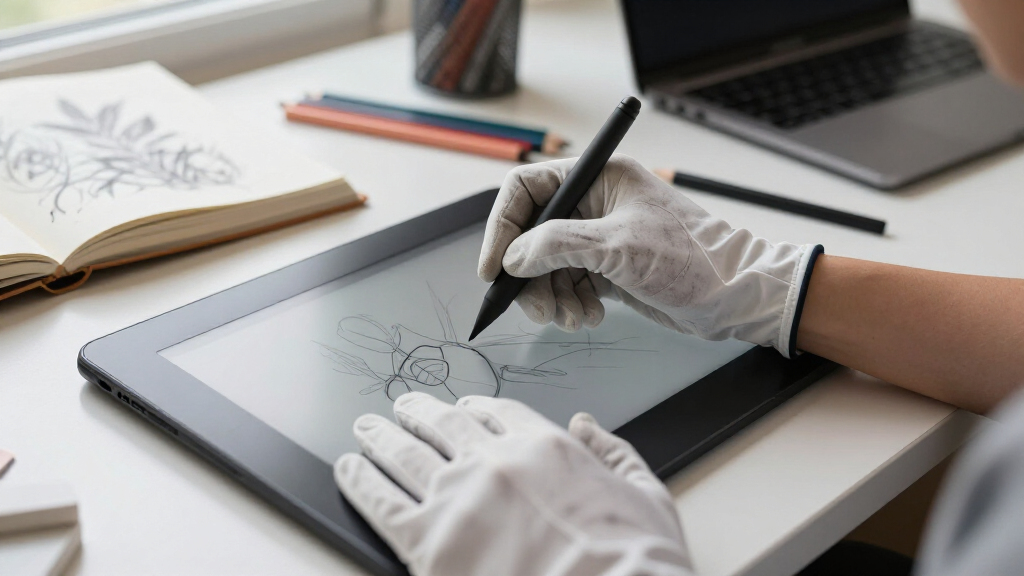
A drawing glove covers the little finger, ring finger, and the side of the palm. Its purpose is smoother, cleaner contact with your drawing surface. It’s not magic: it won’t turn your device into a palm-rejection powerhouse, but it changes how your hand interacts with the screen.
Friction Reduction
A slick barrier lets your hand glide instead of sticking to warm glass. Long strokes, delicate lines, and slow shading become easier — with less fatigue over extended sessions.
Surface Cleanliness
Blocks fingerprints, sweat, and skin oils from the active drawing area. Less residue means more predictable glide, fewer wipe-downs, and less wear on protective coatings.
Touch Interference
Covered skin is less likely to register as capacitive input. Helpful — but partial. It reduces accidental touches rather than preventing them outright.
What a glove can — and cannot — do
Palm rejection is primarily a software feature of your tablet, stylus, operating system, and drawing app. An active stylus signals its proximity so the device can ignore your hand. A glove can assist this process — it cannot replace it.
The Glove Can
- Reduce the area of skin touching the display
- Electrically insulate covered skin on some capacitive screens
- Prevent stray touches from exposed fingers and palm edges
- Help older, less sophisticated devices distinguish stylus from hand
- Complement software palm rejection with cleaner contact
The Glove Cannot
- Add true stylus-aware palm rejection to hardware that lacks it
- Correct poor palm-rejection software in every situation
- Prevent input from uncovered fingers
- Guarantee gestures, menus, or canvas movements are never triggered
- Make your stylus or screen behave differently at the hardware level
Different screens, different glove behavior
The glove’s effect depends heavily on the digitizer and stylus protocol. Know your hardware before expecting electronic help — for most modern devices, the glove is a comfort tool, not a correction tool.
| Device Type | Source of Palm Rejection | Glove Blocks Touch? | Glove’s Real Value |
|---|---|---|---|
| Pen displays & modern tablets | Active stylus detection (software) | ~ Partially | ✓ Glide & cleanliness |
| Basic capacitive touchscreens | None / touch-based only | ~ Sometimes | ~ Ordinary fabric still passes signals |
| Non-touch graphics tablets | Irrelevant — pen is detected, not hand | ✗ Not needed | ✓ Friction & comfort remain useful |
| Touch laptops & convertibles | Varies: digitizer, drivers, app settings | ~ Inconsistent | ~ Expect calibration trade-offs |
Friction reduction is the benefit artists actually feel
Bare skin sticks to glass — especially when warm or damp — causing uneven resistance, skipped strokes, and fatigue. A glove creates a consistent contact layer. Note: it changes the movement of your hand, not the friction between stylus tip and screen.
If accidental marks continue, follow this chain
Wear the glove
Close fit, seams away from contact. Wash regularly — sweat and dust accumulate fast.
Adjust touch settings
Disable finger drawing and adjust touch gestures in your drawing app.
Update software
Keep tablet drivers, OS, and apps current — palm rejection logic lives here.
Use an active stylus
A compatible stylus that signals proximity is the real engine of palm rejection.
Clean strokes
Hardware, software, and glove working together — uninterrupted drawing.
Five materials, one rule: snug, not tight
A useful glove fits closely without restricting circulation or pulling fingers together. Loose fabric wrinkles, catches under the palm, and produces uneven resistance. Common materials each serve a different job.
Lycra / Spandex
Stretch and smooth, even movement across the surface.
Nylon / Polyester
Durable with naturally low friction for long sessions.
Breathable Mesh
Heat management for warm hands and warm displays.
Multi-Layer Palm
Reinforced panels for stronger touch isolation.
Offset Seams
Stitching positioned away from the main contact zone.
Five things to remember
Mainly reduces friction and keeps your hand gliding smoothly, improving comfort during long sessions.
Supports palm rejection but doesn’t replace the device’s software or hardware functions.
Material, fit, and cleanliness directly impact how well a glove works and how it feels.
Different screens and digitizers respond differently — know your device for best results.
Regular washing and proper fitting keep the glove effective and prevent scratches or irritation.
What a Drawing Glove Actually Does — The Real Deal
A drawing glove is a simple tool that covers part of your hand, usually the little finger, ring finger, and side of the palm. Its main purpose is to create a smoother, cleaner contact with your drawing surface. It’s not magic — it doesn’t turn your device into a palm-rejection powerhouse.
The primary functions are friction reduction, keeping the surface clean, and limiting accidental touches. It’s like a slip-on sock for your hand, designed for a specific job. But don’t expect it to fix everything about your device’s touch sensitivity.
For example, if your tablet struggles with palm rejection, a glove alone won’t fix the problem. Instead, it makes your hand glide more freely, reducing drag and sweat buildup. Think of it as a lubricant for your hand, not a shield against all unwanted touches.
Understanding this distinction matters because relying solely on a glove can give a false sense of security. If your device’s software doesn’t support effective palm rejection, a glove won’t make your hand or stylus behave differently. The glove’s benefit lies in comfort and surface interaction, not in hardware correction. Recognizing these tradeoffs helps you decide whether a glove is a worthwhile addition or if you should focus on software settings and stylus tech for better palm rejection.
As an affiliate, we earn on qualifying purchases.
How a Glove Supports Palm Rejection — Or Not
Palm rejection is primarily a software feature embedded in your device, stylus, or drawing app. It detects when your stylus is near or touching the screen and filters out other touches. A glove can assist by covering skin that might accidentally register as input, but it’s not a comprehensive solution. The effectiveness depends heavily on the glove’s material and the device’s sensitivity settings.
Some gloves incorporate conductive or insulating layers designed explicitly to block capacitive signals from your skin. This can prevent your palm or fingers from registering unwanted input, especially on capacitive screens that interpret touch based on electrical conductivity. However, a simple, non-conductive fabric glove often only reduces accidental touches without fully preventing them. This partial blocking can lead to inconsistent results, where some touches are filtered out while others still register.
For example, if you’re using a basic nylon glove, it might help reduce some accidental marks, but it won’t turn a non-palm-rejecting device into a fully palm-rejecting one. The glove’s role is supportive rather than corrective. If your device relies heavily on software for palm rejection, a glove can complement that process but cannot replace or significantly enhance it without compatible hardware or settings.
Understanding this helps you weigh the tradeoffs: a glove can improve comfort and reduce accidental touches but won’t compensate for hardware limitations or poorly configured software. If your goal is to achieve clean, uninterrupted drawing, consider both the glove and your device’s capabilities, adjusting settings or upgrading hardware if necessary.
As an affiliate, we earn on qualifying purchases.
Friction Reduction: The Hidden Power of a Glove
Most artists love their gloves for how they make hand movement smoother. Without one, your skin might stick or drag on the glass, especially if it’s warm or sweaty. This causes uneven strokes, fatigue, and frustration.
A glove creates a slick barrier, allowing your hand to glide effortlessly. Long strokes, delicate lines, and slow shading become easier. You notice it most during extended sessions when your hand stays in one position.
Imagine trying to draw a long, flowing line on a hot, sticky day. Without a glove, your hand might stick or skip. With one, the movement feels fluid, almost like drawing on paper. That’s friction reduction at work.
Friction reduction directly impacts your drawing quality and comfort. When your hand glides smoothly, you can focus on your art rather than fighting resistance or adjusting your grip constantly. It also reduces fatigue over long sessions, allowing for more sustained creativity. However, it’s important to recognize that this benefit is about surface interaction, not about altering stylus or screen properties. The tradeoff is that a glove might slightly diminish tactile feedback, which some artists prefer for precision. Weighing this helps you choose a glove that balances friction reduction with tactile sensitivity for your style.
As an affiliate, we earn on qualifying purchases.
Keeping Your Screen Clean and Clear
Another benefit of a glove: it keeps fingerprints, sweat, and oils off your screen. Less residue means more predictable glide and fewer wipe-downs. Your drawing feels smoother, and your display stays cleaner longer.
Maintaining a clean surface is crucial because oils and dirt can interfere with touch sensitivity, leading to inconsistent input or even stylus tracking issues. A glove acts as a barrier, reducing direct contact and minimizing these contaminants. This is especially beneficial during long sessions when accumulated sweat and oils can cause smudges and reduce friction consistency.
For example, during extended digital sketching, a glove prevents the buildup of greasy smudges that develop from your palm resting on the surface. It also makes cleaning easier—simply wash the glove instead of wiping the screen repeatedly, which can wear down protective coatings over time.
Regularly washing your glove is essential because sweat, dust, and dirt quickly accumulate, especially with daily use. This upkeep ensures the glove continues to provide a clean, smooth surface interaction, ultimately improving your drawing experience and prolonging device longevity.
glove for reducing friction on graphics tablet
As an affiliate, we earn on qualifying purchases.
As an affiliate, we earn on qualifying purchases.
Different Screen Types and How Gloves Interact
The effect of a drawing glove varies depending on your device. For pen displays and modern tablets with active styluses, palm rejection mostly comes from software. The glove mainly helps with friction and surface cleanliness.
On basic capacitive screens, a glove might block some palm input but not all. Ordinary fabric often allows signals to pass through, meaning your palm can still cause accidental marks. The tradeoff is that while a glove can help reduce some accidental touches, it may also slightly diminish the sensitivity or responsiveness of your touch surface, especially if it’s not designed for this purpose. This can lead to a need for calibration or adjusting device settings to compensate for the altered touch behavior.
For non-touch graphics tablets, palm rejection isn’t an issue — they detect the stylus directly. But friction and comfort still matter. Similarly, touch-enabled laptops or convertibles react differently based on their digitizer and driver setup. Recognizing these hardware differences is key to selecting a glove that enhances your experience without introducing new frustrations.
In short: know your device. A glove can be a simple fix for comfort, but hardware and software choices determine how much it helps with palm rejection and overall drawing quality. Testing different gloves with your device helps find the best balance between comfort, responsiveness, and accuracy.
Choosing the Right Glove: Fit, Material, and Features
A good drawing glove should fit snugly without cutting off circulation or feeling tight. Too loose, and it bunches or shifts, reducing its effectiveness. Too tight, and it restricts movement, causing discomfort during prolonged use. Comfort is key because a poorly fitting glove can cause distraction and fatigue.
Materials matter: Lycra or spandex blends stretch smoothly, offering a close fit and good tactile sensitivity. Nylon provides durability and resistance to wear, while breathable mesh sections help keep your hand cool, especially during long sessions. Reinforced palm patches can enhance touch isolation on capacitive screens, reducing the likelihood of accidental marks.
Check if the glove is reversible or designed for left/right hands. Many inexpensive models fit both hands, but shaped or padded options might be specific. Seams should be flat and positioned away from your contact zone to prevent drag or irritation. A well-constructed glove balances flexibility, durability, and tactile feel, ensuring your drawing experience remains natural.
For example, a well-fitting, thin Lycra glove with flat seams feels almost invisible on your hand, reducing friction without sacrificing tactile sensation. This balance allows precise control while maintaining comfort. Remember to wash it regularly because dirt and oils build up fast, especially if you draw daily, which can compromise fit and effectiveness.
Watch Out for Drawbacks — When a Glove Can Backfire
Not all gloves are perfect. A poorly fitted glove can bunch up, cause irritation, or even scratch your display if seams are rough or poorly placed. Thick or non-breathable fabrics trap heat, making your hand sweaty and uncomfortable, which can lead to slipping or reduced tactile control.
If seams are rough or placed poorly, they can drag across the screen or leave pressure marks, disrupting your drawing flow. Dirty or worn gloves may add more resistance than they remove, especially if they accumulate grit or debris. This can cause scratches or reduce responsiveness, defeating the glove’s purpose.
For example, a stiff, thick glove might feel warm and stiff, diminishing tactile control and causing fatigue. Grit trapped in fabric can scratch the screen if not cleaned regularly, and worn-out gloves lose their effectiveness altogether. These issues highlight the importance of choosing high-quality gloves with smooth seams, breathable fabrics, and proper fit.
To avoid these problems, inspect your glove before each session, wash it regularly, and replace it when signs of wear appear. The goal is to maintain a smooth, comfortable glide without introducing new frustrations. If your glove feels like a burden or causes discomfort, it’s better to adjust or switch to a different model.
Latest Trends in Drawing Gloves — What’s New?
Designs are improving beyond basic two-finger gloves. Now, you see multi-layer palm panels, thinner fabrics, and reversible designs for both hands. These tweaks aim to boost comfort, durability, and touch isolation, addressing artist needs more precisely.
Manufacturers are adding breathable sections and size options to fit more artists comfortably, recognizing that fit impacts both comfort and effectiveness. Some gloves even include embedded palm rejection controls, syncing with drawing apps or OS settings, which can enhance performance when paired with compatible devices.
For example, a recent model might feature a super-thin, stretchy fabric that feels barely there but still blocks stray signals effectively. Reversible gloves make swapping hands quick and easy during long sessions, reducing fatigue. These innovations reflect a trend toward more ergonomic, tech-friendly accessories that adapt to different workflows.
The trend is shifting toward gloves that support the tech but also prioritize ergonomic comfort. Still, device compatibility varies, so testing before committing ensures you find a glove that complements your setup and enhances your drawing experience.
Frequently Asked Questions
Does a drawing glove provide palm rejection?
It can help reduce accidental touches by covering skin that might register on capacitive screens, but true palm rejection depends mainly on your device’s hardware and software. A glove alone won’t reliably block all palm input.Will any two-finger glove work?
Most smooth, snug-fitting gloves can reduce friction, but for consistent touchscreen isolation, a glove specifically designed for anti-touch or palm rejection performance is best. Cheaper gloves may not fully block signals.Why does my palm still move the canvas while I am wearing one?
Possible reasons include a thin or conductive glove that doesn’t fully insulate, an uncovered part of your hand touching the screen, or device/software settings that still register your palm. Adjustments or software updates may help.Do I need a glove if my tablet already has palm rejection?
Not necessarily. Many artists use gloves for smoother glide, fewer fingerprints, and added comfort, even if their device already offers decent palm rejection. It’s about personal preference and comfort.Can a glove make the stylus feel more like a pencil?
Not directly. It mainly affects how your hand slides across the surface. Stylus feel depends on the nib, screen surface, and any screen protectors you use, not the glove itself.Conclusion
In the end, a drawing glove is an ergonomic tool, not a tech fix. It makes hand movement smoother and keeps your surface cleaner, but it won’t turn a basic tablet into a palm-rejecting machine. Think of it as a helper for comfort, not a substitute for good device setup.
Choose your glove based on fit and fabric, stay clean, and don’t expect miracles. When you get the right one, drawing feels more natural — almost like working on paper, just digital. That’s a game-changer for many artists.
Halloween Picks
halloween
As an affiliate, we earn on qualifying purchases.