
TL;DR
Open a free Amazon Business account
Business pricing, bulk buying and tax-exempt orders.
Create a free accountAs an affiliate, we earn on qualifying purchases.
USB hubs can introduce power and bandwidth issues, leading to audio dropouts. For reliable, high-quality sound, connecting your microphone or interface directly to your computer is usually the best choice, especially for recording or live streaming.
Imagine recording your podcast, and suddenly, your microphone cuts out just as you’re about to nail a take. Frustrating, right? Chances are, your setup’s USB connection could be part of the problem. USB hubs are handy—expand your ports, connect multiple devices—but they can also introduce issues like audio dropouts, latency, or degraded sound quality. The key is understanding when a direct connection matters and how to keep your audio crystal clear.
If you’re serious about podcasting or streaming, this guide will walk you through why a direct USB connection usually beats a hub, what to watch out for with cheap or unpowered hubs, and how newer standards like USB-C and Thunderbolt can help keep your sound smooth and reliable. Let’s get into the nitty-gritty so your recordings stay pristine, every time.
Always connect critical audio gear directly to your computer’s USB port for maximum stability.
Use powered USB hubs if you must expand ports—cheap, unpowered hubs often cause dropouts.
Opt for USB-C or Thunderbolt connections when possible—they support higher bandwidth and more stable power.
Choose certified, quality hubs designed for audio needs to minimize interference and latency.
Monitor for symptoms like static, latency, or disconnects—these signal your setup might need an upgrade.
USB Hubs and Audio Dropouts: When Direct Connection Matters
A hub may expand your ports, but it also shares power, bandwidth and risk. For recording, podcasting and live streaming, the shortest signal path is usually the most dependable one.
Three pressure points inside a hub
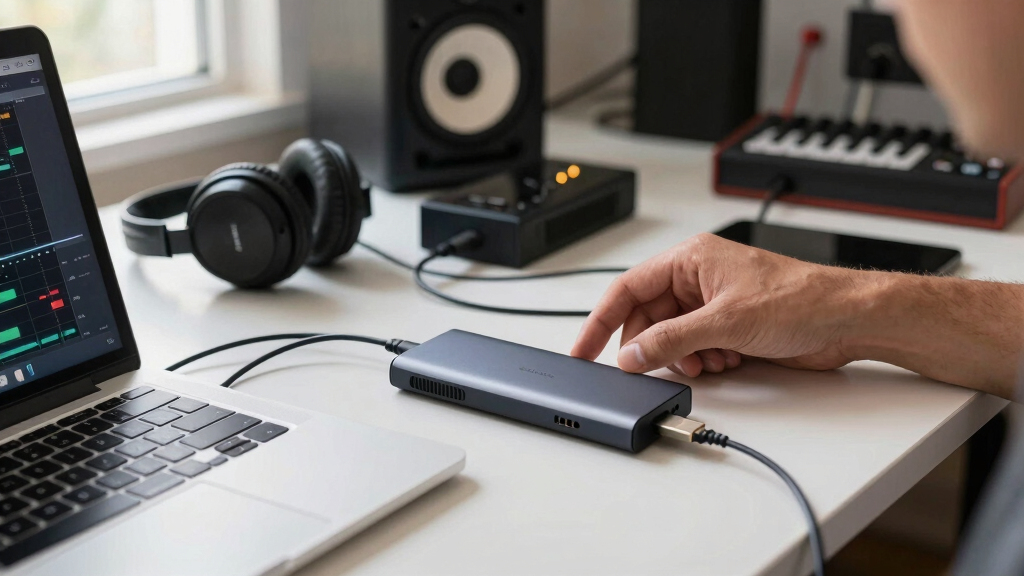
A hub turns one computer port into several shared connections. That convenience becomes a liability when sensitive, real-time audio must compete with storage, cameras, lighting or charging devices.
Unsteady supply
Bus-powered hubs divide the power available from one port. A microphone or interface can disconnect when another device draws more current.
Shared traffic
Multiple devices send data through the same upstream link. Bursts from cameras or drives can delay time-sensitive audio packets.
Noise and weak design
Poor shielding, low-grade controllers and uncertified components may add interference, latency or compatibility problems.
Hear the warning signs
If these symptoms appear only when the device is connected through a hub, the hub or its shared upstream port is a prime suspect.
Audio cuts out
Brief silence, missing words or interrupted takes.
Static appears
Crackles, pops or electrical noise enter the signal.
Latency rises
Monitoring feels delayed during speech or performance.
Device disconnects
The interface vanishes or repeatedly reconnects.
Which hub belongs in an audio setup?
| Connection type | Power model | Maximum cited bandwidth | Audio stability | Best use |
|---|---|---|---|---|
| Basic USB 2.0 hub | Usually unpowered | Up to 480 Mbps | Low | Keyboard, mouse and general accessories |
| Powered USB 2.0 / 3.0 hub | External supply | Up to 5 Gbps with USB 3.0 | Better | Multiple devices and moderate audio workloads |
| USB-C / Thunderbolt hub | Typically powered | Up to 40 Gbps with Thunderbolt 3 | Strong | Professional studios and demanding setups |
| Direct computer port | Dedicated port power | Depends on native standard | Preferred | Critical recording, vocals and live broadcasts |
Four features worth paying for
External power supply
Provides steadier power instead of forcing every device to share the computer port’s limited output.
High-quality shielding
Helps reduce electromagnetic interference that may introduce noise into sensitive audio equipment.
USB-IF certification
Signals tested compatibility and safer adherence to the USB specification.
Modern connection support
USB 3.2, USB-C or Thunderbolt offers more headroom and a stronger path for future equipment.
The stable-audio path
Every extra link adds another controller, cable, power junction or shared resource. Keep the critical signal path simple, then place low-priority accessories on the hub.
Protect the take before you press record
Why USB Hubs Can Mess Up Your Audio (And How to Recognize the Problem)
USB hubs can cause audio dropouts because they share bandwidth and power among multiple devices. When your microphone or interface connects through a hub, especially a cheap or unpowered one, the data can get choked or delayed. Imagine trying to have a conversation in a crowded room—you might miss words or get garbled sounds.
For example, a podcast host using a budget USB hub noticed her high-end microphone kept cutting out during live recordings. Switching to a direct port immediately stabilized her sound. The issue? The hub was overloaded with multiple devices and lacked sufficient power. To spot these problems, look for symptoms like static, latency, or unexpected disconnects during recording sessions.
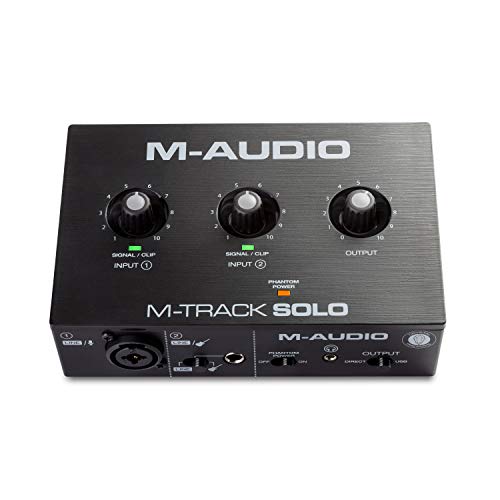
M-AUDIO M-Track Solo USB Audio Interface
- Versatile Recording Capabilities: Ideal for podcasting, streaming, and recording
- High-Resolution Audio: Supports 48kHz audio for clear recordings
- Multiple Input Options: XLR, line, and instrument inputs with phantom power
As an affiliate, we earn on qualifying purchases.
As an affiliate, we earn on qualifying purchases.
When Connecting Directly Is the Best Move (Real-World Scenarios)
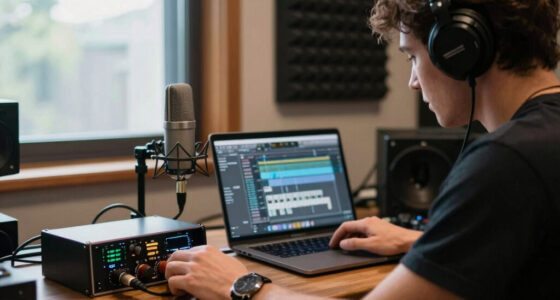
Connecting your audio interface straight into your computer’s USB port often solves dropouts. Think of it like a dedicated lane—less traffic, fewer chances for congestion.
Say you’re live streaming a podcast. Using a direct connection reduces latency—your voice is captured and transmitted faster, with less delay. Or consider a home studio where you record multiple takes. A direct link ensures your high-fidelity mic gets the full bandwidth it needs, avoiding distortions or interruptions caused by shared data channels.
In practice, many pros stick to direct connections for critical tasks—like vocal recordings or live broadcasts—because it guarantees stability. The key is minimizing variables that could introduce interference or power issues.

Powered USB Hub 10Gbps, intpw 9-Port USB 3.2 Hub, USB C Hub with USB A/USB C 3.2, 4 USB 3.0, 2 PD 45W Charging Ports, 65W Power Adapter and 3.3FT Cable, Aluminum USB Hub for PC,Laptop,iPhone 17/16/15
- Hybrid USB C and A Ports: Includes USB-C 3.2 and USB-A ports
- 10Gbps Data Transfer Speed: Fast transfer for photos, videos, files
- Dual PD 45W Charging Ports: Quickly charge iPhone, iPad, devices
As an affiliate, we earn on qualifying purchases.
As an affiliate, we earn on qualifying purchases.
Top 3 Tips to Keep Your Audio Rock-Solid Without Breaking the Bank
- Use a powered USB hub whenever you need multiple devices—this supplies consistent power, reducing dropouts.
- Connect high-end audio gear directly to your computer whenever possible, especially for recording or live work.
- Opt for USB-C or Thunderbolt if your hardware supports it. These standards offer more bandwidth and stability, making dropouts less likely.
For example, I once upgraded my studio’s connection from a basic USB 2.0 hub to a powered USB-C dock. The difference was night and day—no more dropouts during my most critical recordings.

USB C Cable for Focusrite Scarlett Solo 3rd 4th Gen, Scarlett 2i2 3rd Gen
- Device Compatibility: Works with various Focusrite Scarlett models
- Device Compatibility: Compatible with all USB A and USB-C devices
- Cable Type: USB to USB-C / Male to Type-C Male
As an affiliate, we earn on qualifying purchases.
As an affiliate, we earn on qualifying purchases.
Comparison Table: USB Hub Types for Audio Stability
| Type of Hub | Powered or Unpowered | Bandwidth Support | Best For |
|---|---|---|---|
| Basic USB 2.0 Hub | Unpowered | Up to 480 Mbps | General use, not critical audio |
| Powered USB 2.0/3.0 Hub | Powered | Up to 5 Gbps (USB 3.0) | Multiple devices, moderate audio |
| USB-C / Thunderbolt Hub | Powered | Up to 40 Gbps (Thunderbolt 3) | High-end audio, professional studios |
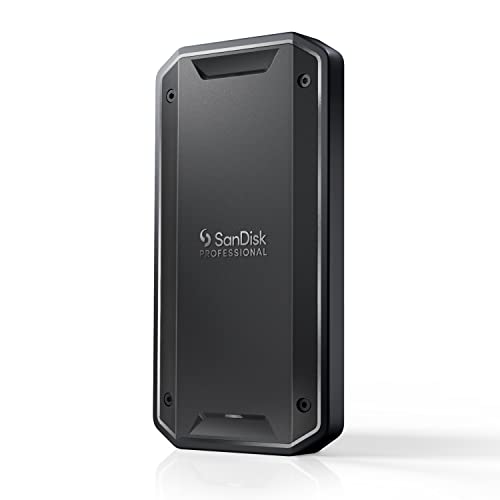
SANDISK Professional 4TB PRO-G40 SSD – Up to 3000MB/s, Thunderbolt 3 (40Gbps), USB-C (10Gbps), IP68 dust/Water Resistance, External Solid State Drive – SDPS31H-004T-GBCND
- Maximum Read Speed: Up to 3000MB/s
- Maximum Write Speed: Up to 2500MB/s
- Connectivity: Thunderbolt 3 and USB-C
As an affiliate, we earn on qualifying purchases.
As an affiliate, we earn on qualifying purchases.
What to Look for in a USB Hub for Critical Audio Work
If you’re choosing a hub for podcasting or recording, prioritize these features:
- Powered supply: Ensures consistent power delivery.
- High-quality shielding: Reduces electromagnetic interference that can introduce noise.
- Certification: Look for USB-IF certification to guarantee compatibility and safety.
- Support for USB 3.2 or Thunderbolt: Offers higher bandwidth and future-proofing.
For instance, a professional podcaster upgraded to a certified Thunderbolt hub, noticing a marked reduction in dropouts and latency.
Can USB-C and Thunderbolt Really Fix Your Dropouts?
USB-C and Thunderbolt connections provide higher bandwidth and more stable power, which significantly cuts down on audio dropouts. Think of it like upgrading from a busy street to a highway—less congestion, faster, smoother data flow.
Many high-end audio interfaces now come with USB-C or Thunderbolt ports. These standards not only support faster data transfer but also supply cleaner power—crucial for sensitive microphones and high-fidelity interfaces. An anonymous researcher notes that switching to Thunderbolt lowered latency by up to 50% in some professional setups.
Frequently Asked Questions
Why do I experience audio dropouts when using a USB hub?
Dropouts happen because many hubs can’t supply consistent power or bandwidth, especially unpowered or cheap models. This overloads the connection, causing interruptions during recording or streaming.Is connecting directly to my computer always better than using a hub?
Yes. A direct connection reduces potential points of failure, minimizes latency, and provides a cleaner, more stable signal—crucial for high-quality audio work.Can a powered USB hub fix my audio issues?
Often, yes. Powered hubs supply steady power and support higher data loads, decreasing the chance of dropouts or noise in your recordings.Are USB-C or Thunderbolt connections worth it for audio stability?
Definitely. These standards offer higher bandwidth and more stable power, which significantly reduces dropouts and latency in professional setups.What features should I prioritize in a USB hub for podcasting?
Look for powered supply, high-quality shielding, USB-IF certification, and support for USB 3.2 or Thunderbolt. These features help keep your audio clear and interruption-free.Conclusion
In the world of podcasting and high-quality audio, your connection matters more than you think. Opt for direct links whenever you can, especially for critical recordings. When hubs are unavoidable, choose powered, certified models, and consider newer standards like USB-C or Thunderbolt to keep your sound crisp and dropouts at bay.
Remember: a stable connection isn’t just about convenience—it’s about preserving the clarity and professionalism of your sound. Your audience will thank you for the effort.
Labor Day sales Picks
labor day deals
As an affiliate, we earn on qualifying purchases.