TL;DR

Get audio and creator gear delivered free with Prime
- Fast, free delivery on millions of items
- Prime Video, Amazon Music and more included
- Member-only deals all year
Routing two hosts into one interface with separate tracks boosts editing control and synchronization. New hardware, software, and network tools now make remote, multi-source workflows more accessible than ever.
Imagine you’re recording a podcast with two hosts in different locations. You want to keep their audio separate for fine-tuned editing, but also work within a single interface. That’s where multi-track routing becomes essential—giving you control, flexibility, and room for creative editing.
Whether you’re editing a remote interview, a live-streamed panel, or a multi-mic studio session, routing each host onto their own track is a game-changer. It’s not just about convenience; it’s about making your post-production process cleaner, faster, and more professional. This guide breaks down how to set up, manage, and maximize multi-host, multi-track workflows—so you get the most out of your gear and software.
Routing each host onto its own track in your DAW or switcher gives you maximum control over editing and mixing.
Synchronization tools like timecode or clap sync are essential for keeping remote or multi-camera tracks aligned.
Network-based solutions such as NDI or Dante make remote multi-host setups more reliable and flexible.
Choosing the right hardware or software depends on your setup size, latency needs, and whether hosts are local or remote.
Minimizing latency involves using high-quality interfaces and stable network connections, especially for live or remote workflows.
Two Hosts, One Interface
Routing two hosts into one editing interface keeps each voice isolated, synchronized, and ready for precise post-production. Whether the session is local, remote, live, or multi-camera, separate tracks turn a messy capture into a controlled editorial workflow.
Clean routing is the difference between fixing a recording and shaping it.
Key insight: multi-track routing plus sync protocols like LTC helps prevent drift between separate sources.What Separate Routing Actually Gives You
Each host needs a dedicated lane. Once the inputs are separated, the editor can repair crosstalk, rebalance tone, remove noise, and align timing without damaging the other speaker’s performance.
Host A and Host B stay editable.
Separate hardware inputs, virtual audio devices, or network streams keep every source distinct from capture to export.
One dashboard, multiple lanes.
The DAW or switcher sees each source as its own channel, so levels, plugins, mutes, and edits remain independent.
Fix problems surgically.
Noise reduction, room tone, EQ, and timing corrections can target one host without flattening the whole conversation.
Hardware Versus Software
The best route depends on where the hosts are, how much latency the project can tolerate, and whether the priority is live reliability or post-production control.
| Feature | Hardware Interface | Software Routing: NDI, vMix, OBS | Best Fit |
|---|---|---|---|
| Setup Complexity | ~Moderate: physical connections and channel configuration. | ~Variable: depends on network setup and software fluency. | Hardware for local sessions; software for distributed teams. |
| Latency | ✓Low: direct connection minimizes delay. | ~Variable: network conditions can add delay. | Hardware for live monitoring and low-latency talkback. |
| Flexibility | ~Limited by the number of physical inputs. | ✓High: add, remove, or switch sources quickly. | Software when sources may change mid-production. |
| Remote Collaboration | ✗Challenging without extra remote tools. | ✓Designed for networked and remote sources. | NDI, Dante, Source-Connect, or similar workflows. |
Build The Session In Six Moves
Start with clean separation, then verify synchronization before the real recording. The goal is not just getting signal into the interface; it is preserving independent control after the session ends.
Choose Routing
Select a multi-channel interface, NDI, Dante, OBS, vMix, or another routing layer.
Connect Sources
Feed each mic, camera, or remote stream into a separate input or stream.
Recognize Inputs
Configure the DAW or switcher so each source appears as its own track.
Assign Lanes
Route each host to a dedicated channel, timeline lane, or record bus.
Sync Timing
Use LTC, a clap, or waveform alignment when sources are recorded separately.
Test Playback
Record, replay, solo each track, and confirm timing before the actual take.
The Editing Control Stack
Think of the workflow as a stack: source isolation first, synchronization second, reliability third. When those layers are stable, the creative edit becomes faster and cleaner.
Where Drift Gets Defeated
Routing solves control. Synchronization solves time. Remote hosts, separate recorders, and multi-camera sessions need a visible or encoded sync reference so the edit does not slowly slide out of alignment.
The farther sources move from direct hardware, the more important network stability, monitoring, and sync discipline become.
How do I route multiple hosts into one editing interface?
Use a multi-channel interface or network routing layer, assign each source to a separate input, then arm separate tracks in your DAW or switcher.
How do I synchronize separate host recordings?
Place a clap, timecode signal, or visual marker at the start, then align the waveform peaks or timecode in the edit.
Can remote hosts stay isolated?
Yes. NDI, Source-Connect, Dante, and live production tools can deliver each remote source as a separate controllable stream.
Which tools fit this workflow?
Reaper, Pro Tools, Adobe Audition, OBS Studio, vMix, Wirecast, and modern NLEs can all support multi-track routing when configured correctly.
How to Route Two Hosts into One Interface Without Losing Control
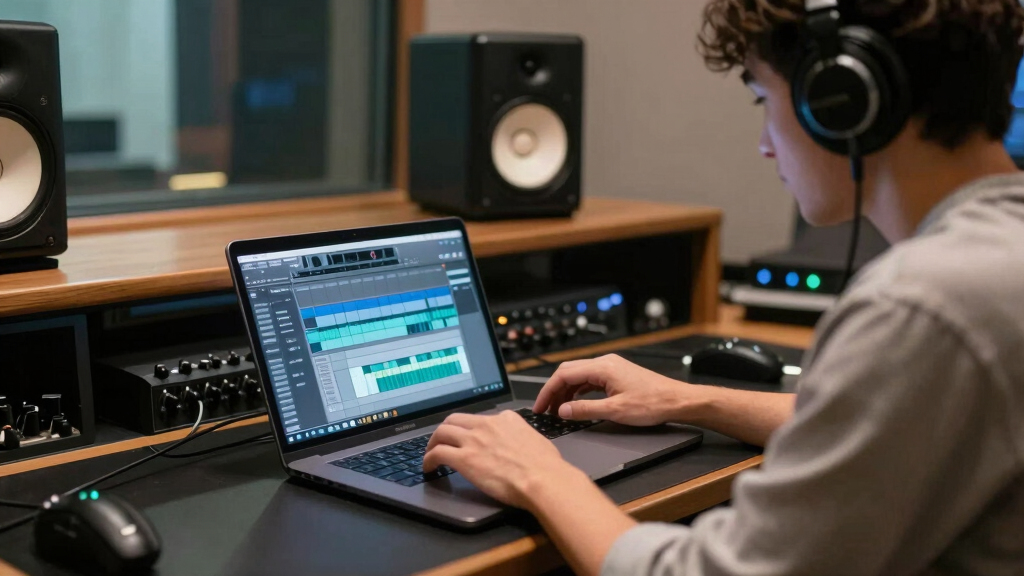
Routing two separate hosts into a single interface might sound complicated, but it’s straightforward once you understand the tools. The key is setting up multiple inputs—either hardware or software—that keep each host’s audio or video isolated. For example, a typical setup might include a multi-channel audio interface connected to your computer, with each host’s mic plugged into separate inputs. Then, your digital audio workstation (DAW) or live switcher sees each input as its own track.
In practice, you’ll assign each source to its dedicated track, giving you the ability to mute, solo, or adjust levels independently. This setup works whether your hosts are in the same room or miles apart, thanks to network-based routing solutions like NDI or Dante. The secret is ensuring your routing software or hardware supports multiple streams and that your system can handle the data load without lag.
multi-channel audio interface for podcasting
As an affiliate, we earn on qualifying purchases.
As an affiliate, we earn on qualifying purchases.
Why Synchronization Matters More Than Ever in Multi-Host Setups
Routing multiple sources is just half the story. The real challenge? Keeping everything in sync. If your hosts are remote, even a tiny delay can throw off timing, making edits messy or causing awkward lip-sync issues.
Using timecode, claps, or synchronization protocols like LTC helps line up tracks perfectly. For example, if your two hosts record separately, you can insert a clap or a sync point at the start. Then, during editing, you align the waveforms or timecodes, ensuring everything plays smoothly together.
This is especially critical in multi-camera video setups or live streaming, where even a millisecond mismatch shows up as jitter or lip sync problems. Think of it like a live concert—if the drums and vocals aren’t tight, the whole performance feels off.
remote multi-track audio routing software
As an affiliate, we earn on qualifying purchases.
As an affiliate, we earn on qualifying purchases.
Comparison Table: Hardware vs. Software Routing Options for Two Hosts
| Feature | Hardware Interface | Software Routing (NDI, vMix, OBS) |
|---|---|---|
| Setup Complexity | Moderate — requires physical connections and configuration | Varies — depends on network setup and software familiarity |
| Latency | Low — direct hardware connection minimizes delay | Variable — network latency can add slight delay |
| Flexibility | Limited by number of inputs | High — easily add/remove sources and switch views |
| Remote Collaboration | Challenging without additional tools | Easy — supports remote hosts over network |
professional audio interface for multi-host recording
As an affiliate, we earn on qualifying purchases.
As an affiliate, we earn on qualifying purchases.
Step-by-Step: Setting Up Multi-Track Routing for Two Hosts
- Choose your hardware or software solution—multi-channel audio interface or network-based routing like NDI.
- Connect each host’s mic or video source to separate inputs or network streams.
- Configure your DAW or live switcher to recognize each input as its own track.
- Assign each track to a dedicated channel or timeline lane for editing.
- Use timecode or manual alignment to sync tracks if recording separately.
- Test the setup by recording or streaming, then play back to verify control and sync.
For example, a podcaster in New York and a guest in London can both send their audio over NDI. You route each into your streaming software, assign tracks, and use a simple clap as a sync point. The result? Clean, synchronized multi-track recordings ready for editing.
network-based audio routing tools NDI Dante
As an affiliate, we earn on qualifying purchases.
As an affiliate, we earn on qualifying purchases.
How Remote Hosts Can Be Integrated into One Interface
Remote hosts are easier to include than ever. Using tools like NDI or dedicated streaming platforms, you can bring multiple sources into a single interface without sacrificing control. For example, a host in Tokyo can send their video feed via NDI to your local setup, appearing as a separate track alongside your in-studio host.
This approach offers high flexibility. You can isolate each source for editing or live switching, all from one dashboard. Just remember: network stability and bandwidth matter. A stable connection prevents lag, audio dropouts, or sync issues.
For best results, use a wired Ethernet connection and prioritize traffic to keep streams smooth. This makes your remote collaboration almost as seamless as being in the same room.
Frequently Asked Questions
How do I set up multiple hosts to route into a single editing interface?
Start with a multi-channel audio or video interface, or use network-based routing like NDI. Assign each host’s source to its own input, then configure your DAW or switcher to recognize each as a separate track. Sync with a clap or timecode for perfect alignment.What hardware do I need for two hosts to share one interface?
A multi-channel audio interface or video capture card with enough inputs is key. For remote setups, network-based tools like NDI or Dante hardware expand your options. Ensure your system can handle multiple streams without lag.How do I synchronize two separate tracks recorded from different hosts?
Use a clap, a timecode signal, or a visual sync marker at the start of recordings. During editing, align waveforms or timecodes precisely to keep everything in sync—crucial for multi-camera or multi-mic projects.Can remote hosts be integrated into a single interface?
Absolutely. Tools like NDI, Source-Connect, or live streaming platforms support multiple remote sources. Just ensure a stable internet connection, and you’ll have near-instant control over all streams.What are the best tools for multi-track routing and editing?
Popular choices include DAWs like Reaper, Pro Tools, or Adobe Audition, and live production software like OBS Studio, vMix, or Wirecast. Pick based on your workflow—some excel at live routing, others at post-production editing.Conclusion
Routing separate tracks from two hosts into a single interface turns chaos into clarity. It’s the backbone of professional-sounding podcasts, live streams, and multi-camera projects. Mastering this setup means you’re ready for any collaborative challenge—more control, better sync, faster edits.
Don’t just imagine the possibilities—set up your multi-track routing today and watch your editing workflow transform into a smooth, precise process that makes your content shine.
Halloween Picks
halloween
As an affiliate, we earn on qualifying purchases.