
TL;DR

Get audio and creator gear delivered free with Prime
- Fast, free delivery on millions of items
- Prime Video, Amazon Music and more included
- Member-only deals all year
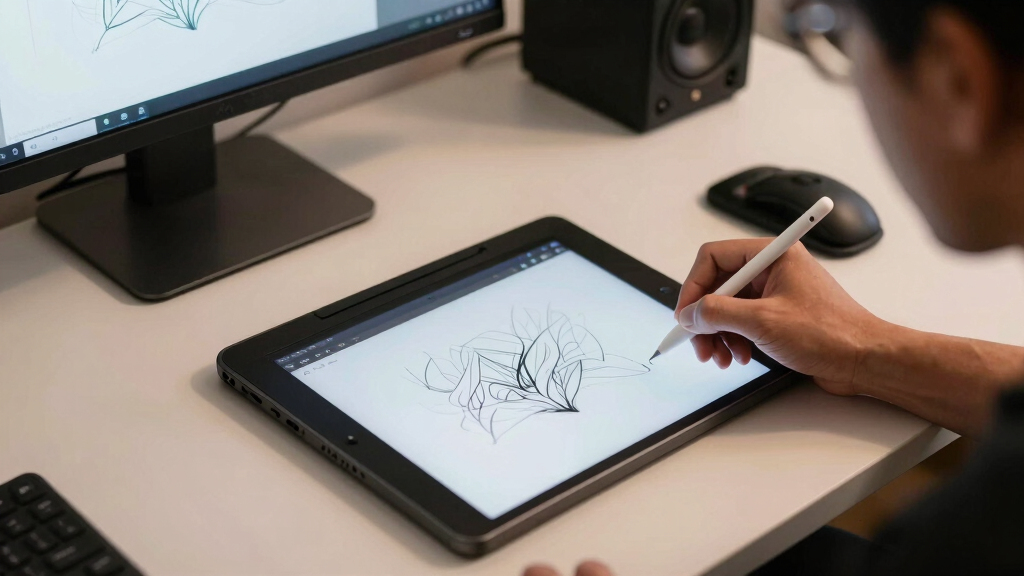
Pen display parallax is the offset between your pen tip and cursor caused by physical gaps, while lag is the delay in cursor response. Lower parallax and lag mean more precise, natural drawing — look for specs like minimal parallax distance and response time below 20ms.
Ever wonder why your digital drawing sometimes feels off? Maybe the cursor doesn’t line up perfectly with your pen tip, or there’s a frustrating delay between your stroke and what you see. These issues stem from parallax and lag—two key specs that directly influence your work.
Understanding what these terms mean and how they relate to your pen display helps you pick the right device and get the most out of it. Whether you’re a hobbyist or a pro, knowing these details can turn a good tablet into a great one.
Aim for a parallax distance under 1mm to improve drawing accuracy.
Response times below 15ms create a more natural, lag-free experience.
Higher pressure sensitivity (8192+ levels) offers better control for detailed work.
Calibration and software updates can mitigate some lag but won’t fix hardware limitations.
Prioritize specs like low parallax and response time when choosing a pen display for professional use.
Pen Display Parallax and Lag: What the Specs Mean
Parallax is where the cursor appears. Lag is when it arrives. Reducing both makes digital drawing feel more accurate, immediate, and closer to traditional media.
Offset versus delay
They can feel similar during a stroke, but parallax is a physical alignment problem while lag is a timing problem. Knowing which one you are seeing makes specifications and troubleshooting far more useful.
The cursor looks displaced
The screen glass, display panel, and digitizer sit in separate layers. Viewed at an angle, that physical gap makes the cursor appear offset from the pen tip—especially near screen edges.
The cursor arrives late
Input must pass through the pen sensor, driver, computer, drawing application, rendering pipeline, and display. Every stage can add milliseconds before the stroke becomes visible.
Milliseconds shape drawing rhythm
Lower latency keeps the visible line closer to the moving pen. The difference matters most during fast curves, confident line art, rapid sketching, and brushes that rely on subtle pressure changes.
The stroke-response chain
What to compare before buying
No single number guarantees a natural feel. Judge parallax and latency alongside pressure response, tilt tracking, resolution, driver quality, and real-world reviews.
| Specification | What it measures | Workflow impact | Ideal for artists |
|---|---|---|---|
| Parallax distance | Physical or apparent gap between pen tip and cursor | Alignment, edge accuracy, fine-detail confidence | ✓Under 1mm |
| Response time / latency | Delay from pen movement to visible cursor update | Stroke fluidity, rhythm, fast sketching | ✓Below 15ms |
| Pressure sensitivity | Number of recognized pressure levels | Control over line weight and opacity | ✓8,192+ levels |
| Tilt recognition | Detection of stylus angle | Natural shading and broad brush behavior | ✓Supported and responsive |
| Screen resolution | Pixel density and visible image detail | Sharper edges and clearer close-up work | ~High resolution for canvas size |
Five-point buying test
- Verify parallax: aim below 1mm for precise illustration.
- Check latency: prioritize response below 15ms.
- Read artist reviews: advertised numbers may not reflect the complete system.
- Draw before buying: test slow diagonals, fast curves, edge accuracy, pressure, and tilt.
- Protect the workflow: prioritize responsiveness over features you rarely use.
What software can—and cannot—fix
Calibration, current drivers, application settings, and a healthy computer can improve the experience. They cannot erase a thick physical display stack or overcome fundamentally slow hardware.
Alignment and perceived lag
Run pen calibration, update drivers and firmware, close heavy background processes, simplify demanding brushes, and verify the correct display refresh settings.
Physical gaps and slow response
Calibration may align the cursor from one viewing position, but it cannot remove the screen-to-digitizer gap. A device near 25–30ms will not become a true 10ms display through software alone.
How much parallax is acceptable for detailed illustration?
Aim for less than 1mm. Larger offsets can make fine line placement noticeably harder.
Does more pressure sensitivity always mean better control?
More levels help, but accurate initial activation, tracking, latency, and a well-tuned pressure curve matter just as much.
Are wireless pens responsive enough?
Modern wireless and battery-free EMR pens can be highly responsive. For critical work, judge measured latency and real-world tracking rather than connection type alone.
What Exactly Is Parallax and Why Should You Care?
Parallax is the tiny gap between your pen tip and the cursor on the screen. If you’ve ever drawn on a tablet and noticed the cursor lagging behind or not aligning perfectly, that’s parallax at play.
It’s caused by the physical distance between the active drawing surface and the digitizer layer inside the device. Think of it like a shadow—if your pen tip is a few millimeters away from where the cursor appears, your precision suffers. For detailed work—like fine line art or technical illustrations—this mismatch can be a real headache.
High parallax distances force you to compensate mentally, often leading to less natural strokes and increased fatigue. Artists need to consider this because even small offsets can accumulate, especially when working on intricate projects. Devices with minimal parallax allow your hand and cursor to move in sync, resulting in more accurate and confident lines.
As an affiliate, we earn on qualifying purchases.
Lag: The Silent Thief of Your Natural Drawing Flow
Lag, or input latency, is the delay between moving your pen and seeing the stroke appear on the screen. It’s measured in milliseconds (ms). The lower the number, the more instant your response feels.
Imagine drawing a curved line. If your tablet has a lag of 30ms, your hand might feel like it’s behind the cursor, making smooth, confident strokes difficult. A device with 10ms latency mimics traditional drawing, where your hand moves and the image appears in real time.
Lag affects your ability to draw fluidly. Higher latency can cause jittery lines, make it harder to control pressure and tilt, and reduce your overall confidence. For professional artists, even small delays can disrupt the natural rhythm of drawing. Therefore, aiming for low latency isn’t just about comfort—it’s about preserving your artistic intuition and precision.
Choosing a device with response times below 15ms minimizes these disruptions, allowing your hand movements to translate seamlessly into digital strokes, and maintaining the spontaneity of traditional media.
drawing tablet response time under 15ms
As an affiliate, we earn on qualifying purchases.
As an affiliate, we earn on qualifying purchases.
How Parallax and Lag Specs Impact Your Workflow
When choosing a pen display, specs like parallax distance and response time don’t just matter—they can make or break your workflow. High parallax causes your lines to drift from where you intend, forcing you to constantly adjust and rework. This not only slows you down but can also frustrate your creative process, especially during detailed or precise work.
Similarly, response time directly affects how natural your drawing feels. A response time above 20ms introduces noticeable lag, which can cause jitteriness and diminish your control over subtle strokes. This can be particularly problematic for fast sketching or dynamic brushwork, where timing and fluidity are key.
On the other hand, devices with minimal parallax and low latency foster a more intuitive drawing experience. They allow your hand movements to be mirrored instantly and accurately, reducing the cognitive load and enabling you to focus on creativity rather than technical adjustments. Over time, this can translate into better efficiency, higher quality work, and more confidence in your digital art practice.
In essence, understanding these specs helps you select tools that align with your artistic style and workflow, ensuring that technical limitations don’t hold back your creativity.
professional pen display with high pressure sensitivity
As an affiliate, we earn on qualifying purchases.
As an affiliate, we earn on qualifying purchases.
Comparison Table: Specs That Matter for Precision
| Specification | What It Means | Ideal Range for Artists |
|---|---|---|
| Parallax Distance | The gap between pen tip and cursor | Under 1mm |
| Response Time / Latency | Delay between pen movement and cursor update | Below 15ms |
| Pressure Sensitivity | Number of pressure levels | At least 8192 levels |
| Tilt Recognition | Detects pen tilt for shading | Supported and responsive |
| Screen Resolution | Detail clarity (e.g., 1920×1080, 4K) | Higher resolution for detailed work |
digital drawing tablet with minimal lag
As an affiliate, we earn on qualifying purchases.
As an affiliate, we earn on qualifying purchases.
How to Pick a Pen Display That Feels Natural
- Check the parallax distance—aim for under 1mm for fine detail work.
- Look for response times below 15ms—anything higher can slow your flow.
- Read user reviews about real-world lag and accuracy.
- Test the pen if possible—try drawing lines to see if it feels responsive.
- Consider your budget, but prioritize specs that reduce frustration.
For example, many pro-level tablets like the Wacom Intuos Pro or Huion Kamvas series aim for low parallax and latency, making them favorites among professional artists.
Can You Fix Parallax and Lag After Buying?
Some issues can be improved with calibration and software updates, but hardware limitations set the baseline. For parallax, calibration tools can help align the cursor more accurately, but they won’t eliminate physical gaps. This means that even with calibration, a device with a large physical gap will still cause some offset, affecting precision in fine detail work.
For lag, updating drivers, optimizing your computer’s performance, and reducing background processes can help reduce perceived latency. However, if the hardware itself has high response times—say, 25ms or more—these software tweaks won’t fully eliminate the delay. You’ll still experience sluggishness that hampers your workflow.
Choosing a device with strong specs upfront is the best strategy. Better hardware minimizes the need for workarounds and ensures a smoother experience, saving you time and frustration in the long run.
Frequently Asked Questions
How much parallax is acceptable for detailed illustration?
For detailed work, aim for a parallax under 1mm. Anything larger can cause noticeable offsets, making precision difficult.What response time should I look for in a professional pen display?
Look for response times below 15 milliseconds. This ensures your strokes feel instant and natural, similar to traditional drawing.Can I improve lag on my existing tablet?
Some lag can be reduced with calibration, driver updates, and closing background apps. But hardware specs set the true limit.Does higher pressure sensitivity always mean better drawing control?
Generally, yes. More pressure levels provide nuanced control, but responsiveness and accuracy are equally important.Are wireless pens as responsive as wired ones?
Wireless pens offer more freedom but may introduce slight latency. For critical detail work, wired or low-latency wireless pens are preferable.Conclusion
Understanding pen display specs like parallax and lag arms you with the knowledge to pick better tools. A device with minimal parallax and low latency transforms digital drawing from frustrating to fluid. It’s about working smarter, not harder—your art deserves it.
Next time you’re shopping or calibrating, remember: those tiny specs make a big difference. Your perfect drawing experience is just a few millimeters and milliseconds away.
Fall Picks
fall essentials
As an affiliate, we earn on qualifying purchases.