TL;DR

Get audio and creator gear delivered free with Prime
- Fast, free delivery on millions of items
- Prime Video, Amazon Music and more included
- Member-only deals all year
Tablet lag in Photoshop often stems from driver or Windows Ink conflicts. By adjusting input modes, updating drivers, and tweaking Windows settings, you can significantly reduce latency and regain fluid stylus control.
If your stylus feels sluggish or unresponsive in Photoshop, you’re not imagining it. No matter how fancy your tablet is, a mismatch in its input system or outdated drivers can turn your smooth strokes into jittery lines. Fixing it isn’t about buying new gear — it’s about knowing what settings to tweak and when to update.
This guide walks you through the exact steps to troubleshoot tablet lag, from configuring Windows Ink correctly to rolling back drivers. Whether you’re a professional artist or a hobbyist, these fixes will help you draw without frustration and keep your workflow flowing.
Always verify whether your tablet uses Windows Ink or WinTab, as this impacts configuration and lag fixes.
Enabling Windows Ink generally improves responsiveness, but incompatible drivers can cause delays—switch modes if needed.
Keep your tablet driver up to date, but don’t hesitate to roll back if newer versions introduce lag or bugs.
Adjust Windows settings like disabling press-and-hold or pen visual effects to shave milliseconds off input time.
Troubleshooting is about isolating variables: test in other apps, change one setting at a time, and restart Photoshop after each fix.
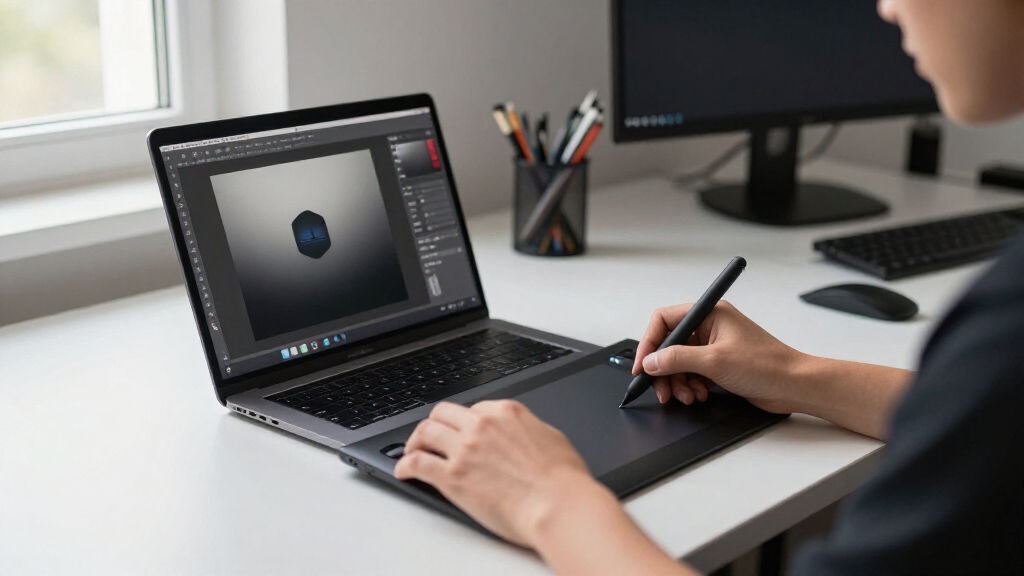
Tablet Lag in Photoshop
Sluggish strokes, missing pressure and frozen cursors usually point to an input-mode conflict—not worn-out hardware. Align Photoshop with the tablet driver, remove Windows pen interference and test one variable at a time.
Best starting point for modern Windows tablets.
Legacy compatibility mode for persistent conflicts.
Compare Photoshop with Krita or Clip Studio Paint.
Restart Photoshop after every controlled adjustment.
Where latency enters the stroke
Stylus input travels through the tablet driver, a Windows pen API and Photoshop’s brush engine. A bottleneck at any stage can feel like “tablet lag,” but each stage leaves different clues.
Ink / WinTab mismatch
Photoshop expects one API while the driver sends another, producing delayed strokes, lost pressure or sticky controls.
Faulty tablet driver
An outdated, incompatible or corrupt installation can interrupt sampling and application-specific profiles.
Pen features intercept
Press-and-hold, right-click handling, ripples and visual feedback can delay the beginning of a stroke.
Brush or GPU load
Smoothing, complex brushes, oversized documents and GPU pressure can make the brush trail the cursor.
Read the lag before fixing it
“Lag” can mean a delayed start, trailing paint, cursor freezes or unstable lines. The symptom narrows the fastest troubleshooting path.
| Observed symptom | Likely source | First test |
|---|---|---|
| ~Stroke starts after several pixels | Press-and-hold, Windows Ink or mode conflict | Disable press-and-hold; then compare Ink with WinTab |
| ~Brush trails behind the cursor | Brush smoothing, complex tip, large size, GPU or document load | Use a basic brush at 0% smoothing in a small document |
| ✗Cursor freezes intermittently | Driver conflict, corrupt installation or tablet profile | Reset the profile; clean-reinstall the driver |
| ✗Pressure sensitivity disappears | Ink/WinTab mismatch or disabled pressure control | Align both modes; check Shape Dynamics › Pen Pressure |
| ~Circles or ripples appear | Windows visual feedback or press-and-hold | Turn off pen visual effects in Windows settings |
| ✓Pen lags, mouse stays smooth | Tablet input path or driver | Test the pen in a second drawing application |
| ✗Pen and mouse both lag | Photoshop, GPU, brush, document or system load | Test a blank document and basic brush; inspect GPU settings |
Signal key: ✓ isolates the tablet path · ✗ indicates a strong conflict or failure clue · ~ requires a comparison test
Windows Ink first. WinTab when necessary.
The driver and Photoshop must agree. Enabling Ink in one place while forcing WinTab in another creates exactly the conflict you are trying to remove.
Windows Ink
Adobe’s default and preferred Windows input path for current Photoshop releases and modern tablet hardware.
- Enable “Use Windows Ink” for Photoshop in the tablet driver.
- Remove old PSUserConfig files that force WinTab.
- Enable Shape Dynamics and choose Pen Pressure.
- Restart Photoshop before evaluating the result.
WinTab
A legacy API that can bypass persistent Ink interactions on certain older or incompatible tablet-driver combinations.
- Create PSUserConfig.txt in the exact version settings folder.
- Add UseSystemStylus 0 and save as plain text.
- Disable Windows Ink for Photoshop in the tablet driver.
- Remove the file when returning to Windows Ink.
Five moves to isolate the cause
A controlled sequence prevents false conclusions. Begin outside Photoshop, reduce the test environment, then adjust the input system.
Test another drawing app
Persistent lag suggests a driver, Windows or hardware issue.
Use a basic brush
Open a small document and set brush smoothing to zero.
Enable Windows Ink
Match Photoshop and the tablet’s application profile.
Test WinTab
Use it only if Ink continues to delay or break controls.
Restart and retest
Change one variable, restart Photoshop, record the result.
If only particular brushes lag, the tablet API may be innocent. Reduce smoothing, spacing, texture, dual-brush complexity and brush diameter before changing drivers.
Fix the software before blaming the stylus
The newest driver is not always the best driver for every tablet model. Prioritize compatibility, clean installation and a stable application profile.
Driver checklist
- Update carefully. Install a version that explicitly supports both the tablet model and installed Windows release.
- Roll back when needed. If lag started immediately after an update, return to the last known stable driver.
- Clean-reinstall. Uninstall the driver, remove residual profiles where appropriate, restart Windows and install fresh.
- Remove conflicts. Old Wacom, Huion, XP-Pen or other tablet drivers can compete for the same input path.
- Reset the Photoshop profile. Rebuild application-specific tablet settings if only Photoshop is affected.
- Verify pressure. In Brush Settings, enable Shape Dynamics and set Control to Pen Pressure.
PSUserConfig.txt
Typical settings locationC:\Users\<username>\AppData\Roaming\Adobe\Adobe Photoshop <version>\Adobe Photoshop <version> Settings\
# Use WinTab
UseSystemStylus 0
Disable Windows Ink for Photoshop in the tablet driver, then restart Photoshop. The driver setting and configuration file must point to the same input mode.
Follow every stylus signal
A smooth stroke depends on agreement across the entire chain. Test from left to right and stop where the behavior changes.
Pressure, position, tilt and button data begin at the tablet.
The device profile converts hardware data for Windows.
The selected API passes pen events into Photoshop.
Smoothing and brush complexity transform input into paint.
GPU, document size and system load display the final stroke.
The practical takeaway
Start with Windows Ink on modern hardware, verify pressure settings and test a simple brush. If the problem persists, compare another application, clean the driver installation and trial WinTab as a deliberate fallback—not as an automatic performance upgrade.
What Exactly Causes Tablet Lag in Photoshop?
Tablet lag in Photoshop isn’t just a random glitch — it’s usually caused by one of four common issues. The most frequent is a mismatch between Photoshop’s input system and your tablet driver. If Photoshop expects Windows Ink and your driver is set to WinTab, strokes can lag, pressure can disappear, or the cursor can stutter.
Other causes include outdated or incompatible drivers, Windows pen features intercepting stylus signals, or Photoshop’s own performance settings. Real-world example: a user with a Wacom tablet noticed delays only when using certain brushes. Turning off Windows Ink fixed it — because the driver defaulted to WinTab, causing a conflict.
Understanding whether your tablet uses Windows Ink or WinTab is key. Adobe favors Windows Ink for newer devices, but legacy setups may still need WinTab to work smoothly.
Deeply understanding these causes matters because each one affects how input data is processed. A mismatch in input modes creates a bottleneck, causing latency. Outdated drivers might not communicate efficiently, leading to delays during complex brush strokes. Windows pen features, like pressure or tilt, can interfere if they’re not properly enabled or disabled, adding lag. Recognizing these issues allows you to target the right fix, rather than guesswork, which saves time and prevents frustration. The tradeoff is that changing these settings might disable certain features like pressure sensitivity, so balancing responsiveness with feature access is key. The goal is to find the optimal configuration that delivers both accuracy and speed for your workflow.
As an affiliate, we earn on qualifying purchases.
How to Tell if Your Lag Is Due to Windows Ink or Drivers
Pinpointing the cause begins with simple tests. Use your tablet in another app like Krita or Clip Studio Paint. If lag persists across apps, it’s likely driver or hardware related. If Photoshop alone lags, the problem might be in Photoshop’s settings or how it interacts with your tablet.
Look for symptoms: delayed strokes, missing pressure, wobbling lines, or cursor freezing. For example, if pressure sensitivity suddenly vanishes during a session, it’s probably a Windows Ink or WinTab mismatch.
Quick tip: switch between Windows Ink and WinTab modes (see below) to see which feels smoother. This real-world test can save hours of guesswork.
Understanding whether lag is caused by driver issues or Windows Ink settings is crucial because it determines your troubleshooting path. Driver problems often stem from incompatibilities or outdated versions that don’t handle input efficiently, leading to delays especially during complex brush strokes. Windows Ink issues, on the other hand, relate to how the system translates stylus data into Photoshop commands. If Windows Ink is enabled but the driver isn’t fully compatible, it can cause jitter or pressure loss. Conversely, switching to WinTab might bypass certain conflicts but at the expense of some pressure or tilt features. Recognizing these patterns helps you choose the most effective fix, whether that’s updating drivers, toggling input modes, or adjusting system settings. The tradeoff involves balancing feature access with responsiveness, so understanding the root cause guides you to the best solution for your specific setup.
As an affiliate, we earn on qualifying purchases.
Fast Fix: Enable Windows Ink in Your Tablet Driver
Most modern tablets, especially Wacom and XP-Pen, recommend enabling Windows Ink for low latency. Here’s how:
- Open your tablet’s control panel or driver software.
- Find the setting labeled Use Windows Ink.
- Enable it for Photoshop specifically.
- Restart Photoshop and test your stylus.
For example, a Huion user switched this setting on, and their lag dropped from a frustrating 0.5 seconds to almost immediate. The difference is noticeable — smooth lines, pressure control, no wobbling.
Note: some non-Wacom tablets handle Windows Ink differently. Always test both input modes if unsure.
Enabling Windows Ink can significantly improve latency because it allows Photoshop to communicate with your tablet more efficiently, especially on supported hardware. However, this setting also depends on your driver’s compatibility with Windows Ink. When enabled, it reduces the translation layer that can introduce delays. But if your driver isn’t optimized, enabling Windows Ink might cause issues like jitter or pressure loss. Therefore, it’s essential to test after enabling it and be prepared to switch modes if needed. The tradeoff is improved responsiveness at the potential expense of some features, so understanding your hardware’s capabilities helps you decide whether to keep it enabled.
As an affiliate, we earn on qualifying purchases.
Switching to WinTab if Windows Ink Causes Problems
If enabling Windows Ink causes more lag or erratic behavior, switching back to WinTab can fix it. Here’s how:
- Create a plain text file called PSUserConfig.txt.
- Place this in your Photoshop settings folder, typically at:
C:\Users\\AppData\Roaming\Adobe\Adobe Photoshop \ - Add this line inside the file:
# Use WinTab UseSystemStylus 0- In your tablet driver, disable Windows Ink for Photoshop.
- Restart Photoshop and test.
This switch often clears delays caused by API conflicts. Remember to remove or rename the file when reverting to Windows Ink.
Deep understanding of this switch is important because it bypasses the Windows Ink API, which can sometimes introduce latency due to incompatibilities or driver bugs. Switching to WinTab allows Photoshop to use a more direct input method, which can reduce delays especially with older or less compatible hardware. However, this might disable pressure sensitivity or other advanced features supported by Windows Ink. The tradeoff is responsiveness versus feature richness. When you experience lag after enabling Windows Ink, reverting to WinTab is a quick way to test if the API conflict is the root cause, helping you isolate and resolve the issue effectively.
As an affiliate, we earn on qualifying purchases.
Key Driver Fixes That Make a Difference
Outdated or corrupt drivers often cause lag more than hardware. Keep these tips in mind:
- Update your driver to the latest version supporting your OS and tablet model.
- Roll back if recent updates worsened performance.
- Perform a clean reinstall — uninstall, clear residual files, then install fresh.
- Remove conflicting drivers if you have multiple tablets installed.
- Reset the Photoshop-specific profile in your driver’s settings.
Maintaining your drivers is crucial because they serve as the communication bridge between your hardware and software. An outdated or corrupted driver can introduce latency, jitter, or pressure inconsistencies, especially during complex strokes. Updating drivers ensures compatibility with the latest Photoshop versions and Windows updates, but sometimes the newest driver introduces bugs. Rolling back to a stable version can restore responsiveness. A clean reinstall eliminates residual files that might cause conflicts. Removing conflicting drivers prevents system resource conflicts that slow down input processing. Resetting Photoshop-specific profiles in your driver settings ensures that custom configurations don’t interfere with performance. The tradeoff involves balancing the latest features with stability; sometimes, older drivers are more reliable for drawing responsiveness.
Windows Settings That Help Cut Down Input Delay
Adjusting Windows settings can shave milliseconds off your input lag:
- Disable press-and-hold for right-click: Eliminates delays at stroke start. Go to Control Panel > Pen and Touch > Press and hold > Settings and uncheck.
- Turn off pen visual effects: Settings > Bluetooth & Devices > Pen & Windows Ink. Disable rings, labels, and feedback that can distract or slow response.
- Disable touch and gesture recognition during drawing sessions if they interfere.
Deep understanding of these settings reveals that they directly affect how quickly your stylus input is registered and processed. For example, the press-and-hold delay is designed for context menus but adds latency to strokes. Disabling it reduces response time, making lines appear instantly. Pen visual effects, like feedback rings or labels, consume processing power and can cause lag if your system is already strained. Turning off unnecessary touch or gesture recognition prevents conflicting inputs that can cause jitter or misinterpretation of commands. These tweaks are especially valuable on older or lower-spec systems where every millisecond counts. The tradeoff involves losing visual cues or gesture features, but gaining immediate responsiveness during critical drawing moments.
Optimize Photoshop Settings for a Smoother Experience
Photoshop itself can cause lag if settings aren’t right. Check these:
- Use a small, simple document to test lag — big files slow down responsiveness.
- Set brush smoothing to zero or low for zero lag feedback.
- Disable GPU acceleration temporarily (Edit > Preferences > Performance > Use Graphics Processor).
- Disable complex brush effects like scattering or texture overlays during troubleshooting.
- Ensure your Photoshop version is up to date or test an older version if recent updates cause issues.
Understanding why these settings matter helps you balance performance with feature access. For instance, large documents demand more memory and processing power, which can introduce lag. Reducing brush smoothing minimizes the delay between stylus movement and stroke appearance, improving perceived responsiveness. Disabling GPU acceleration can prevent graphics driver conflicts that cause lag, especially if your GPU is outdated or incompatible. Turning off complex brush effects reduces computational load, allowing Photoshop to respond more quickly. Sometimes, newer versions of Photoshop introduce features that tax system resources or have bugs affecting performance; testing older versions can isolate such issues. The tradeoff involves sacrificing some visual fidelity or advanced features temporarily to achieve lower latency, essential during troubleshooting or critical work sessions.
Troubleshooting Step-by-Step: Your Action Plan
Follow this order for diagnosing tablet lag:
- Test your pen in another app.
- Compare pen input versus mouse in Photoshop.
- Use a fresh document with a default brush.
- Adjust brush smoothing and effects.
- Switch between Windows Ink and WinTab modes.
- Update, roll back, or clean reinstall drivers.
- Recreate Photoshop’s tablet profile.
- Disable GPU acceleration.
- Reset Photoshop preferences if needed.
Change one thing at a time. Restart Photoshop after each tweak for clear results. This methodical approach ensures you identify the root cause without introducing new variables, which is crucial because multiple issues can cause similar symptoms. For example, updating drivers might resolve lag caused by outdated software but could introduce new conflicts if not properly installed. Testing after each step guarantees that you isolate the specific change that improves performance, preventing unnecessary adjustments and saving time. The tradeoff is patience; thorough testing takes longer but results in a more stable, responsive setup tailored to your hardware and workflow.
Frequently Asked Questions
Should I always enable Windows Ink for Photoshop?
Start with it enabled, especially on Wacom and supported tablets. If you experience lag or pressure issues, try switching to WinTab as a fallback. Compatibility varies, so testing both is best.Why does disabling Windows Ink sometimes fix lag, but other times make it worse?
Photoshop and your tablet driver might be using different APIs. Disabling Windows Ink switches to WinTab, which can avoid conflicts. Always test both modes to find what works best for your setup.What’s the quickest way to reduce pen lag in Photoshop?
Enable Windows Ink in your tablet driver, disable unnecessary Windows visual effects, and keep your drivers updated. Then, test with a simple file and default brush to see immediate improvements.How do I know if my driver update caused lag?
If lag starts after a driver update, roll back to the previous stable version or perform a clean reinstall. Keeping backups of your driver settings helps speed up troubleshooting.Can my GPU cause tablet lag?
Yes. GPU issues often cause brush strokes to lag behind cursor movements. Testing with GPU acceleration turned off can help determine if your graphics driver is the source.Conclusion
Getting your tablet to respond smoothly in Photoshop often boils down to matching the right input system with your driver and system setup. Don’t be afraid to switch between Windows Ink and WinTab, update drivers, or tweak Windows settings. The key is patience and methodical testing.
Imagine your stylus gliding effortlessly across your screen, lines flowing without delay. It’s not just a dream — with the right fixes, that responsiveness is within reach.
Halloween Picks
halloween
As an affiliate, we earn on qualifying purchases.